Understanding the difference between a domain transfer and a domain push is essential when changing domain ownership. While both move a domain to a new owner, they follow different processes, timelines, and requirements. This guide explains when to use each method, how to complete the process on Trustname, and the benefits of features like Two-Tier Privacy for faster, hassle free domain management.
Key Takeaways
- Domain Push vs. Domain Transfer – A domain push transfers ownership between two Trustname accounts in minutes, while a domain transfer moves a domain between different registrars and typically takes 5 to 7 days.
- Quick Ownership Changes – If both users have Trustname accounts, you can quickly push a domain without incurring additional transfer fees or waiting for lengthy approval processes.
- Two-Tier Privacy Protection – Trustname's Two-Tier Privacy helps protect your personal information and can bypass ICANN's 60-day transfer lock when both parties use the feature.
- Transferring Out of Trustname – To transfer your domain to another registrar, you’ll need to unlock the domain, generate the Auth (EPP) code, disable WHOIS privacy, and initiate the transfer with the new registrar.
- Moving a Domain to Trustname – Transferring a domain to Trustname requires unlocking the domain at your current registrar, obtaining the Auth code, completing the transfer request, and paying for the transfer, which includes an additional one-year domain registration.
When you push your domain on Trustname, you transfer the ownership of your domain to a new owner who also has a Trustname account. On the other hand, when you transfer your domain, you transfer it to a new owner who may or may not be a Trustname customer.
Transferring a domain between registrars typically takes between 5-7 days if the losing registrar doesn’t have a manual approval system in place. On the other hand, on Trustname, you can push your domain to another user in minutes.
Want to move your domain on Trustname to a new owner and are wondering whether to transfer it out or bring the new registrant to Trustname so you can push the domain? We’ll show you how to transfer your domain in each case and how our Two-Tier privacy allows you to push your domain as many times as you want to.
Push a Domain on Trustname
Pushing your domain on Trustname is the quickest way to change your domain ownership. You and the new owner both need to have Trustname accounts. To push your domain on Trustname, follow these steps:
Step 1: Log in to your account
Log in to your account on the Trustname.com website with your credentials.
Step 2: Unlock your domain
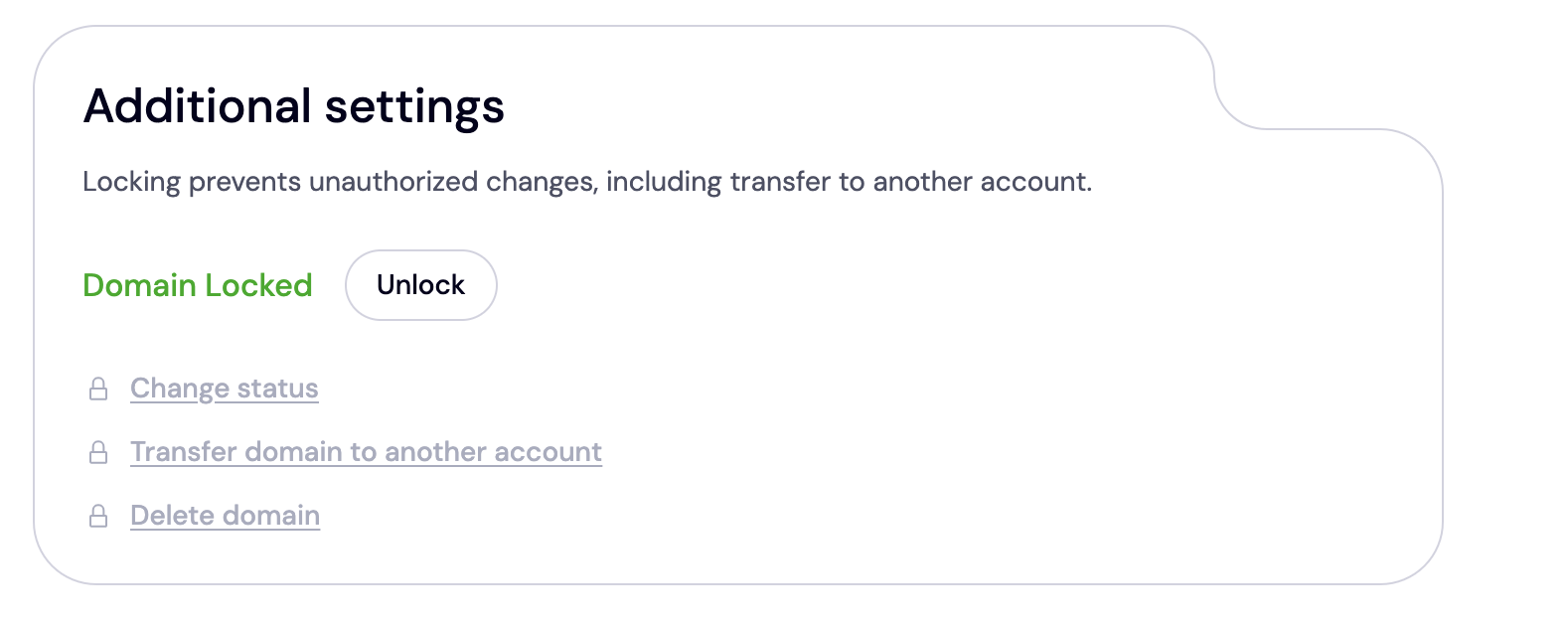
Before pushing your domain and changing its ownership, you will need to unlock the domain. This Domain Lock is a security feature offered by Trustname that prevents unauthorized transfers or changes on your account and domains.
Once you have moved the domain to the new owner, we will automatically turn on the Domain Lock, so you don’t need to worry. To unlock your domain:
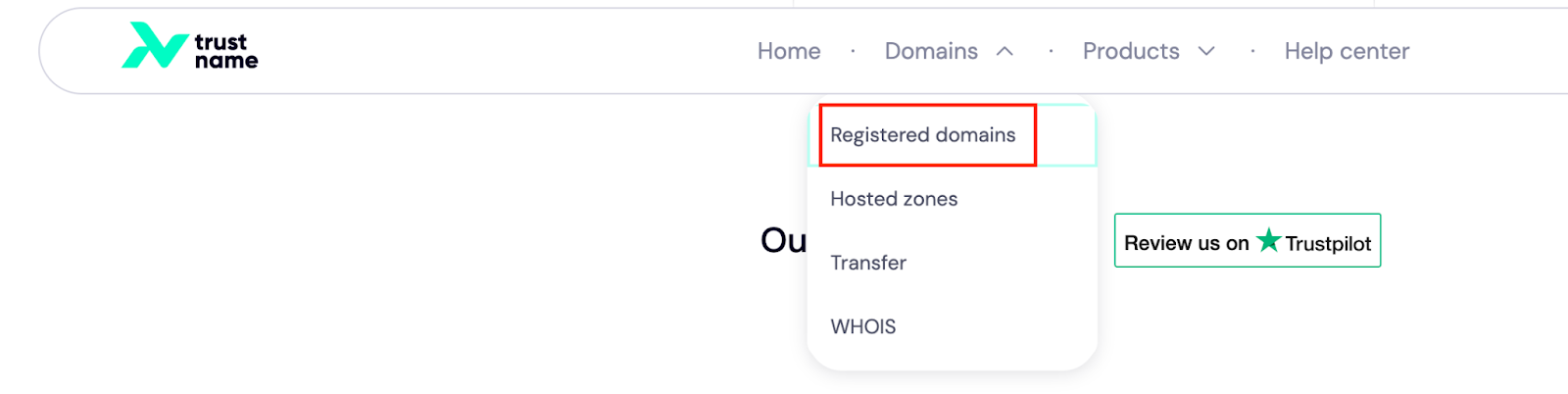
- Click on the ‘Domains’ dropdown in the header to see your domain management settings. Next, click on ‘Registered domains’ to see the list of all your registered domain names:
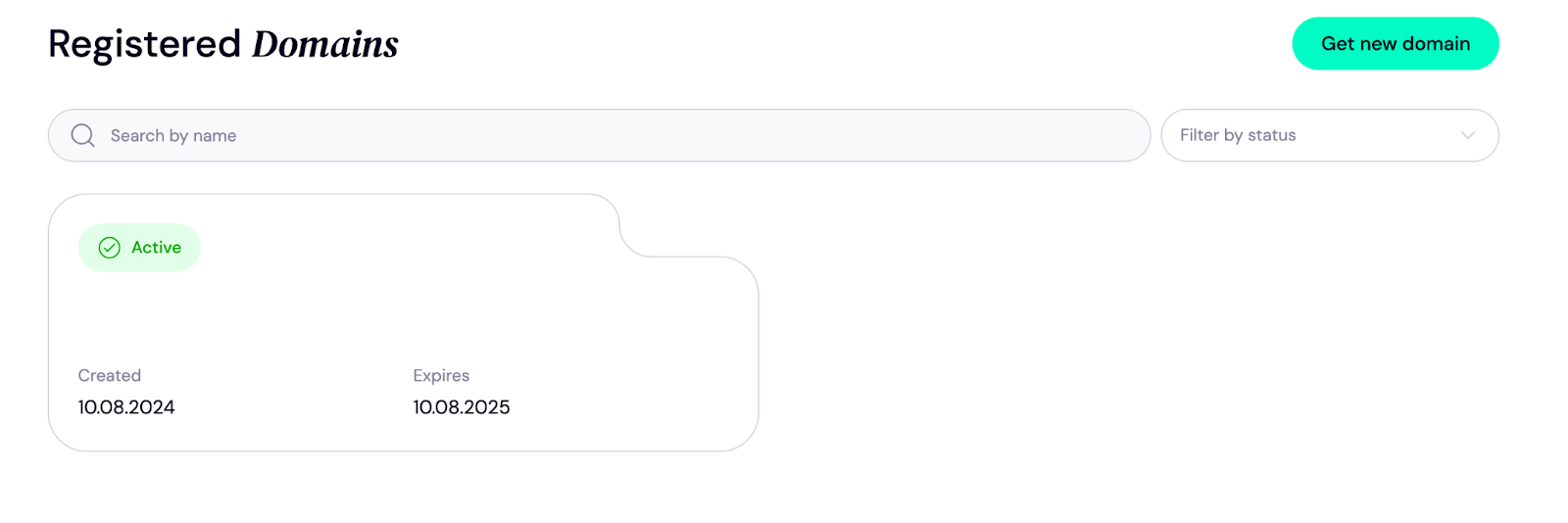
- You’ll then be directed to your domain list. Select the domain you want to transfer out from the list:
- On your domain settings page, scroll down to the ‘Additional Settings’ section. If your domain is locked, click ‘Unlock’. That’s it.
Step 3: Enter the new owner’s details
Next, on the same page, click ‘Transfer domain to another account’ under the ‘Additional Settings’ section. This is the portal you use for a domain push:
Step 4: Initiate the transfer:
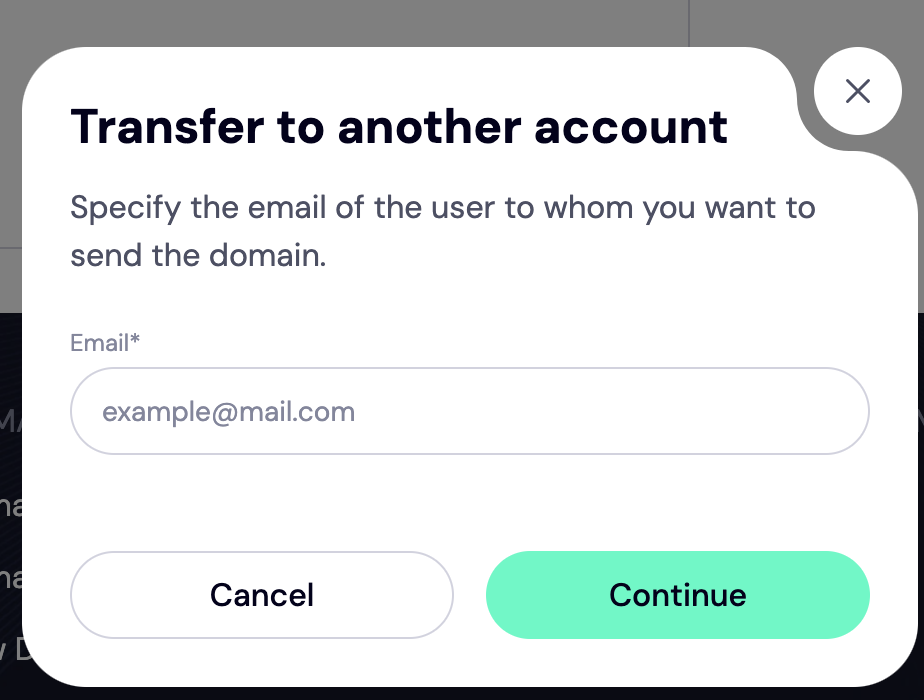
On the pop-up, you’ll be directed to enter the email of the user you want to transfer to. Ensure that all details are accurate, as this information will be verified according to ICANN regulations. If you and the new owner are using our Two-tier privacy, however, you can bypass this verification process. More on that soon.
Step 5: Confirm and submit the request
Review the details you have entered before submitting the ownership change request. Click ‘Continue.’ You’ll get a confirmation pop-up message on your screen notifying you of the pending transfer.
Step 6: Check pending transfer
Once you have initiated the domain push, you can confirm the status of your domain transfer. On the domain’s main settings page, under ‘General Info,’ check the domain status. You should see something like this:
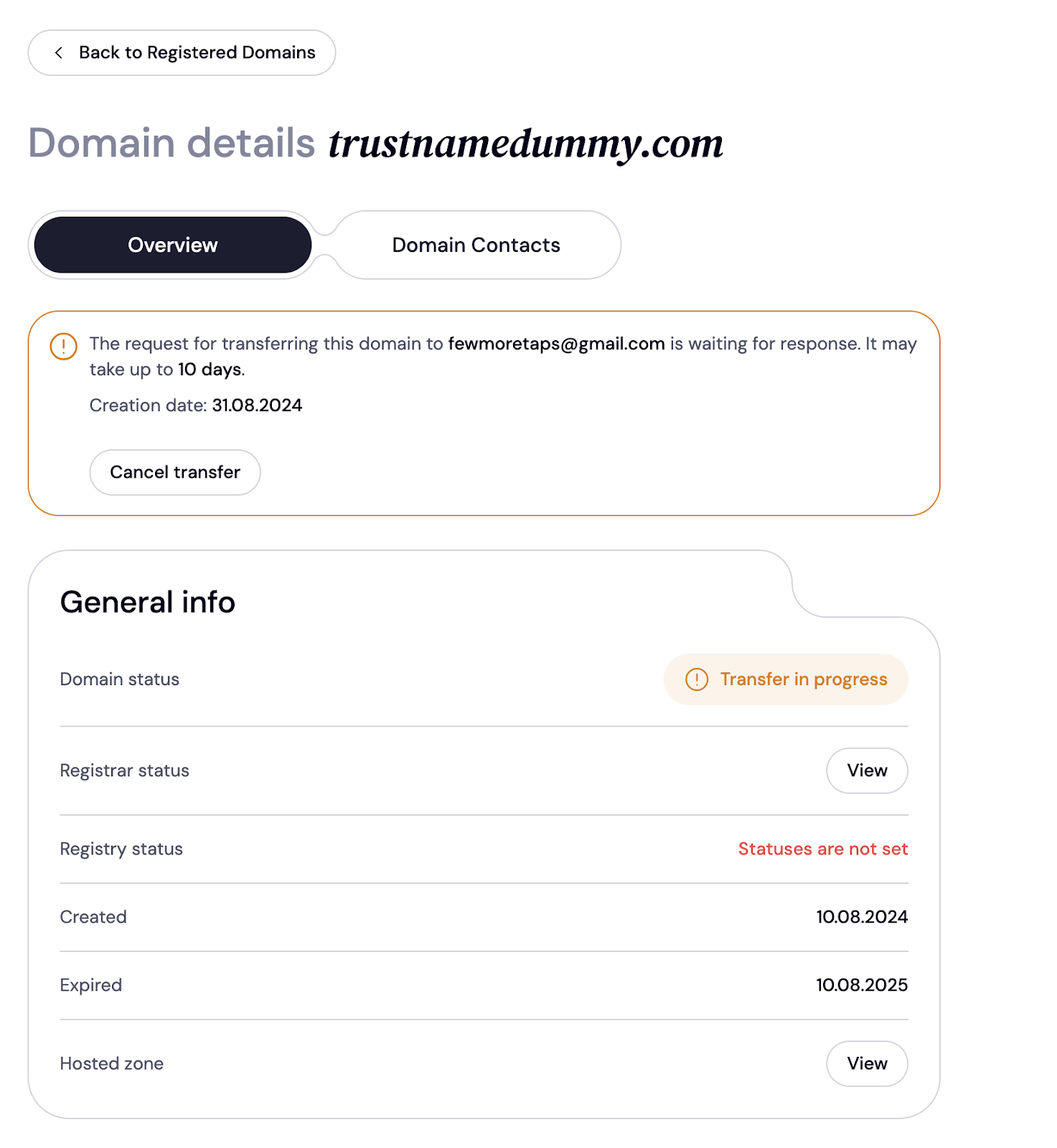
Alternatively, you can see your pending transfers by navigating to your transfers portal. Under ‘Domains’, click on ‘Transfer’:
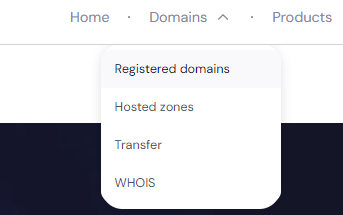
On the transfers page, click on ‘My transfers’ to see your transfer statuses:
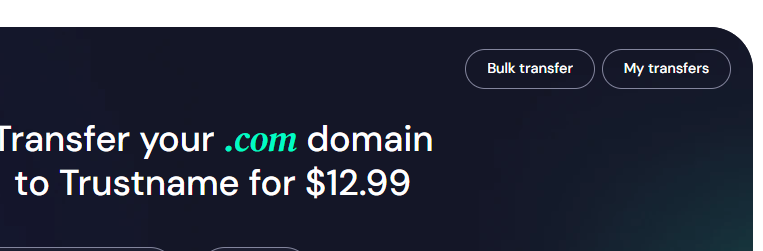
Finally, click on ‘Transfers out’ to see your outgoing transfers:
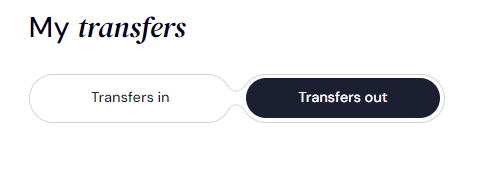
Step 7. Verify the transfer’s completion
Both you and the new user will receive notifications regarding the transfer status. Ensure that the new owner accepts the request so they can access the domain.
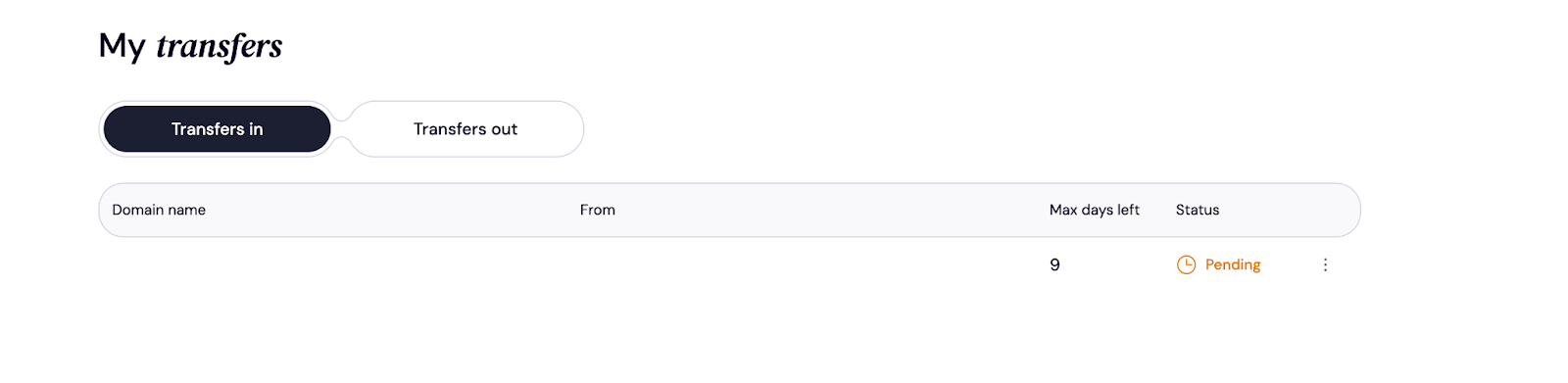
To accept the transfer, the new owner needs to log into their Trustname account using their credentials. Next, they’ll navigate to ‘Domains >> Transfer >> My transfers’ as shown above.
Now, the owner needs to click on the ‘Transfers in’ field to see all their incoming transfers.
Before the new owner accepts the domain, they’ll receive a pending transfer status:
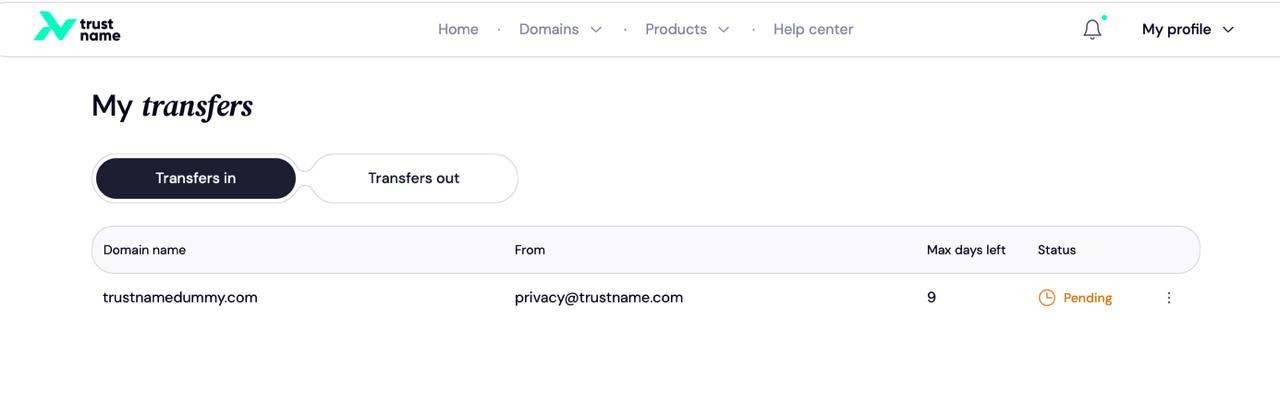
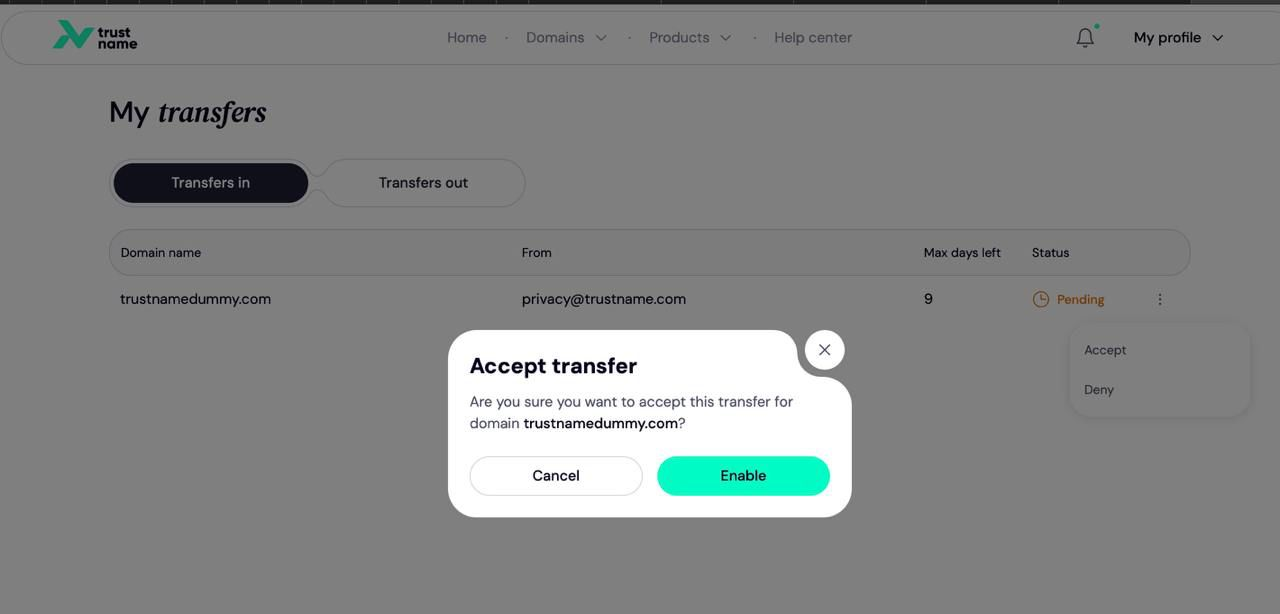
Then, they’ll click on the three-dot menu to accept the incoming transfer:
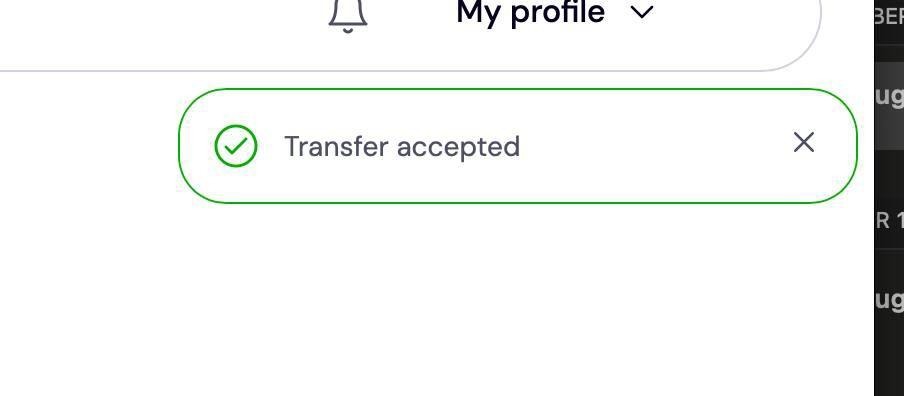
Once the new owner accepts the domain push, you’ll get a notification like this:
The domain name will now be listed in the new owner’s Trustname account.
If the new owner doesn’t have a Trustname account yet
If the new owner doesn’t have a Trustname account yet, they simply need to create one in a few steps so you can push the domain. If the new owner doesn’t have an account yet, follow these steps:
Step 1: Enter the new owner’s details
Provide the new owner’s contact information as specified earlier.
Step 2. Confirm and submit the request
Review the details you have entered before submitting the ownership change request. The new owner will need to confirm the request through a verification email sent to them.
Step 3. The new owner creates their Trustname account
If the new owner does not already have an account with us, we will send a transfer approval email to them including a link that redirects them to our account creation portal.
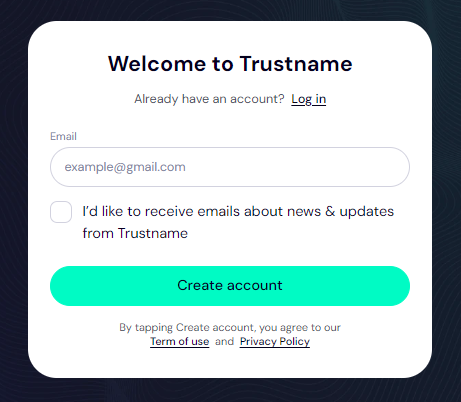
They simply need to type in their email address and click ‘Create account’.
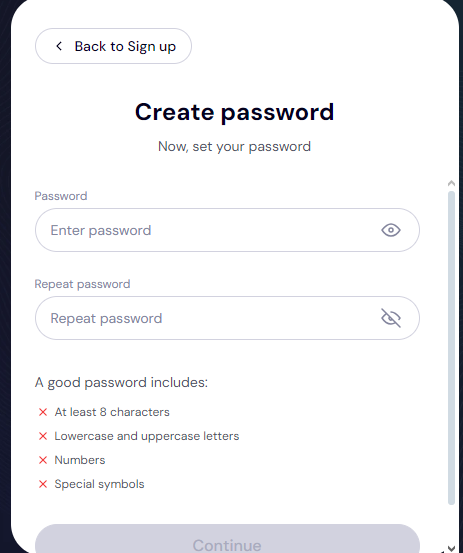
On the next page, they’ll be required to choose a password:
After creating a password, they’ll receive a verification email. The new owner should copy and paste the confirmation code in the required field. If they don’t get an email immediately, they should check their spam folder.
Finally, they’ll be required to fill in their name and contact details. Alternatively, they can skip this step and configure their account contact details later. That’s it!
Finally, follow the same steps as outlined earlier.
Trustname’s Two-Tier Privacy - Enabling Unlimited Domain Pushes
At Trustname, we offer a signature Two-Tier domain WHOIS privacy package that allows you to push your domain as many times as you want. Here’s how it works:
When registering a domain name on Trustname, you can choose to use your own personal details (the traditional route), or you can choose the ‘Suggested Default Contact’ where we register your domain name in the name of our partner proxy company Perfect Privacy LLC. On paper, Perfect Privacy LLC will be listed as the official registrant of the domain, but you retain full control of the domain name - Trustname guarantees this.
On the second layer of Trustname’s domain privacy, we are partnered with WHOIS Privacy Protection Services to give you the basic domain privacy offered by other registrars.
This way, whether you chose your own name or Perfect Privacy LLC in the initial domain registration, you can hide your contact details using the company's generic proxy information. If you chose PP LLC, this creates a double shield.
Using these two proxy companies - one as a registrant and the other as a generic WHOIS privacy service - comprises Trustname’s Two-Tier Privacy protection.
How our Two-tier privacy bypasses ICANN’s lock
To comply with The Internet Corporation for Assigned Names and Numbers (ICANN) regulations, registrars enforce a 60-day registrar or transfer lock on domains that were recently transferred or modified.
You won’t be able to transfer your domain name until 60 days have passed since the last registrar transfer, registrant change, or change to the domain’s contact details.
Now, here’s the beauty of Trustname’s Two-Tier privacy. If you and the new owner both have our Two-Tier privacy enabled, Perfect Privacy LLC will be listed as the registrant. So no matter how many times you push the domain, the domain contact information never changes, effectively bypassing the 60-day lock requirement.
Benefits of Domain Push on Trustname
So what are some of the benefits of pushing your domain on Trustname?
No transfer delays
First, there are no delays typical of external transfers. As long as you and the new owner both have Trustname accounts, you can move your domain in less than 5 minutes. It’s that quick!
No extra fees or minimum subscriptions required
With external transfers, the new registrar will require you to pay for a registration of at least 1 year that will be added to extend the domain’s current expiry date.
With a domain push, the receiving owner never has to pay a single dime. The domain’s current registration timeline simply continues seamlessly once it’s moved to their account.
Transferring a Domain Out of Trustname
If you still want to transfer the domain out of Trustname rather than push it, we don’t create any unnecessary hurdles so that you get frustrated as many other registrars do.
Here’s how to transfer your domain out of Trustname:
Step 1. Unlock the domain
The first step is to unlock the domain. To unlock your domain, click on the ‘Domains’ dropdown in the header and click on ‘Registered domains’ to see your domain list.
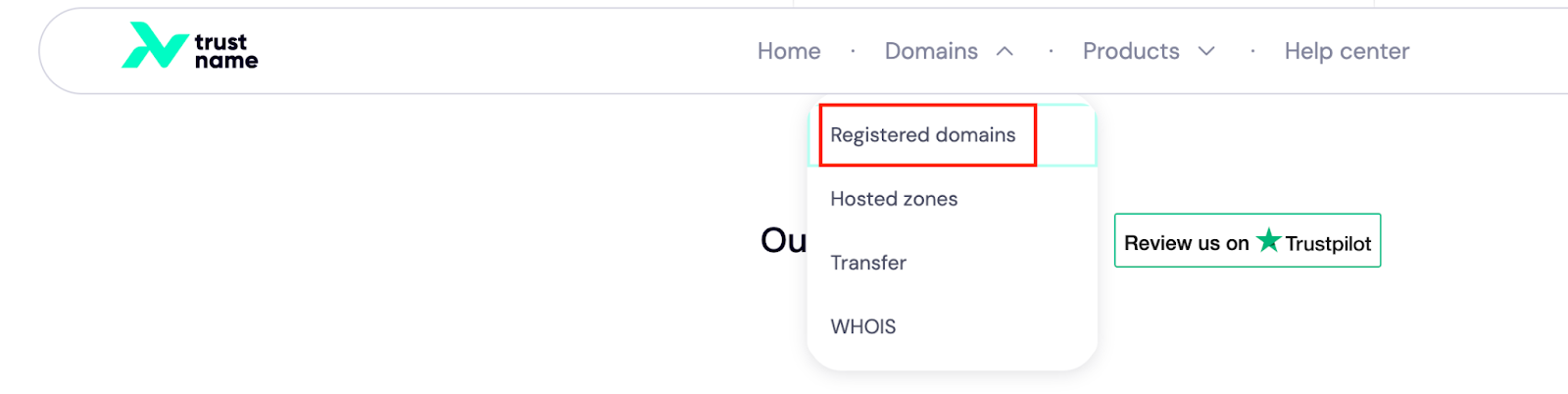
Click on the domain you want to transfer out, scroll down to the ‘Additional settings’ section, and click ‘Unlock’ as described earlier.
Step 2. Generate the Auth code
Next, you need to obtain the Auth code for the domain. We will use this code to verify that it’s actually you initiating the transfer to your new registrar.
To find the Auth code, scroll to the ‘Authinfo’ section on the same page and click ‘View Authinfo’:
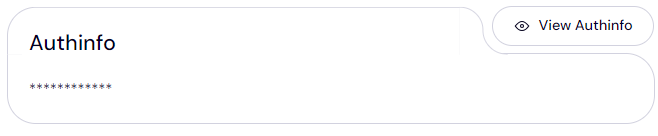
Copy the Auth code as you will need to submit it with your new registrar.
Step 3. Disable our WHOIS privacy
The final preparatory step is to disable our WHOIS privacy. If you have our Two-Tier privacy enabled, you can change your domain contact information back to yours by navigating to your domain’s contact settings.
On the domain’s general settings page, click on ‘Domain Contacts’:
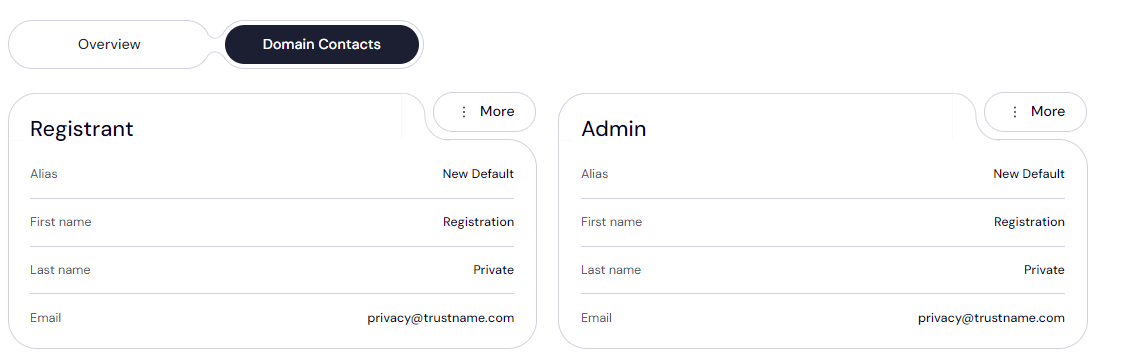
Click on the three-dot menu tagged ‘More’ and click ‘Change’. Under ‘Choose contact ’, select ‘Add new contact’ and fill in your new contact details.
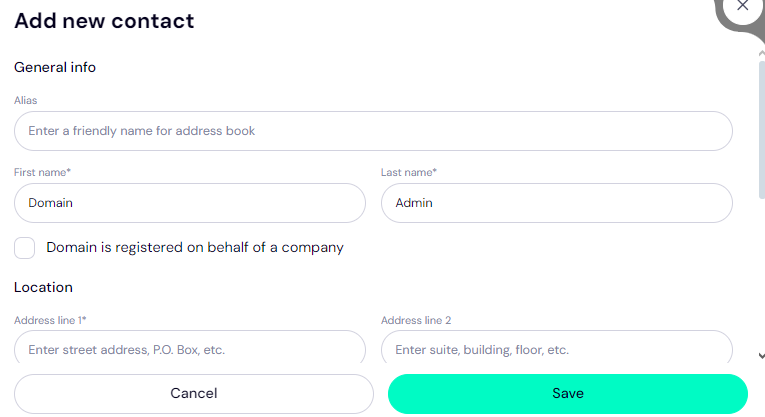
Click ‘Save’.
To disable our second WHOIS privacy layer, simply head to the main domain settings page under ‘Overview’, look for ‘WHOIS privacy’ and click ' Disable '. That’s it. Your domain is ready to be moved.
Step 4. Initiate the transfer at the new registrar
The final step is to initiate the transfer at your new registrar. Looking for your registrar’s domain transfer page, type in the domain and submit the Auth code you obtained in our portal.
How to Transfer a Domain to Trustname
Have a domain you want to move from your current registrar to Trustname? We can’t wait to have you with us!
Read why you should transfer your domain to Trustname - perks to expect so you know why you’re making the right choice moving to us.
To transfer your domain to Trustname, you need to unlock the domain at your current registrar, generate the Auth code, disable WHOIS privacy, and then initiate the transfer at Trustname.
Look for your registrar’s transfer settings to prepare the domain for the transfer and find the relevant settings.
Initiating the transfer at Trustname
Step 1
Head to the Trustname.com website and click ‘Log In’ at the top right corner to access your Trustname account:
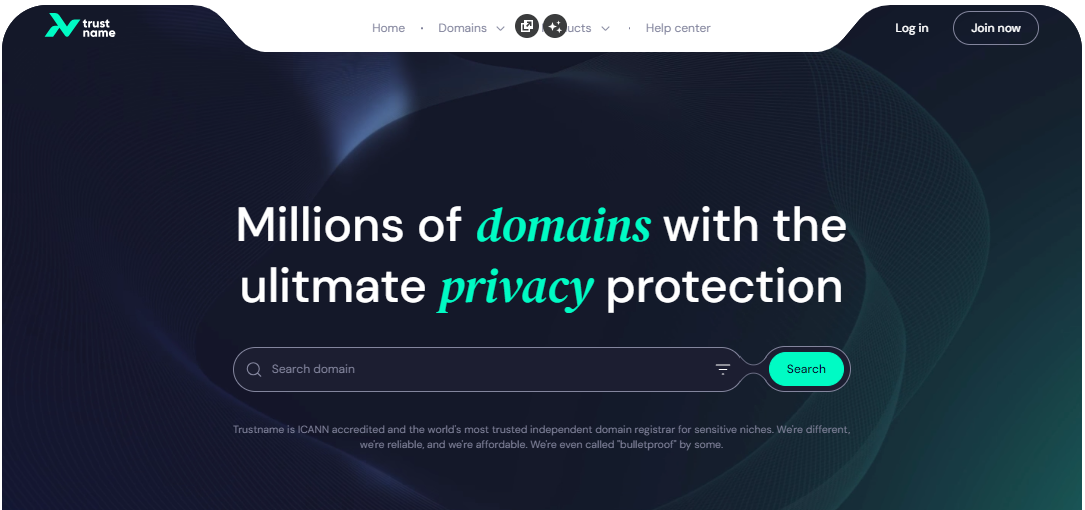
Step 2
Fill in your account username and password to gain access to your customer portal:
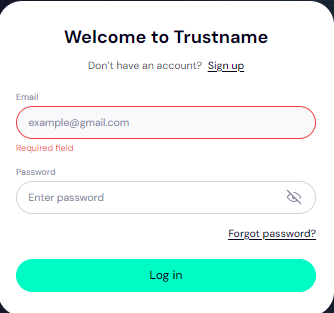
Click ‘Log in’.
Step 3
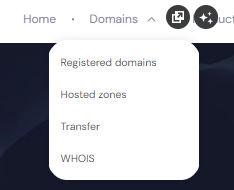
Under the ‘Domains’ dropdown in the header, click on ‘Transfer’:
Step 4
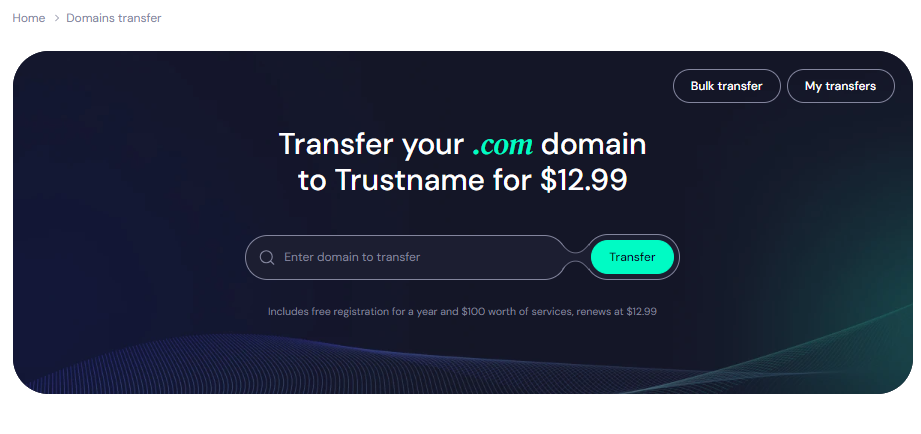
Type in your domain including the domain extension and click on ‘Transfer’:
Step 5
Enter the Auth Code (EPP code) your registrar emailed you or that you got in the transfer portal and click on ‘Continue’:
Step 6
Fill in your domain contact details. You can choose to use your own details by clicking on the ‘Choose contact’ dropdown and selecting ‘Add new contact’:
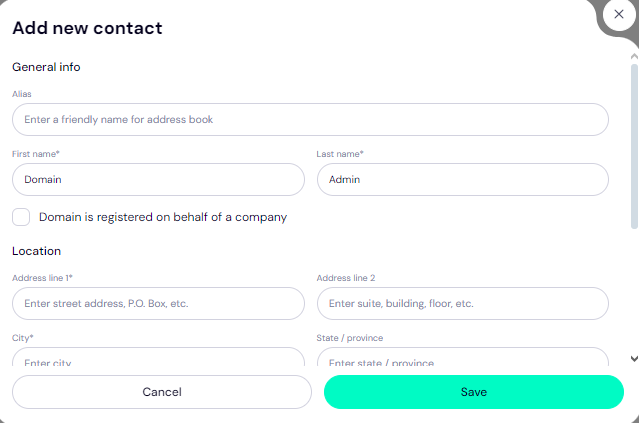
Or you can click the ‘‘Suggested Default Contact’’ to enable Trustname’s Two-Tier Privacy Protection.
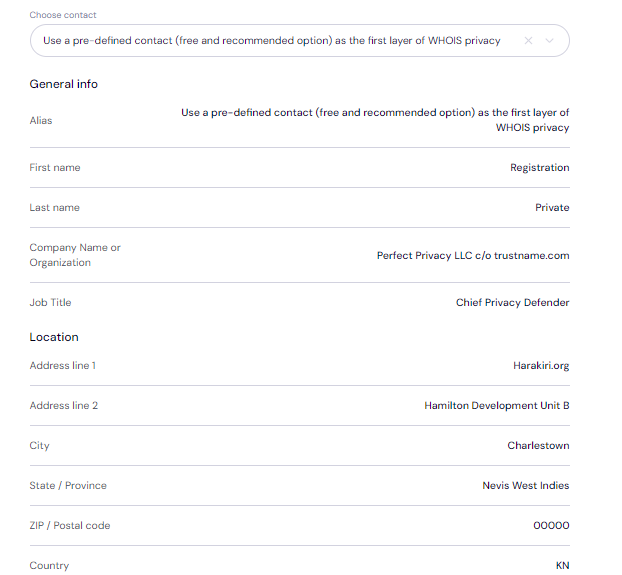
Note: You retain full control of your domain even if you choose ‘Use a pre-defined contact’ - we only offer this service to give you the most privacy and minimize your digital footprint.
Click ‘Continue’.
Step 7
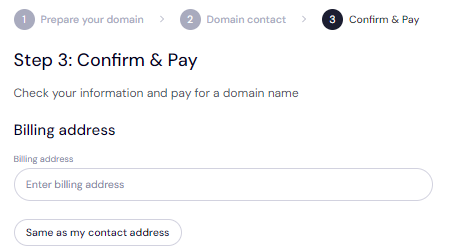
Pay for your domain transfer and get 1 extra year on your domain’s current expiry date.
Enter your billing address or select ‘Same as my contact address’ so you don’t need to fill it in manually:
Step 8
Choose your payment method. You can use a bank card or existing funds in your Trustname wallet to make a payment:
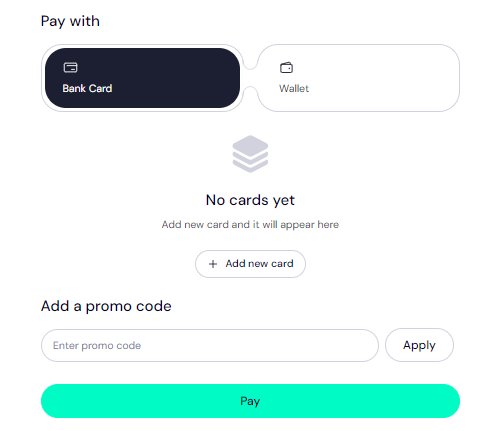
If you don’t have a bank card set up yet, click on ‘Add new card’ and fill in your card details to have it set up.
Trustname also accepts cryptocurrencies for payment!
Trustname’s domain transfer promo code - WELCOME777
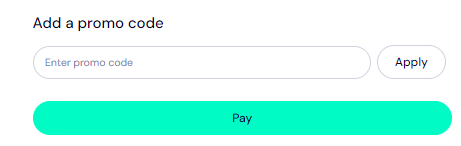
Use our promo code WELCOME777, and we will only charge $7.77 for your domain transfer - with a 1-year registration given for free and added to your domain’s current expiry date.
Type in WELCOME777 in the ‘Add a promo code’ section:
Step 9
Select your domain registration period (between 1-10 years at a time).
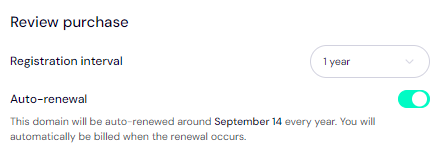
Leave the auto-renewal button ON so we renew your domain name long before it expires for you.
Step 10
Click on the ‘Pay’ button and follow the on-screen prompts. That’s it!
Rounding up, a domain push is a domain transfer from one Trustname account to another. On the other hand, not all domain transfers are domain pushes, as you could also be transferring your domain between registrars.
If the new owner doesn’t have a Trustname account, you simply need to fill in their email, and we’ll direct them to handle the rest. With a domain push, you can enjoy swift transfers and zero fees.
Was this article helpful?
That’s Great!
Thank you for your feedback
Sorry! We couldn't be helpful
Thank you for your feedback
Feedback sent
We appreciate your effort and will try to fix the article