Trustname's Whois Lookup tool helps you quickly find important public information about any registered domain, including registrar details, registration dates, nameservers, and domain status. This guide explains how to use the tool, understand the results, and know when a Whois lookup is useful.
Key Takeaways
- Quick Search – Look up any registered domain in seconds.
- Domain Details – View registrar, dates, nameservers, and status.
- Privacy Notice – Whois privacy may hide registrant information.
- Full Information – Request additional details where applicable.
- Common Uses – Research ownership, expiry dates, and disputes.
TABLE OF CONTENTS
Have your sights set on a particular domain name? Trustname's Whois lookup tool gives you everything you need to find out all the information tied to the domain name - the current registrar, the domain owner, registration dates, and nameserver information.
If you have tried registering a domain name and found that it was unavailable, you can use the Whois lookup tool to find the current domain owner and, hopefully, negotiate a deal if you absolutely want it.
If the domain is protected by domain privacy at the current registrar or 'redacted for privacy' (to comply with GDPR regulations), you won't be able to see the actual registrant information - instead, you'll see generic proxy details that belong to the registrar.
Using Trustname's Whois Lookup Tool
To use Trustname's Whois lookup tool, follow these steps:
- Log In To Your Account
If you are not already logged in to your Trustname account, head to the Trustname.com website and enter your login details, username and password.
If you have two-factor authentication (2FA) enabled, head to your Google Authenticator app, copy the code, and paste it into the required field.
- Access The Whois Lookup Tool
Once you are logged into your Trustname account, from the homepage, click on the 'Domains' dropdown to access your domain settings.
From the dropdown list, click on the 'Whois' button to access Trustname's Whois lookup tool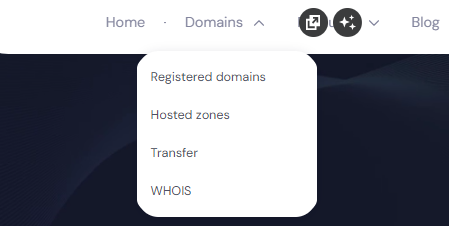
- Search For The Domain Name
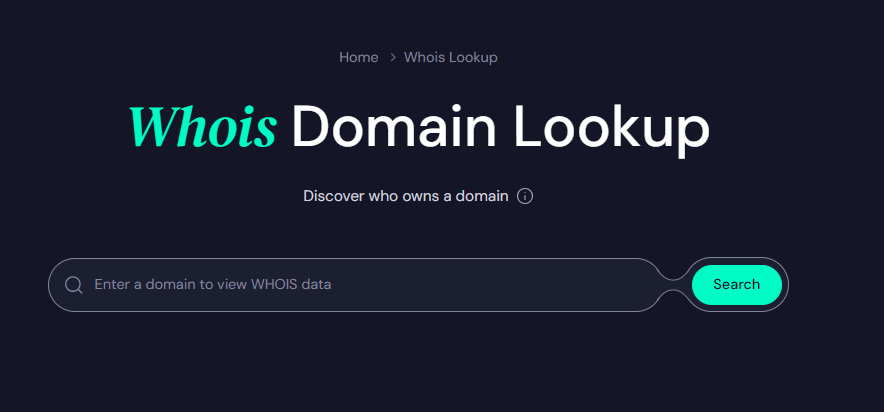
Trustname's Whois lookup tool comes with a search engine built in to run queries on any domain you want. Type in the domain in the domain portal and hit the 'Search' button.
- Review The Domain Information
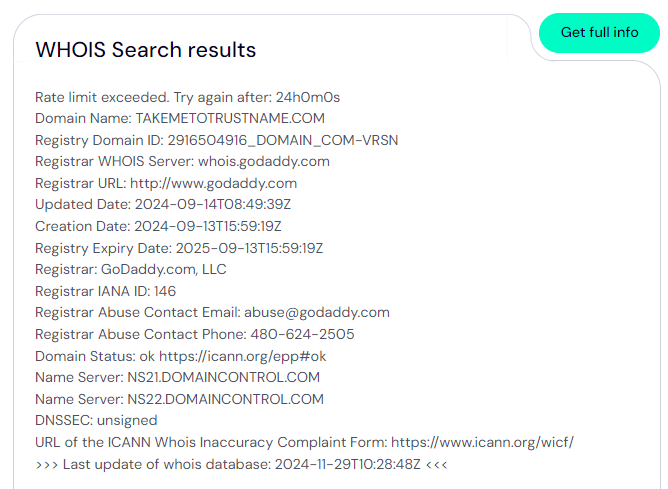
Next, review the information tied to the domain. Unlike other Whois lookup tools with limited data, Trustname gives you a wealth of information on your domains:
[+] [List] Green Unordered - The Registry Domain ID – The registry domain ID is a unique identifier attached to a domain by the registry.
- Registrar Whois Server – The registrar Whois server is a server that ICANN-accredited registrars like Trustname set up to maintain up-to-date information on the domains they register. All ICANN-accredited registrars are required to maintain a Whois server.
- Registrar URL – The URL for the domain registrar's website.
- Updated Date – The last date changes were made to the domain name's information.
- Creation Date – The last registration date of the domain name.
- Registry Expiry Date – The expiry date of the domain name in the registry's database.
- Registrar – The official name of the domain registrar.
- Registrar IANA ID – The unique identifier for the registrar in the IANA database. The IANA is a subsidiary of the ICANN that coordinates the DNS Root, IP addressing, and other Internet protocol resources.
- Registrar Abuse Contact Email – The contact email address of the abuse resolution portal on the domain registrar.
- Registrar Abuse Contact Phone – The phone contact information of the abuse resolution team on the domain registrar.
- Domain Status – The EPP status code on the domain name - the full list here: https://icann.org/epp
- Name Server – The first nameserver delegated with the domain's DNS resolution.
- Name Server – The second nameserver delegated with the domain's DNS resolution.
- DNSSEC – The DNSSEC status on the domain name - signed or unsigned.
- URL of the ICANN Whois Inaccuracy Complaint Form
- Last update of whois database – The last time the domain owner made any change to the domain's Whois information.
Our Whois lookup tool also specifies terms of use and other user policies to note.
If you want to get more detailed information on a domain name currently hosted with Trustname, you can click the 'Get full info' button.
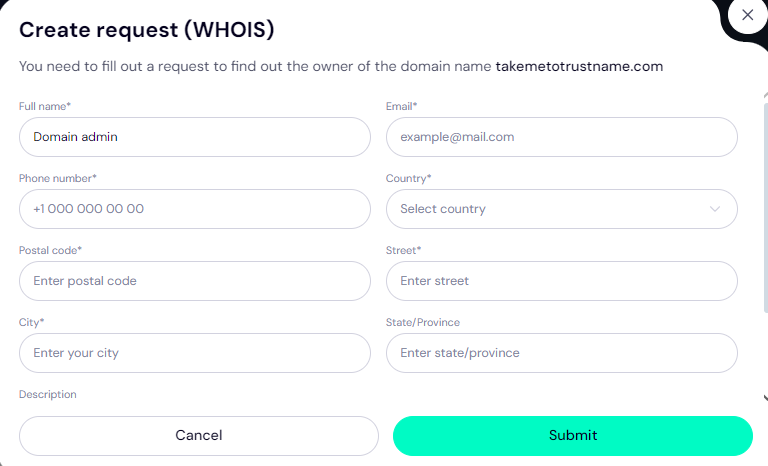
Fill in your name, email, phone number, location, and any other relevant information.
However, note that unlike most other registrars, you would need to submit three simultaneous court orders from the U.S, St. Kitts and Nevis, and Estonia before we release any domain information.
This is part of our commitment to creating a safe haven for domain owners, especially businesses prone to abuse.
Read how Trustname's Two-Tier Domain Privacy works for more information.
When to use Trustname's Whois lookup tool
Wondering when Trustname's Whois lookup tool might come in handy? Let's see some scenarios:
- To buy a domain from the owner
As we specified earlier, if you want a domain that's already taken, you can use Trustname's Whois lookup tool - whether you are a customer with us or not - to find the domain owner's information so you can reach out to them.
- To monitor an expiring domain
If you are looking to buy an expired/expiring domain, you can use the Whois lookup tool to monitor the registration and expiry dates on the domain so you can place a backorder on it.
- When filing disputes
You can also use Trustname's Whois lookup tool to find relevant information when filing disputes or investigating domains that are involved in phishing or scams.
Was this article helpful?
That’s Great!
Thank you for your feedback
Sorry! We couldn't be helpful
Thank you for your feedback
Feedback sent
We appreciate your effort and will try to fix the article