Domain parking allows you to keep ownership of a domain without connecting it to an active website. By using a third party parking service, you can also monetize your domain by displaying ads and earning revenue from visitor clicks.
Key Takeaways
- Park Domains – Keep unused domains active for future use.
- Update DNS – Point your nameservers to a parking service.
- Monetize – Earn revenue through pay-per-click (PPC) ads.
- Monitor – Track traffic and earnings with analytics tools.
- Troubleshoot – Verify nameservers and allow time for DNS propagation.
TABLE OF CONTENTS
- Key Takeaways
- How To Park Your Domain On Trustname
- How To Monetize Your Domain
- Frequently Asked Questions (FAQs)
Domain parking, also known as cash parking, allows you to keep ownership of a domain without using it for an active website. It's an excellent way to keep your domain functional while you're not ready to build a website.
You can also monetize a parked domain by displaying pay per click (PPC) advertisements. Whenever a visitor clicks on an ad, you earn a share of the advertising revenue.
Although Trustname does not offer an in house domain monetization service, you can easily park and monetize your domains using trusted third party parking providers.
How To Park Your Domain On Trustname
- Log In To Your Trustname Account.
Sign in to your Trustname account using your login credentials.
- Navigate To Domain Management
After logging in, go to.
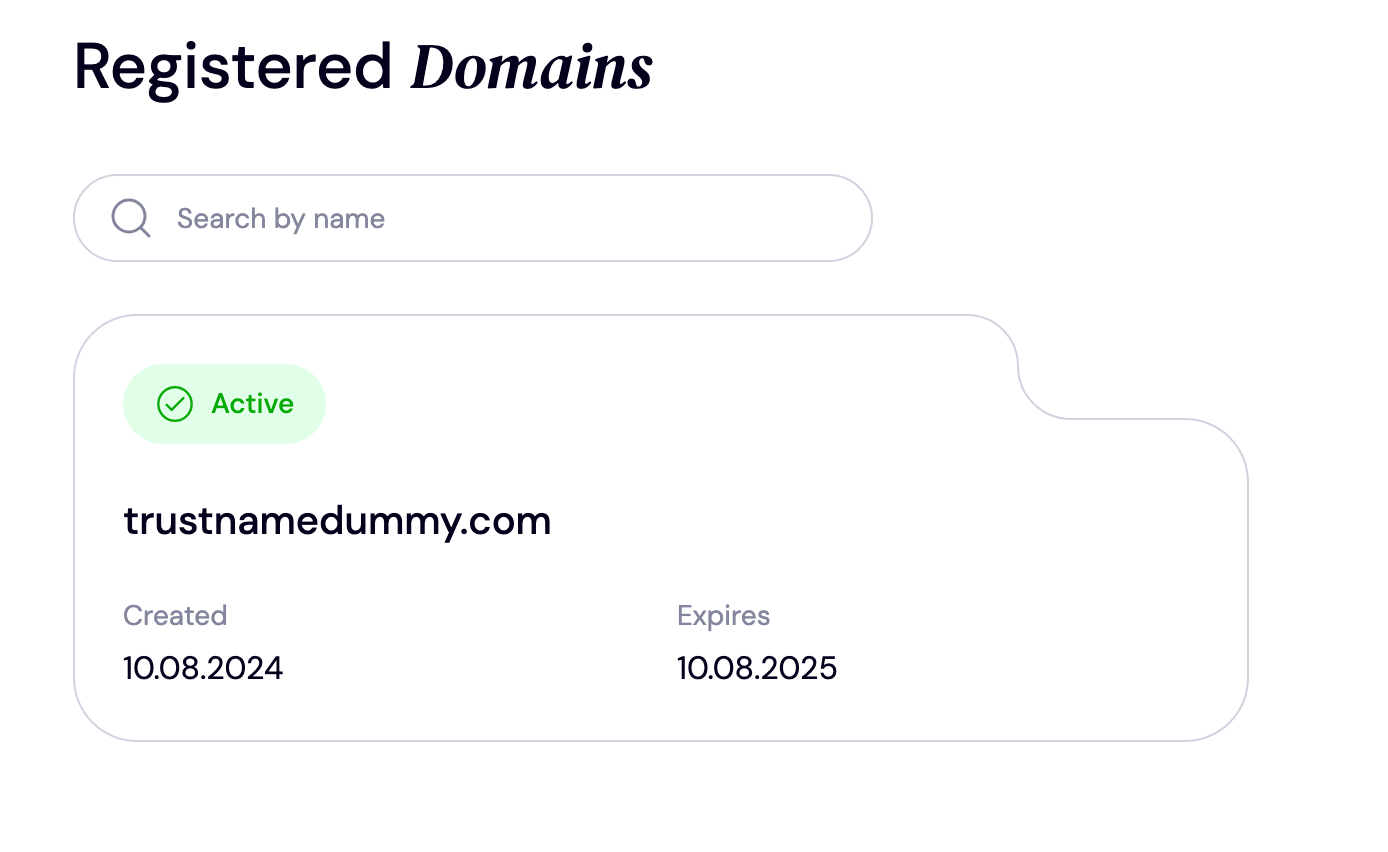
Domains → Registered Domains.
You'll see all the domains associated with your account. Click on the Domain you want to park.
- Unlock Your Domain
You'll be taken to your domain management page.
If Domain Lock is enabled, you'll need to disable it before making changes to your domain settings.
[+] [Callout] Info Insert title here [+] [Callout] Title/Title with Icon -> Don't worry, Domain Lock is a security feature that protects your domain from unauthorized changes, and you can easily enable it again after updating your settings.
To unlock your domain:
[+] [List] Green Unordered - Scroll to the Additional Settings section.
- Click Unlock.
[+] [Notice] Default Insert title here [+] [Notice] Title -> Once you've finished updating your settings, remember to enable Domain Lock again to keep your domain secure.
To park your domain with a third party service, you'll need to update your domain's nameservers to those provided by the parking service.
- Access DNS Settings
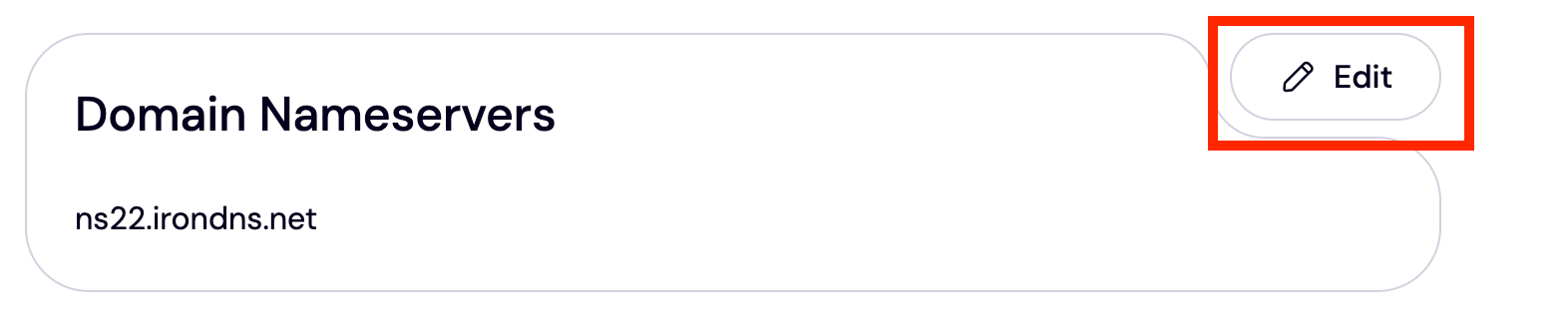
Navigate to the Domain Nameservers section and click the Edit icon.
- Update The Nameservers
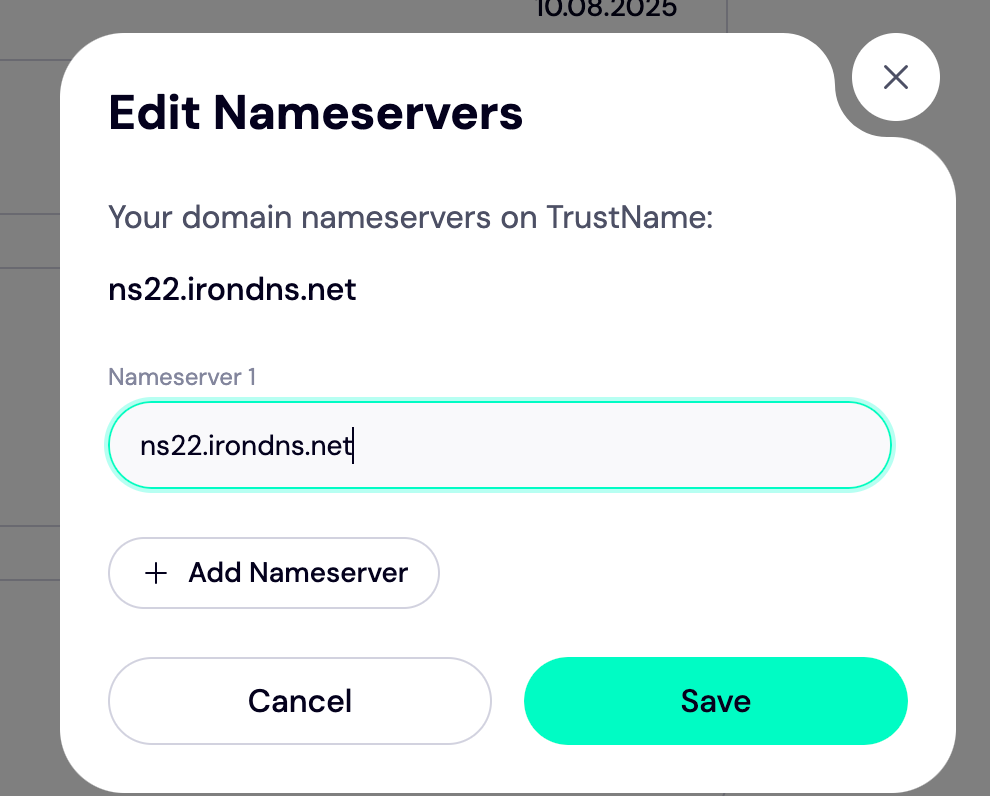
A pop up window will display your current nameservers.
Click on Add Nameserver, then enter the nameservers provided by your chosen domain parking service.
- Save Your Changes
Click Save to apply your changes.
Please allow 24 to 48 Hours for DNS propagation before the new nameservers become active.
How To Monetize Your Domain
While Trustname doesn't provide built in domain monetization, you can easily earn revenue by using third party domain parking services.
- Choose A Third Party Parking Service
Several domain parking providers offer monetization features.
Popular Options include:
[+] [List] Green Unordered - Sedo
- ParkLogic
- Bodis
- ParkingCrew
These services partner with advertising networks to display ads on your parked domain. Most also provide analytics dashboards that allow you to monitor traffic, clicks, and earnings in real time.
[+] [Notice] Default Insert title here [+] [Notice] Title -> Before choosing a parking service, review its reputation, customer feedback, and available features. Look for services that offer privacy protection, traffic monitoring, detailed analytics, and responsive customer support.
- Create An Account
Sign up with your preferred domain parking service.
Many providers, including Sedo Parking, allow you to create an account and begin using their platform free of charge.
- Configure Your Domain
Follow your parking provider's setup instructions.
In most cases, you'll simply update your domain's nameservers to those supplied by the parking service.
Domain parking is typically activated within 24 hours, although activation times may vary depending on the provider.
If you need assistance during setup, contact your parking provider's customer support team.
- Monitor Performance
Once your domain is active, sign in to your parking service dashboard to monitor.
[+] [List] Green Unordered - Visitor Traffic
- Ad Clicks
- Revenue
- Overall Domain Performance
Regular monitoring helps you evaluate your domain's earning potential and optimize your results.
Frequently Asked Questions (FAQs)
Domain parking is the process of keeping a domain registered without connecting it to an active website. A parked domain can be reserved for future use or used to display advertisements and generate revenue.
To monetize a parked domain, sign up with a third party domain parking service that offers advertising revenue.
Once you've configured your domain's nameservers to point to the parking provider, advertisements will be displayed on your parked domain, allowing you to earn revenue from visitor clicks.
Log in to your Trustname account and navigate to:
Domains → Registered Domains
Select the domain you want to park.
Next, open the Domain Nameservers section and replace your existing nameservers with those provided by your parking service.
If you're parking multiple domains, you'll need to update the nameservers for each domain individually.
Before changing your nameservers, make sure your domain isn't protected by Domain Lock. If you continue experiencing issues after unlocking the domain, contact Trustname Support via Live Chat or by submitting a support ticket.
First, verify that your nameservers have been entered correctly.
Then, allow up to 24 to 48 hours for DNS propagation.
If the issue persists after propagation is complete, contact your domain parking provider's customer support team for further assistance.
Was this article helpful?
That’s Great!
Thank you for your feedback
Sorry! We couldn't be helpful
Thank you for your feedback
Feedback sent
We appreciate your effort and will try to fix the article