Domain transfer locks are essential for safeguarding your domain against unauthorized transfers and cyber threats. This guide explains what domain transfer locks are, why they are crucial, and how you can manage or disable your lock when transferring your domain.
Whether you are performing routine maintenance or preparing to migrate your domain, understanding transfer locks keeps your digital assets secure.
Key Takeaways
- Essential Safeguard – Domain transfer locks prevent unauthorized transfers of your domain to another registrar without your explicit consent.
- Two Lock Types – Trustname utilizes both standard registrar side toggles and mandatory ICANN 60 day security holds (such as ClientTransferProhibited).
- Uninterrupted Services – Enabling or disabling a transfer lock does not affect your email hosting, DNS management, or live website.
- Easy Management – You can check and toggle your domain lock status at any time in your Customer Portal under Additional Settings.
TABLE OF CONTENTS
- Key Takeaways
- What is a Domain Transfer Lock?
- Why Use a Domain Transfer Lock?
- How to Check if Your Domain is Locked
- How to Unlock Your Domain
- Frequently Asked Questions (FAQs)
What is a Domain Transfer Lock?
A domain transfer lock, also known as a domain lock, is a security feature that prevents unauthorized transfers of your domain to another registrar. When your domain is locked, it cannot be transferred away from Trustname without your explicit permission and without you unlocking it first.
This ensures your domain remains safe from accidental or malicious transfers.
Your domain transfer lock can manifest in two ways
- Registrar Side Lock
By default, domains on your Trustname account are locked to prevent unauthorized or accidental changes, such as domain transfers or Whois data alterations. You can easily enable or disable the registrar lock for all your domains in your Client Portal under domain management settings.
Even when locked, all other domain related features (like email and DNS management) will continue working perfectly.
- Client Transfer Prohibited Status
When you see the status code Client Transfer Prohibited on your account, it means no one can transfer your domain to another registrar.
This status code appears on your domain account for any of the following reasons.
[+] [List] Green Unordered - You recently changed the Whois contact data associated with your account.
- You recently registered the domain name.
- The domain name was recently transferred to Trustname.
This lock remains in place for 60 days, during which time you cannot transfer your domain to another registrar until the lock period expires. This requirement is part of ICANN's Transfer Policy and applies to all ICANN accredited registrars, including Trustname.
A domain transfer lock can protect almost all domains except certain country code top level domains (ccTLDs), such as .eu, .de, and .us. Additionally, if you plan to transfer a domain name to us (or away from us), ensure your domain is unlocked beforehand.
Why Use a Domain Transfer Lock?
Here are the two main benefits of using a domain transfer lock.
- Prevent Unauthorized Transfers
The primary purpose of a transfer lock is to safeguard your domain from being transferred without your knowledge. This is especially important if your domain name is used for business or commercial purposes.
- Add an Extra Layer of Security
Hackers can attempt to hijack your domain and redirect your hard earned traffic to compromised sites or demand a ransom to return control of your domain. By keeping your domain locked, you play an active role in keeping your brand safe and secure.
How to Check if Your Domain is Locked
Follow these steps to check if your domain is currently locked.
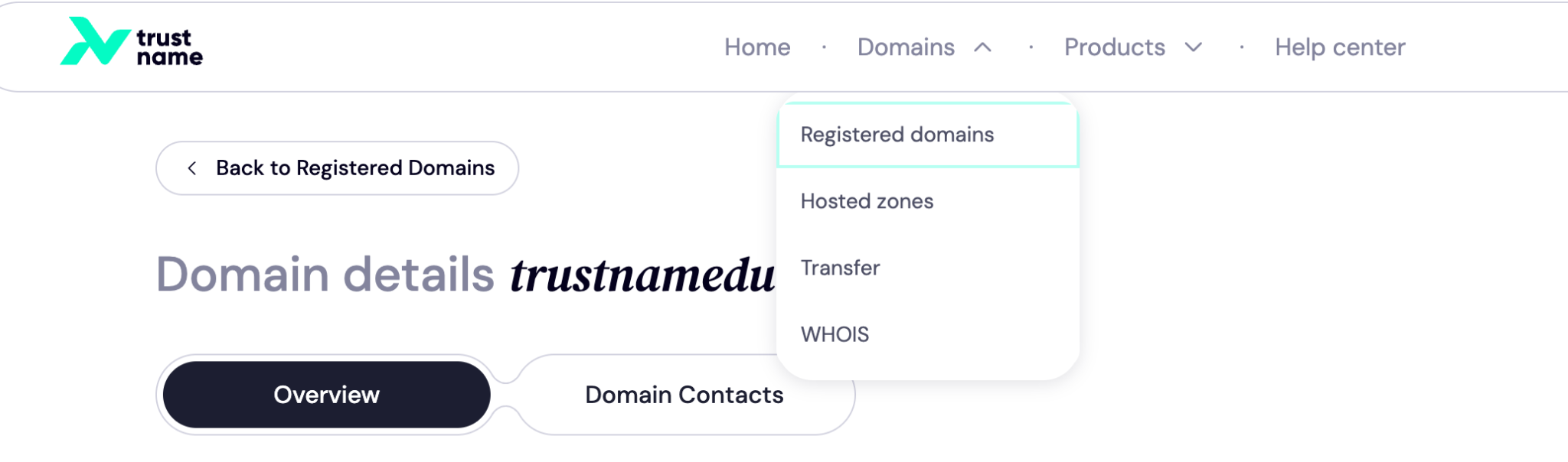
- Access the Domains Menu
Log in to your Customer Portal and click "Domains" in the top navigation bar. This will expand a dropdown menu.
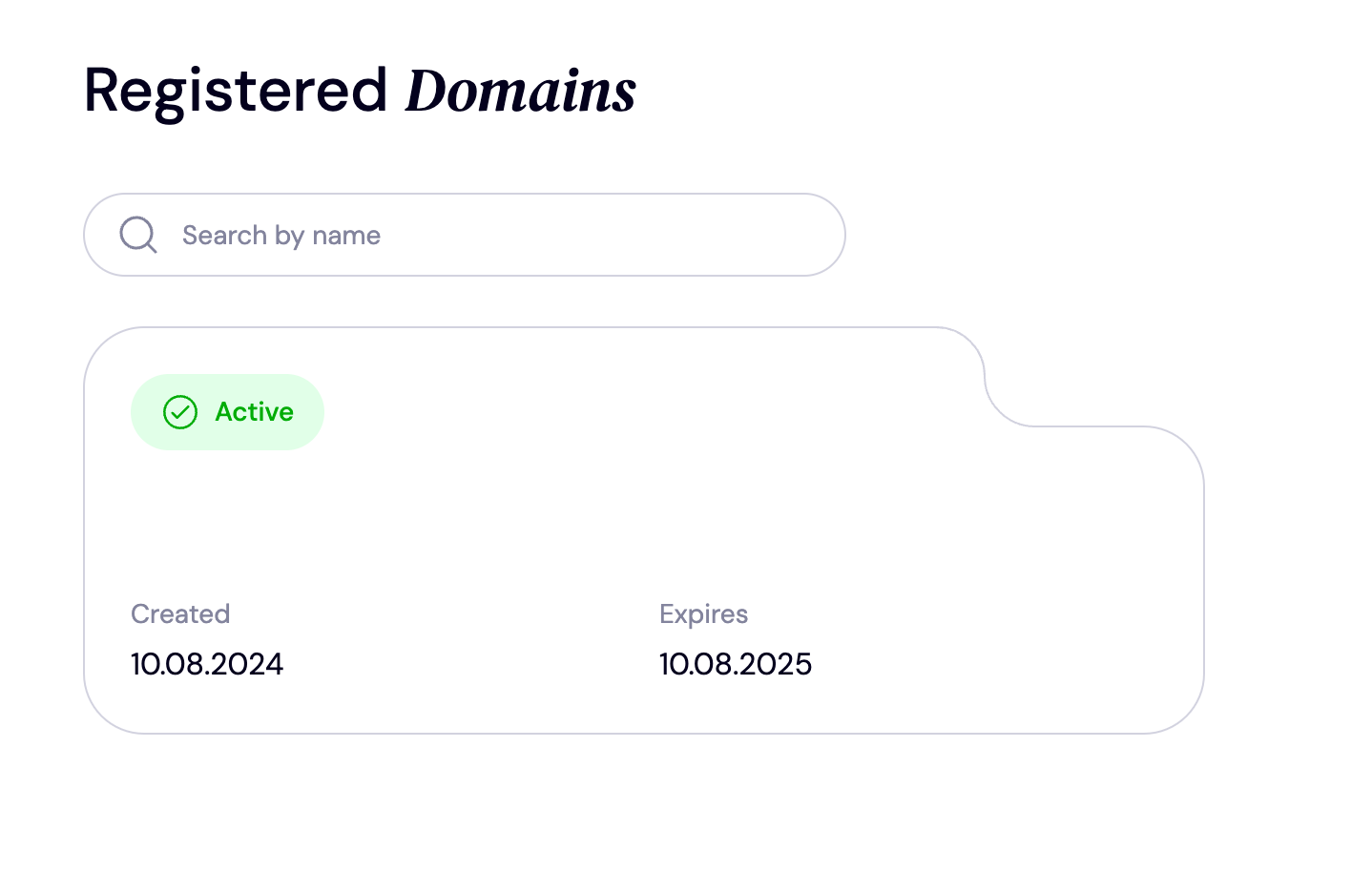
- Navigate to Registered Domains
Click "Registered Domains" to view a full list of all domains registered under your account. On this page, click the specific domain you wish to verify.
- Review Additional Settings
Scroll down to the "Additional settings" section to check your domain lock status.
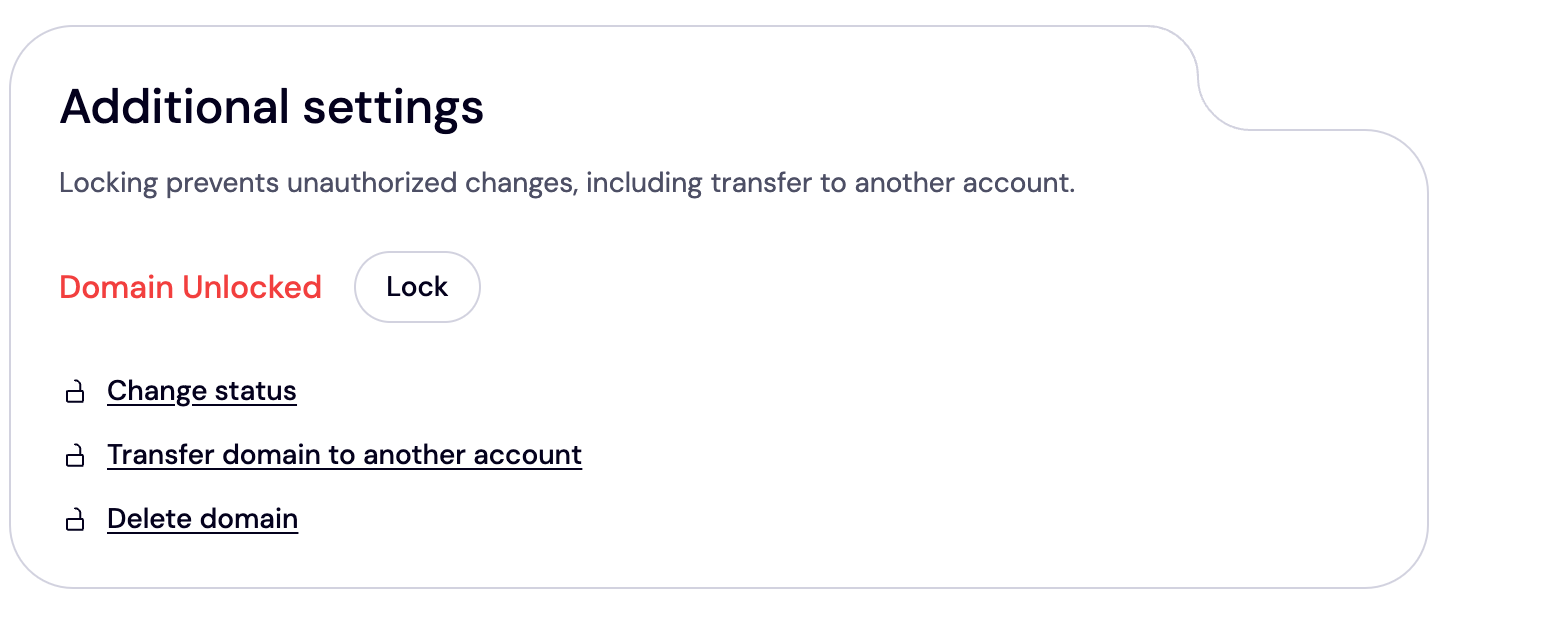
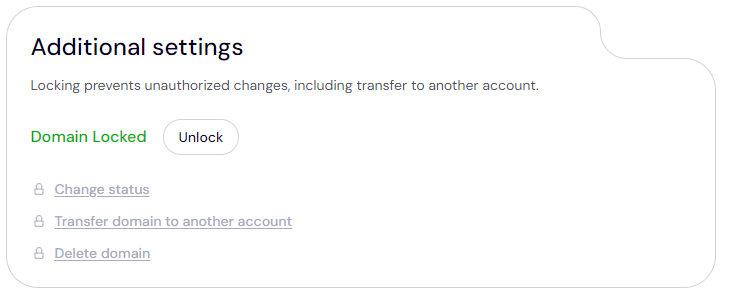
If your domain is unlocked it will show the "Domain Unlocked" status as indicated above. And if it is locked, it will show the locked "Domain Locked" status illustrated below.
How to Unlock Your Domain
To unlock your domain name on Trustname, follow these steps.
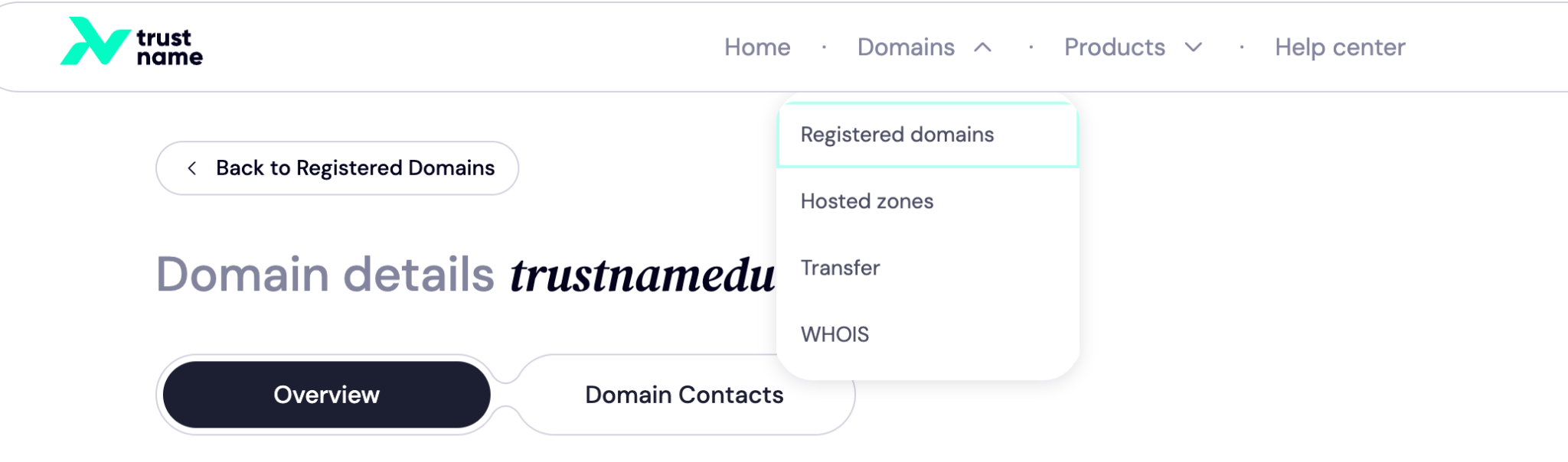
- Open the Domains Menu
Log in to your Customer Portal and click the "Domains" dropdown menu in the top navigation bar.
- Select Your Domain
Click on "Registered Domains" to view a list of all domains registered on your account. Click the domains you wish to unlock.
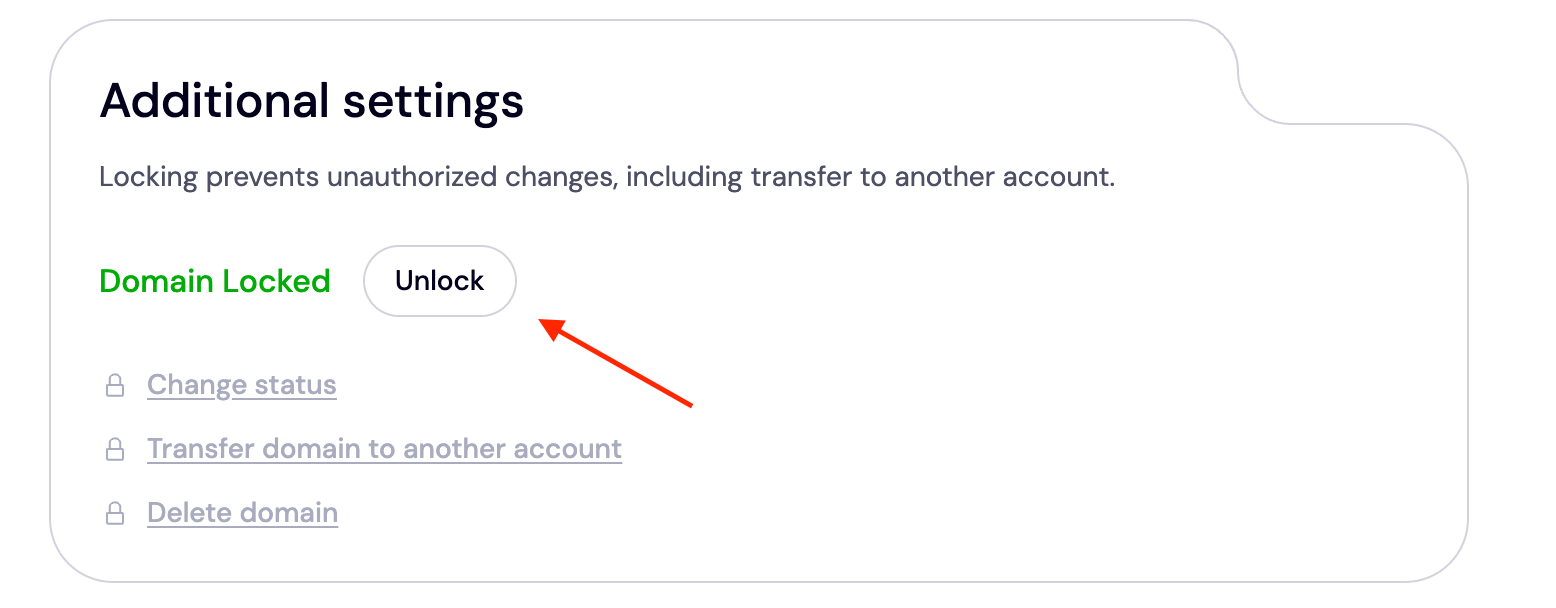
- Click Unlock
Scroll down to the "Additional settings" section to review your domain lock status. If it is currently locked, click "Unlock".
- Confirm Identity Prompt
As part of our security protocols, you may be prompted to verify your identity before the domain is unlocked. A security notice will appear after you click the "Unlock" button.
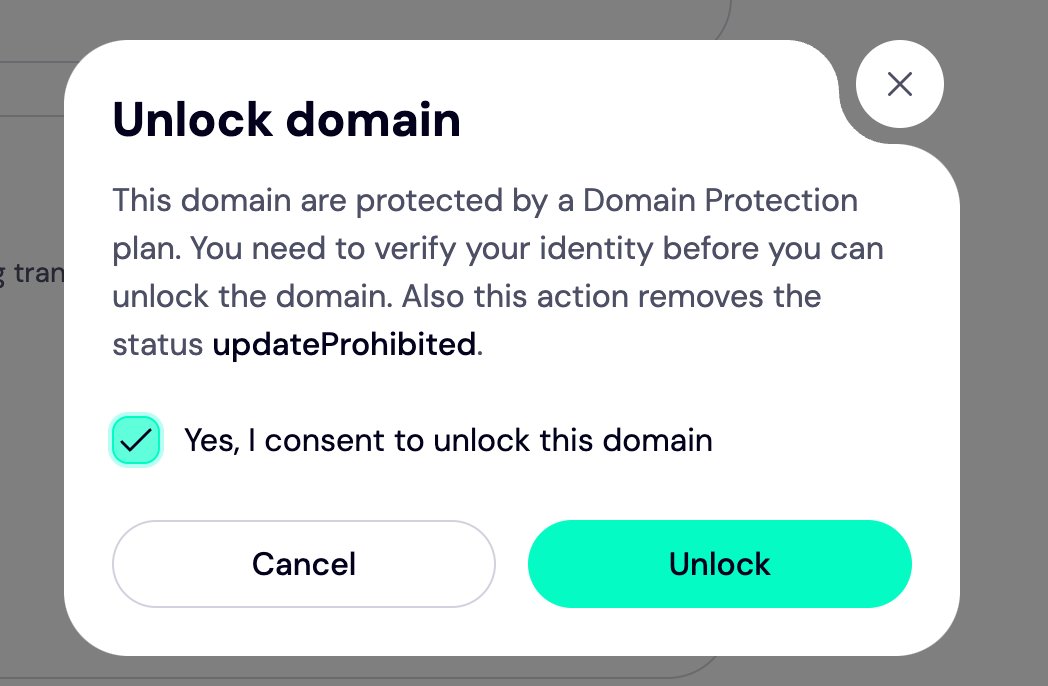
- Finalize Unlocking
Click "Unlock" in the confirmation window to complete the process.
What to Do If You Encounter Issues
If you are unable to lock or unlock your domains or experience issues during the process, click on Help Center at the top of your account page to access our support portals. We offer numerous articles and troubleshooting guides to assist you.
If you cannot find a solution specific to your case, submit a ticket or start a live chat with us, and our team will respond swiftly to assist you.
Frequently Asked Questions (FAQs)
A domain transfer lock prevents unauthorized transfers by ensuring that the domain cannot be moved to another registrar without your consent or without first unlocking it from your account.
Log in to your customer portal and navigate to Domains > Registered Domains. Click on the domain you want to verify and scroll down to the Additional settings section to view your Domain Lock status. This process may differ from other domain registrars.
Log in to your customer portal, navigate to Domains > Registered Domains > Additional settings, and turn off the transfer lock option. You can also contact our support team to handle this for you. We are available around the clock to assist with your request!
If you cannot unlock your domain, verify that you have not recently transferred or registered it within the last 60 days. If that is not the cause, contact us by submitting a support ticket. Our agents are available 24/7 to help resolve all your issues.
A 60 day transfer lock is a temporary lock applied when you register a new domain, transfer a domain to another registrar, or change registrants (domain owners). Additionally, if you update the Whois contact information on your domain (such as your name, address, or email address), a 60 day transfer lock will automatically be placed on your account.
This requirement applies to all ICANN accredited domain registrars.
Yes. After completing your transfer or when you want to re secure your domain, you can lock it again by following the steps outlined in this guide.
Was this article helpful?
That’s Great!
Thank you for your feedback
Sorry! We couldn't be helpful
Thank you for your feedback
Feedback sent
We appreciate your effort and will try to fix the article