Learn how to create subdomains and configure URL forwarding for your domain on Trustname. This guide explains the setup process, the difference between DNS records and redirects, and when to use each option.
Key Takeaways
- Subdomains – Create separate sections like blogs or support portals.
- DNS Records – Use A Records or CNAME Records depending on your setup.
- URL Forwarding – Redirect visitors using 301 or 302 redirects.
- Cloud Panel – Configure redirects easily from the Redirects/Forwarding section.
- Propagation Time – DNS updates may take 24 to 48 hours to take effect.
TABLE OF CONTENTS
- Key Takeaways
- What Are Subdomains?
- Setting Up Subdomains On Trustname
- URL Forwarding
- Using Cloud Panel
- Using Your Domain's DNS Settings
- Common Uses for URL Forwarding
- FAQs
What Are Subdomains?
Subdomains are extensions of your main domain name that allow you to organize and categorize content within your website or direct traffic to different sections of your site. For example, 'blog.example.com' or 'shop.example.com' are subdomains of 'example.com'. They can be used to create a distinct section of your website or to manage different services.
In search engines, subdomains are treated as their own separate websites and are different from subdirectories (which fall under your main domain). Popular use cases of subdomains include creating forums and communities, store pages, support portals, blog sections, etc.
Setting Up Subdomains On Trustname
To create a subdomain, you'll need to create content for the subdomain at your web host (hopefully us) and then set up A or CNAME records for your subdomain in your domain management account on Trustname.
Follow these steps:
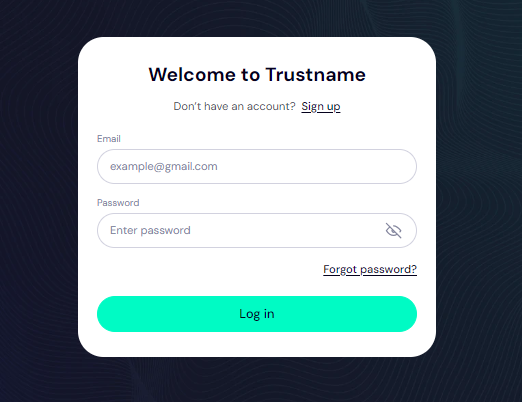
- Log In To Your Customer Account
Access your domain management account by logging in with your email and password on the Trustname.com website. Click on 'Log In' to gain access.
- Select Domain From Your Domain List
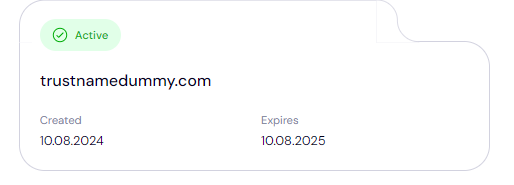
Under 'Domains', click on 'Registered domains' to see your list of registered domains. Click on the domain you want to set up subdomains for.
- Access DNS Settings
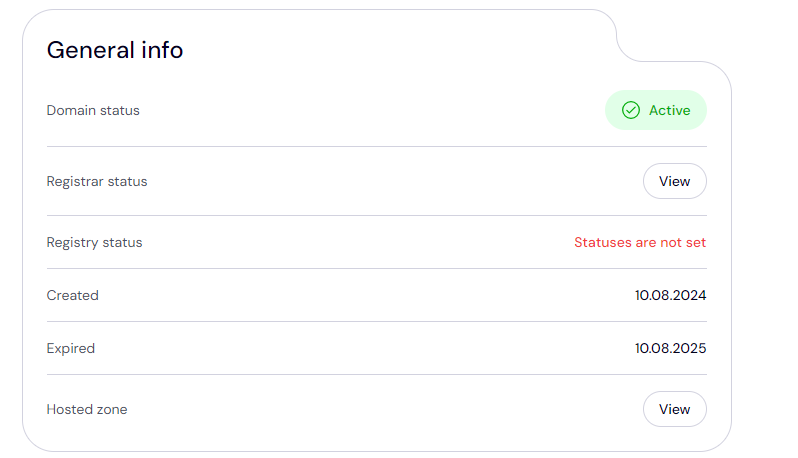
Select the domain for which you want to create a subdomain and under the 'General info' field, look for 'Hosted zone' and click 'View' to access the domain's DNS settings.

- Add a New Subdomain Record
In the DNS management settings, look for an option to “Add record”. Click on it.

To set up a new subdomain, you'll need to create a new A Record or CNAME Record, depending on whether you want to point the subdomain to a specific IP address that you've set up or to another domain name.
For An a recordYou need to create an a record to make your subdomain point to a particular IP address.
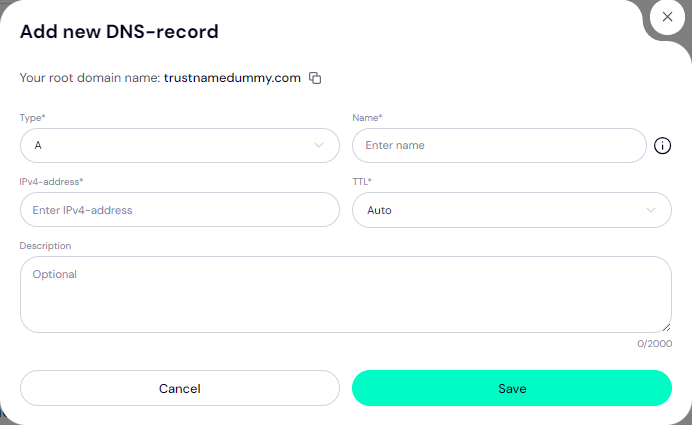
You'll have the subdomain, e.g., 'blog.yourdomain.com', pointing to the IP address you specified.
For a CNAME RecordTo point your subdomain or subdomains to your root domain's IP address, you'll need to create CNAME records. CNAME records simplify DNS management - you won't need to change the records of your subdomains should the IP address of your root domain change.
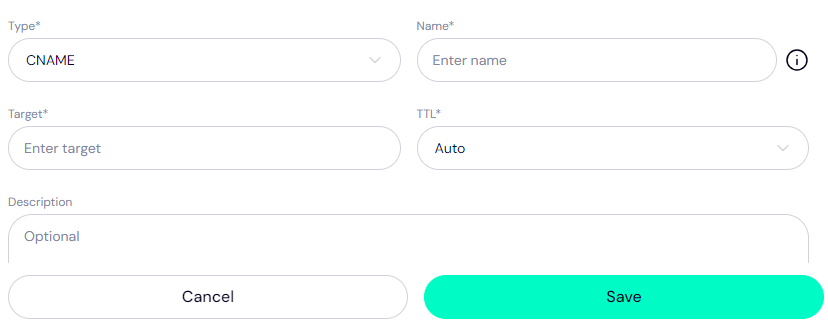
After clicking on 'Add record', under 'Type' select 'CNAME':
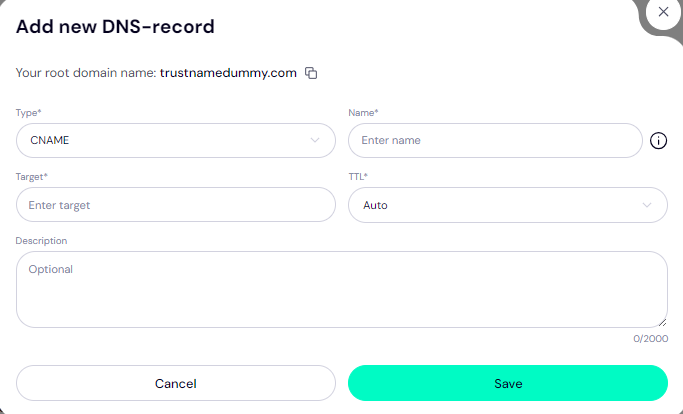
Under 'Name', type in the name of the subdomain, e.g., 'blog' or 'support', and under 'Target', enter your root domain or the target domain you want your subdomain to point to.
Click 'Save'.
- Save Your Changes
For each case, make sure to click 'Save' to apply the changes. DNS updates may take up to 24 to 48 hours to propagate fully across the internet.
URL Forwarding
URL forwarding allows you to redirect visitors from one URL to another. This can be useful for directing traffic from an old domain to a new one or for creating easier to remember URLs that forward to more complex addresses within the same domain hierarchy.
Using Cloud Panel
The best way to redirect URLs from an SEO perspective is to initiate an HTTP redirect on your web server. On Trustname, you'll be using Cloud Panel.
- Log In To Your Trustname.com Account
Visit the Trustname.com website and access your account by logging in with your email and password.
- Log In To Cloud Panel
To set up URL forwarding, you'll need to access your control panel, Cloud Panel. Click on the control panel login portal.
- Access Forwarding Settings
Under 'Domains', click on 'Redirects' or 'Forwarding'.
- Configure Forwarding Details
Next, select the type of forwarding you want to incorporate into your domain name. You can set up:
[+] [List] Green Unordered - 301 Redirect (Permanent Redirect) – This is best for SEO and tells search engines that the page has been moved permanently.
- 302 Redirect (Temporary Redirect) – This indicates that the move is temporary.
- Select Source URL Or Domain
Next, from the dropdown, select the domain you want to redirect from your list of domain names. You can also type in a specific URL page by including the path after the '/'.
- Enter Target URL
Under 'Target URL' or 'Redirects to', fill in the full URL of the target page your domain name will redirect to, including the protocol 'http:// or https://'.
- Select 'www' Factor
Select whether the redirection will work whether the visitor types in 'www' or not in their browsers.
- Enable Wildcard Redirect
With a wildcard redirect enabled, all files in the current directory will redirect to the same file path/file names on the target directory (or domain).
So for example, if 'yourdomain.com' redirects to 'example.com'.
With wildcard redirect enabled, 'yourdomain.com/blog' will redirect to 'example.com/blog'
Without wildcard redirect enabled: 'yourdomain.com/blog' will redirect to 'example.com'
- Save Your Changes
Click 'Save' to apply the changes. URL forwarding should take effect almost immediately.
Using Your Domain's DNS Settings
It's important to note that with your DNS settings alone, you can't forward or redirect a URL - rather, you'll be pointing requests made on the source URL to the target's records or IP address.
A CNAME record is used to point domain aliases (or subdomains) to a main domain name's IP address, but it doesn't mean that it will necessarily show the target URL's web page.
The CNAME record directs web traffic for the source domain to the target domain's IP address. Once the visitor reaches that IP address, the web server will then determine how the domain is handled. So you'll need to configure both the source and target domains on the server so it doesn't display the source domain's default web page.
To set up CNAME records for your URLs, follow these steps:
- Access Your Domain
As described before, head to your domains list and click on the domain you want to redirect.
- Access The Hosted Zone
Under the 'General info' section, look for 'Hosted zone' and click on 'View' to see your records.
- Create a New CNAME Record
In the 'DNS management' settings, click on '+Add record' and under the 'Type' field select 'CNAME'.
- Fill In The Fields
Under 'Name', type '@' to refer to the current domain you are forwarding. Under 'Target', type in the domain name or URL you want to point your domain to. Leave the TTL on 'Auto' or add a custom Time to Live. Click 'Save'.
DNS tweaks can take 24 to 48 hours to update. Test the forwarding in a web browser as described above.
Common Uses for URL Forwarding
URL forwarding is usually used to
- Redirect old URLs to new ones.
- Create short, easy to remember URLs for long addresses.
- Forward a domain to a specific page or external website.
FAQs
A subdomain is an extension of your main domain name that can be used to organize different sections of your website or direct traffic to specific areas. Subdomains are treated as separate websites in search engines even though they are linked to your main domain.
Log in to TrustName.com, go to “Manage DNS”, add a new DNS record for your subdomain, and save the changes.
URL forwarding redirects visitors from one URL to another. It's useful for managing traffic and simplifying URLs.
To set up, log in to your Cloud Panel, go to 'Redirects' or 'Forwarding' under 'Domains', choose your source URL or domain, enter the URL to forward to, choose the redirect type, and save your changes.
DNS changes may take up to 24 to 48 hours to fully propagate across the internet.
Was this article helpful?
That’s Great!
Thank you for your feedback
Sorry! We couldn't be helpful
Thank you for your feedback
Feedback sent
We appreciate your effort and will try to fix the article