Learn how to set up Domain Forwarding and URL Redirection in your Trustname account to direct visitors from one domain or URL to another. This guide also explains the difference between the two methods, how to configure them, and common mistakes to avoid.
Key Takeaways
- Purpose – Redirect domains or URLs easily.
- Setup – Configure through Hosted Zones.
- Alternative – Use CNAME records when appropriate.
- Requirement – Use Trustname nameservers.
- Verification – Test after DNS propagation.
TABLE OF CONTENTS
- Key Takeaways
- What is Domain Forwarding and Redirection?
- How to Enable Domain Forwarding and Redirection on Trustname
- Alternative Method - Using DNS CNAME Records
- Using Forwarding And Redirection With Trustname Nameservers
- Common Mistakes To Avoid When Forwarding Or Redirecting Domains
- FAQs
Domain forwarding and redirection help you point traffic from one domain or URL (or several) to another without any downtime. Trustname provides domain forwarding and redirection through both its Free Basic DNS and Premium Advanced DNS solutions.
In a few clicks, you can enable or disable domain forwarding and redirection in your customer portal. Let's show you how. But first…
What is Domain Forwarding and Redirection?
What are domain forwarding and redirection, and are there any differences between the two?
Let's see:
- Domain Forwarding
Domain forwarding allows you to redirect visitors from one domain to another. For instance, if you have multiple domains and want all of them to lead visitors to a single website, you can set up domain forwarding.
- URL Redirection
URL redirection is similar to domain forwarding but gets much more precise. In addition to redirecting traffic from one overarching domain (or subdomain) to another, with URL redirection, you can redirect traffic from a specific URL path to another URL or webpage within the same domain or under another domain.
How to Enable Domain Forwarding and Redirection on Trustname
- Log In To Your Customer Portal
Visit our website at Trustname.com and click on 'Log In' to access your account.
- Access Your Domains List
Click on the 'Domains' dropdown and head to 'Registered domains' to view your domains.
- Select The Domain
Now, in your list of domains, click on the domain you want to set up forwarding or redirection for.
- Access DNS Settings
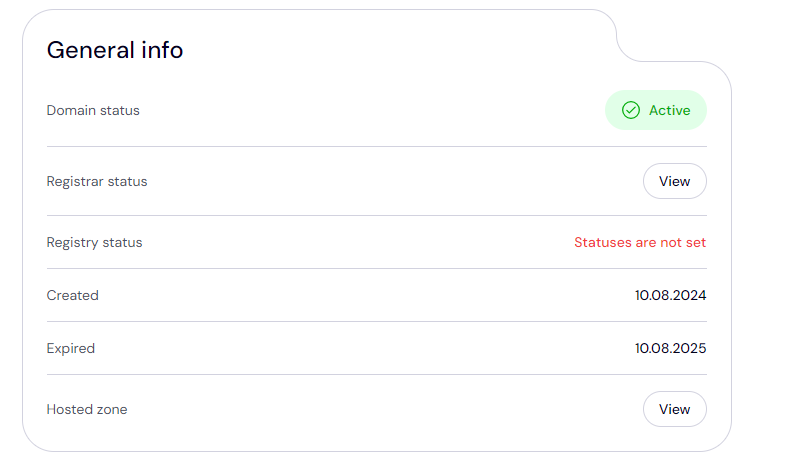
In the 'General info' section, look for 'Hosted zones' and click 'View' to access your domain's DNS settings. Scroll down to 'Domain Forwarding and Redirection'. Click on 'Edit' to start to tweak your settings.
- Set Up Forwarding Or Redirection
Trustname blends the domain forwarding and URL redirection features into one comprehensive solution.
Proceed to configure your domain forwarding or URL redirection:
[+] [List] Green Unordered - For Domain Forwarding
Enter the destination domain name you want your original domain to be forwarded to. Make sure the URL is correct and starts with the relevant protocol - 'http://' or 'https://'.
- For URL Redirection
Specify the path of the source URL and the target URL where traffic should be redirected to. Ensure that both URLs are correctly formatted.
- For Domain Forwarding
- Save Changes
Once you're done filling in your domains and URLs, click 'Save' or 'Update' to apply the changes.
- Verify Successful Forwarding Or Redirection
Test the forwarding or redirection by typing the domain or URL into a browser to ensure it redirects as expected.
Alternative Method - Using DNS CNAME Records
Another way to point domains is to add new DNS CNAME records in your domain settings. A CNAME record is used to point domain aliases (or subdomains) to a main domain name. To point your domain using CNAME records, follow these steps:
- Access Your Domain
As described before, head to your domains list and click on the domain you want to redirect.
- Access The Hosted Zone
Under the 'General info' section, look for 'Hosted zone' and click on 'View' to see your records.
- Create a New CNAME Record
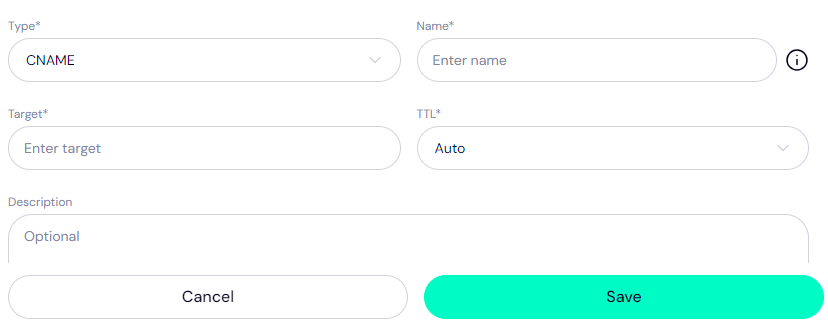
In the 'DNS management' settings, click on '+ Add record' and under the 'Type' field select 'CNAME'.
- Fill In The Fields
Under 'Name', type '@' to refer to the current domain you are forwarding. Under 'Target', type in the domain name or URL you want to point your domain's traffic to. Leave the TTL on 'Auto' or add a custom Time to Live.
Click 'Save'.
DNS tweaks can take 24-48 hours to update. Test your forwarding in a web browser as described above.
CNAME Records Do Not Necessarily Redirect
It's important to note that with your DNS settings alone, you can't forward or redirect a URL - rather, you'll be pointing requests made on the source URL to the target''s records or IP address.
A CNAME record is used to point domain aliases (or subdomains) to a main domain name's IP address, but it doesn't mean that it will necessarily show the target URL's web page.
Once the visitor reaches that IP address, the web server will then determine how the domain is handled. So you'll need to configure both the source and target domains on the server so it doesn't display the source domain's default web page.
Using Forwarding And Redirection With Trustname Nameservers
When you use Trustname's domain forwarding or URL redirection, you need to use our nameservers. This is because the forwarding and redirection are managed at the DNS level, which requires our nameservers to process and implement these settings.
- Ensure Nameservers Are Set To Trustname's
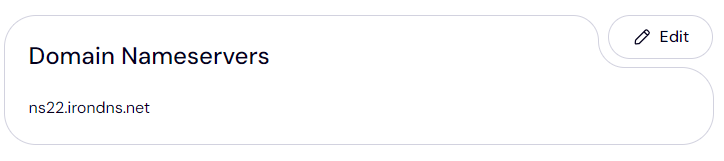
Under your domain's general settings, scroll down to the 'Domain Nameservers' section to see the nameservers currently linked to your domain name.
If they're not set to our nameservers, click on 'Edit' to begin configuring your nameservers:
- Trustname's Basic DNS Nameservers Are ns1.trustname.com & ns2.trustname.com
If you have enabled Domain Forwarding or Redirection, then these nameservers are applied to your domain names by default, which might disrupt your existing DNS settings. So kindly take note when forwarding your domains.
Common Mistakes To Avoid When Forwarding Or Redirecting Domains
- Incorrect URL Formatting
Ensure the URLs and domains you enter for forwarding or redirection are formatted correctly and include the protocol ('http://' or 'https://').
- Not Using Trustname's Nameservers
Forwarding and redirecting your domains and URLs will not work unless your domain is pointing to Trustname's nameservers.
- Unsaved Changes
After configuring forwarding or redirection, make sure to save the changes you've made.
- Testing Delays
Changes to DNS settings may take some time to be effected. Be patient and test the forwarding or redirection after a few hours if it doesn't work immediately.
FAQs
DNS changes, including forwarding and redirection, may take up to 48 hours to be fully propagated across the internet.
Domain forwarding and URL redirection will only work in your Trustname account if your domain is pointing to Trustname's nameservers.
Verify that the URLs are correctly formatted, ensure you are using Trustname's nameservers, and be patient for the changes to be effected across the internet. Contact Trustname's customer support if your domain forwarding still isn't working after 48 hours.
Yes, you can configure different forwarding or redirection rules for each domain as needed.
Access the DNS management section in the customer portal, find the forwarding or redirection settings, and remove or disable them. Save the changes to apply the update.
Was this article helpful?
That’s Great!
Thank you for your feedback
Sorry! We couldn't be helpful
Thank you for your feedback
Feedback sent
We appreciate your effort and will try to fix the article