You can easily connect your Trustname domain to your GoDaddy web hosting account without transferring your domain. This guide explains how to update your domain's nameservers so your website points to your GoDaddy hosting.
Key Takeaways
- No Transfer – Keep your domain at Trustname.
- Get Nameservers – Copy your GoDaddy nameservers.
- Update DNS – Add the nameservers in Trustname.
- Verify – Check DNS propagation after updating.
- Simplify – Manage domain and hosting together with Trustname.
TABLE OF CONTENTS
- Key Takeaways
- Connect Your Domain To GoDaddy
- Nameserver Format
- Confirm The Nameserver Connection
- Consolidate Your Domain And Hosting With Trustname
Connecting your Trustname domain to GoDaddy web hosting is simple. All you need to do is obtain GoDaddy's nameservers and update your domain's nameserver settings in your Trustname account.
There's no need to transfer your domain away from Trustname to use GoDaddy's hosting services. By updating your domain's nameservers, you delegate DNS management to GoDaddy, allowing it to direct visitors to the correct web server hosting your website.
Connect Your Domain To GoDaddy
Follow these steps to connect your Trustname domain to GoDaddy.
- Obtain The Nameservers On GoDaddy
Log In to your GoDaddy account by clicking Sign In in the top right corner of the website, under "Registered Users".
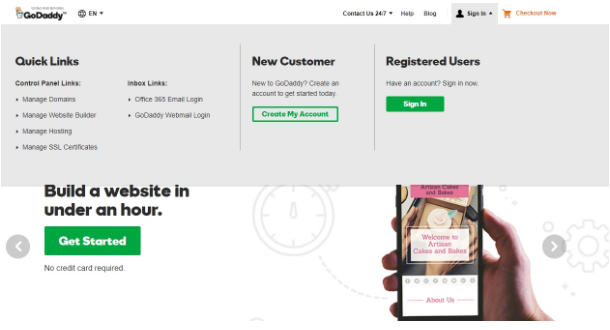
After signing in, you'll see a list of your GoDaddy products.
From the left hand menu, select DNS Hosting under Services.
Choose the domain or website you want to connect. Your assigned nameservers will be displayed at the top of the page.
Copy both nameservers you'll need them when updating your Trustname domain.
- Add The Nameservers On Trustname
Once you've copied your GoDaddy nameservers, you can add them to your Trustname domain.
[+] [List] Green Ordered - Login To Your Trustname Account
Visit Trustname.com, click Log In in the upper right corner, and enter your account credentials.
If you've enabled Two Factor Authentication (2FA), enter the verification code generated by your authenticator app to complete the login process.
- Head To Your Domain Settings
From the Domains Registered Domains.
You'll see a list of all the domains in your account.
Click on the domain you want to connect to GoDaddy hosting.

You'll then be redirected to the domain management settings and contact details.
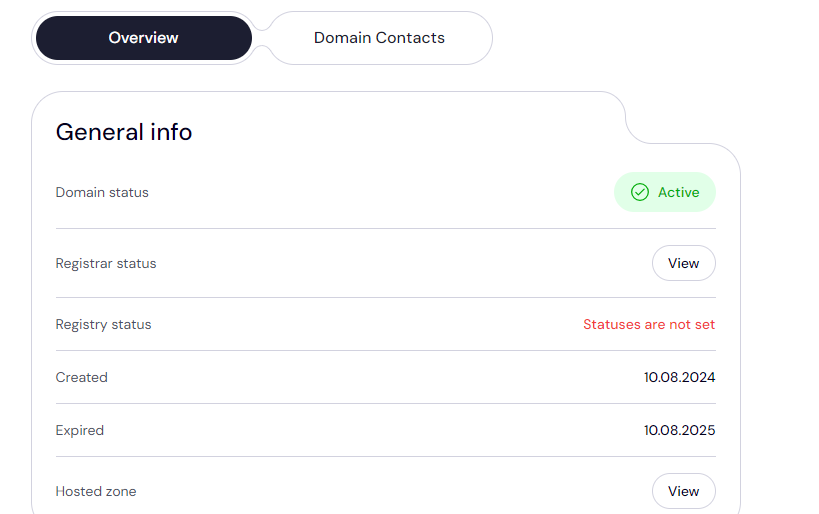
- Access The Nameserver Settings
Scroll down to the Domain Nameservers section.
Click Edit to modify your nameserver settings.
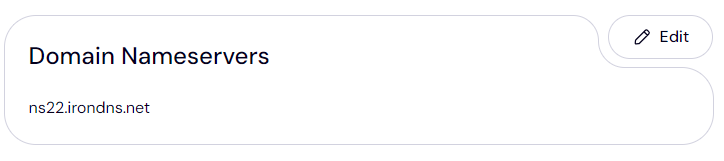
Enter the nameservers you copied from GoDaddy and click Save.
That's all you need to do.
- Login To Your Trustname Account
Nameserver Format
Nameservers typically follow this format.
- ns1.hostingprovider.com
- ns2.hostingprovider.com
The ns1 server acts as the primary nameserver, while ns2 serves as the secondary nameserver.
After updating your nameservers, DNS changes usually take 24 to 48 hours to propagate across the internet.
Confirm The Nameserver Connection
To confirm that your nameserver changes have taken effect.
- Check Your Website
Visit your website in a web browser to ensure it is loading correctly using your new hosting provider.
- Verify Using WhatsMyDNS
Alternatively, use a public DNS lookup tool such as WhatsMyDNS. Enter your domain name, select NS from the record type dropdown, and confirm that your new nameservers are resolving globally.
Consolidate Your Domain And Hosting With Trustname
The easiest way to simplify website management is to keep both your domain registration and web hosting with Trustname. We provide domain registration, web hosting, and professional email services, giving you everything you need to launch and manage your website from one place.
Here are the benefits of consolidating your services with Trustname.
- Simplified Management
Manage your domains, web hosting, and DNS settings from a single, easy to use dashboard.
- Cost Savings & Discounts
Save more with Trustname's bundled offers, including a free domain with eligible web hosting plans.
- Automatic Nameserver Setup
Your nameservers are configured automatically, so you don't have to update them manually.
What's more? Your nameservers are set automatically and you won't have to add them manually.
Was this article helpful?
That’s Great!
Thank you for your feedback
Sorry! We couldn't be helpful
Thank you for your feedback
Feedback sent
We appreciate your effort and will try to fix the article