Branded nameservers allow you to replace generic DNS nameservers with custom nameservers that reflect your own domain, creating a more professional and recognizable online presence.
This guide explains how to set up branded nameservers using NS records on Trustname, configure them correctly, and understand the benefits they offer for DNS management and brand identity.
Key Takeaways
- Set Up Custom Nameservers – Create branded nameservers, map them to the correct IP addresses using A records, and update your domain's nameserver settings to use them.
- Configure NS Records Properly – Add NS records for your domain or subdomains to ensure DNS queries are directed to the appropriate authoritative nameservers.
- Allow Time for DNS Propagation – After updating your nameservers or NS records, allow 24–48 hours for the changes to propagate across the internet.
- Strengthen Your Brand Identity – Branded nameservers replace generic provider names with your own domain, helping build trust and reinforce your brand's professional image.
- Simplify DNS Management – Custom nameservers provide greater control over DNS administration, making it easier to manage infrastructure changes without updating every client domain individually.
TABLE OF CONTENTS
Setting up branded nameservers (also known as custom or child nameservers) can help enhance your brand's identity and provide a more professional appearance for your domain services. Trustname allows you to create and manage these custom nameservers through our customer portal. Here's how to do it using NS records.
Steps to Set Up Branded Nameservers
First, you'll need to register your branded nameservers, create A records for them, and then update your domain's NS records.
You can register your branded nameservers on your DNS provider's domain settings. If your DNS provider is your web host, then you can register your nameservers in your control panel.
When creating your custom nameservers, you'd need to map them to the IP address of the DNS server you want handling your domain queries. With those set up, it's time to change your domain's NS records. To point your whole domain to your custom nameservers.
- Log in to Your Trustname Account
Go to the Trustname.com website and click on 'Log in'. Fill in your username (email) and password to gain access to your account.
- Navigate to Your Domains List
Under the 'Domains' dropdown at the top, click on 'Registered domains' to see your registered domains.
- Select the Domain
Next, click on the domain that you want to configure custom nameservers for.

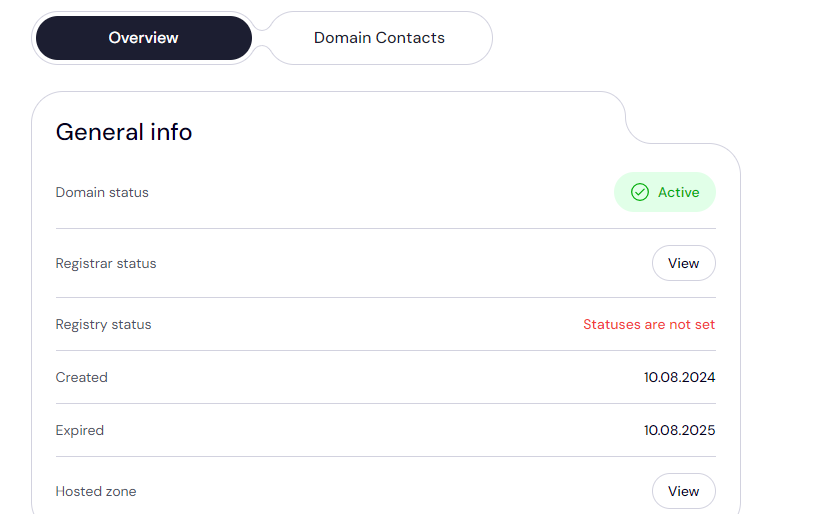
You'll need to click on the domain name directly. You'll then be redirected to the domain management settings and contact details.
- Access Nameserver Settings
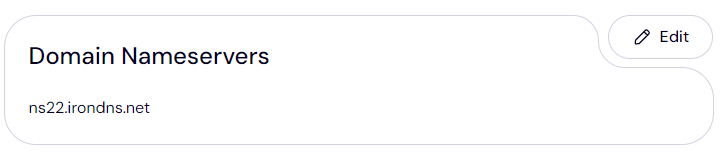
Scroll down to the 'Domain Nameservers' section to see your current domain nameservers.
If you are pointing your domain to another registrar to Trustname, look for settings labeled "Manage Nameservers", "Custom Nameservers" or similar.
Click on 'Edit' to begin configuring your custom nameservers.
- Enter Custom Nameservers
Enter the branded nameserver addresses that you want to use. Ensure you use the right format, e.g. 'ns1.yourdomain.com' and 'ns2.yourdomain.com'. Ensure you provide the correct addresses as you registered on your DNS provider.
Click 'Save' to apply changes.
For subdomains
If you want to configure separate brand nameservers for your subdomains or particular sections of your website, you can set up new NS records in your DNS settings.[+] [List] Green Unordered - Navigate to DNS Settings
Under your domain's 'General info' located under 'Hosted zone', click 'View'.
- Add a New Record
In the DNS management settings, look for an option to "Add record". Click on it

- Add a NS Record
An NS record specifies the authoritative nameserver for the domain name.
To add an NS record, select 'NS' under 'Type' and under 'Name' type in your subdomain name, e.g. 'blog', 'support', 'forum'.
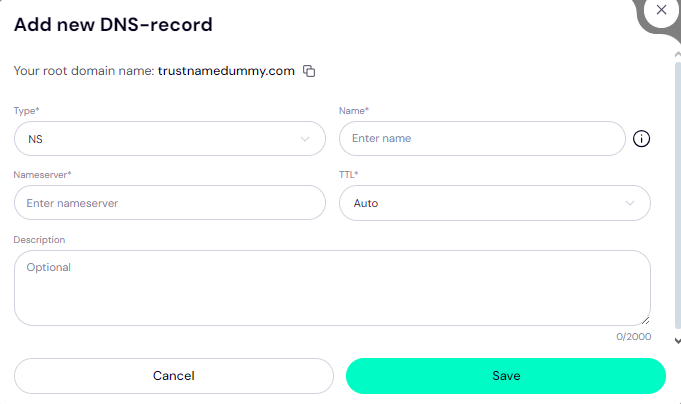
Under 'Nameserver', type in the nameserver name, e.g. 'ns1.yourdomain.com', and leave the TTL set to 'Auto'. You could also set a custom time.
Ensure that these NS records are correctly pointing to your newly created branded nameservers. Click 'Save' to apply your changes.
- Navigate to DNS Settings
- Verify and Apply Changes
After saving your edits, double check that all records are entered correctly on your nameserver settings in the main settings and your NS records.
Changes to nameservers might take up to 24 to 48 hours to propagate across the internet.
Benefits of Using Branded Nameservers
- Professional Appearance
If you are a hosting reseller or large enterprise, custom nameservers enhance your brand image by hiding the fact that you are relying on another provider's infrastructure whenever anyone runs a WHOIS lookup, they'll see your branded nameservers.
- Brand Recognition
Branded nameservers align your domain services with your brand identity they include your domain name in the addresses, making them instantly recognizable.
- Enhanced Control
Branded nameservers also offer better control over DNS management. Should you switch to a new provider and change your IP, you'll only need to change your nameserver's IP address, and it will be automatically propagated across all your client accounts,s and you won't need to update each one manually.
FAQs
A branded nameserver is a custom nameserver associated with your domain, such as 'ns1.yourdomain.com', instead of generic nameservers provided by your web host or DNS provider.
Changes to nameservers (including A and NS records) can take up to 24 to 48 hours to fully propagate and be recognized globally.
Yes, you can use branded nameservers for your domains registered with Trustname. Follow the steps outlined above to set them up.
If after 24 to 48 hours, your nameservers have not updated yet, check your DNS records to ensure you entered them correctly. If issues persist, contact TrustName's support for assistance.
Setting up branded nameservers through TrustName.com is a straightforward process that can significantly enhance your domain's professionalism and brand identity.
Was this article helpful?
That’s Great!
Thank you for your feedback
Sorry! We couldn't be helpful
Thank you for your feedback
Feedback sent
We appreciate your effort and will try to fix the article