At Trustname, we take the security of your account and domain names seriously. We offer a comprehensive suite of security features to keep your portfolio under lock and key and ensure that any account modifications are strictly authorized by you.
Combining a robust password with two-factor authentication (2FA) via the Google Authenticator app forms your account's primary line of defense. If you ever suspect your password has been compromised, you can update it immediately to safeguard your account.
Key Takeaways
- Password Requirements – Create a strong, unique password that is at least 8 characters long and combines uppercase letters, lowercase letters, numbers, and special characters.
- 2FA Verification – If two-factor authentication is active on your account, you must enter a time sensitive code from Google Authenticator to authorize password changes.
- Backup Codes – Always store your 2FA backup codes in a secure, offline location to retain account access if you lose or replace your mobile device.
- Time-Sensitive Auth – Google Authenticator codes refresh every 60 seconds enter the current code promptly before it expires.
TABLE OF CONTENTS
At Trustname, we take the security of your account and domain names seriously. We give you a suite of security features to keep your domains under lock and key, and make sure that any changes to your portfolio are authorized by you.
One of Trustname's key security features is your account password. Bundled with a second level protection using the Google Authenticator app, these make up Trustname's two-factor authentication (2FA). If you believe your password has been compromised, you can change your password quickly on Trustname and keep your account secure.
Changing Your Trustname Password
To change your Trustname password, follow these steps
- Log In To Your Account
If you are not already logged in to your Trustname account, head to the Trustname.com website and enter your login details username and password. If you have two-factor authentication (2FA) enabled, head to your Google Authenticator app, copy the code, and paste it into the required field.
- Access Your Account Settings
Next, you need to visit your account settings. Once logged in, in the header section, click on the "My profile" button at the top right corner of the page.
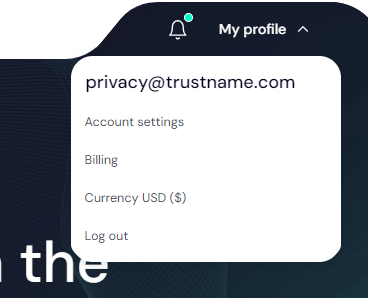
Click on the "Account Settings" button to see your security settings. Under the General info tab, scroll down to the Password field.
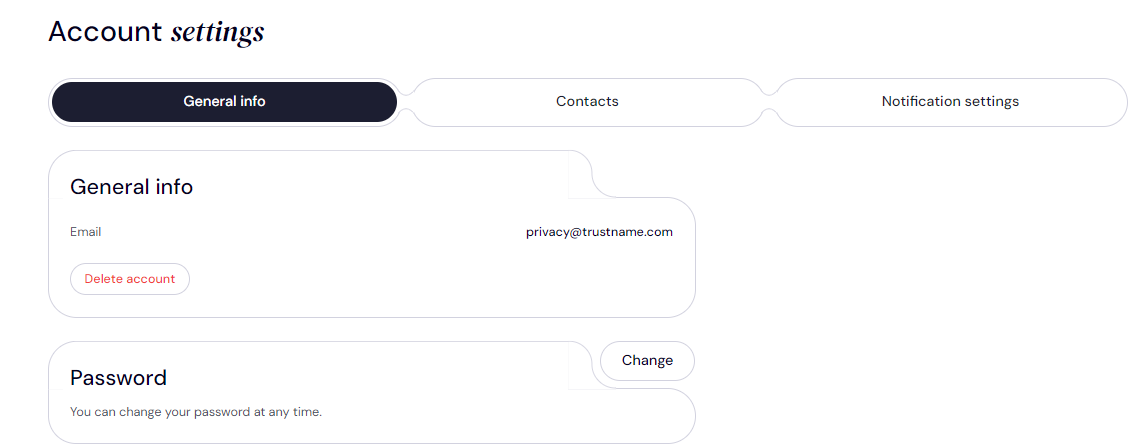
Click the Change Button.
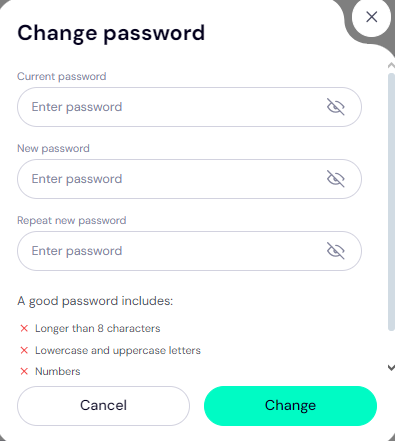
- Enter Your Password Details
Enter your current password in the Current password field and enter the new password in the New password field. Repeat your new password to confirm it. Enter a new password that's not easy to guess longer than 8 characters, combines both upper and lower case letters, numbers, and special characters.
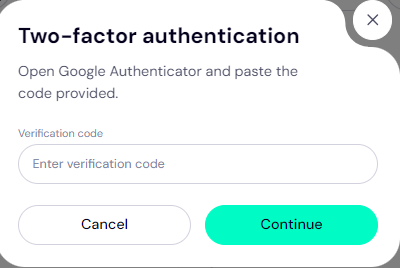
- Fill In Your Authenticator Code
If you have two-factor authentication enabled on your account, you will have to fill in a code from Google Authenticator to authorize the password change.
That’s it!
Trustname's Two-Factor Authentication (2FA)
With two-factor authentication enabled on your Trustname account, we will always require an extra auth code before granting access to your account. This helps to protect your account from unauthorized access, even if your password is compromised. Trustname recommends Google Authenticator to link to your account.
If you haven't configured 2FA on your account yet, here's how to set it up.
- Enable Two-Factor Authentication
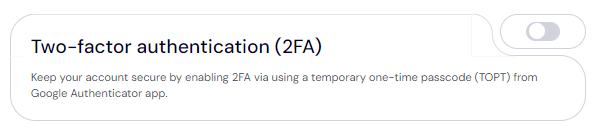
Under your account settings, using the same steps you followed, scroll down to the Two-factor authentication (2FA) section and toggle the button on.
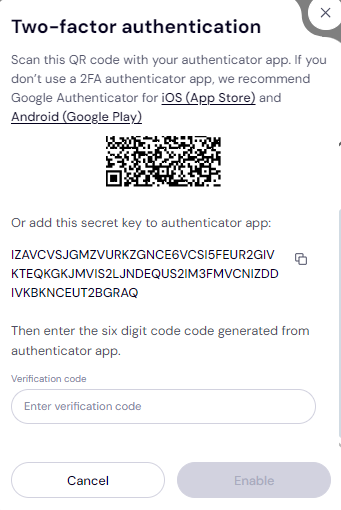
A QR code portal will come up. You can choose to scan the QR code generated on our platform (the easy way) or add the secret key generated in our portal to the authenticator app and then enter the code generated by the app on our platform.
- Set Up Google Authenticator
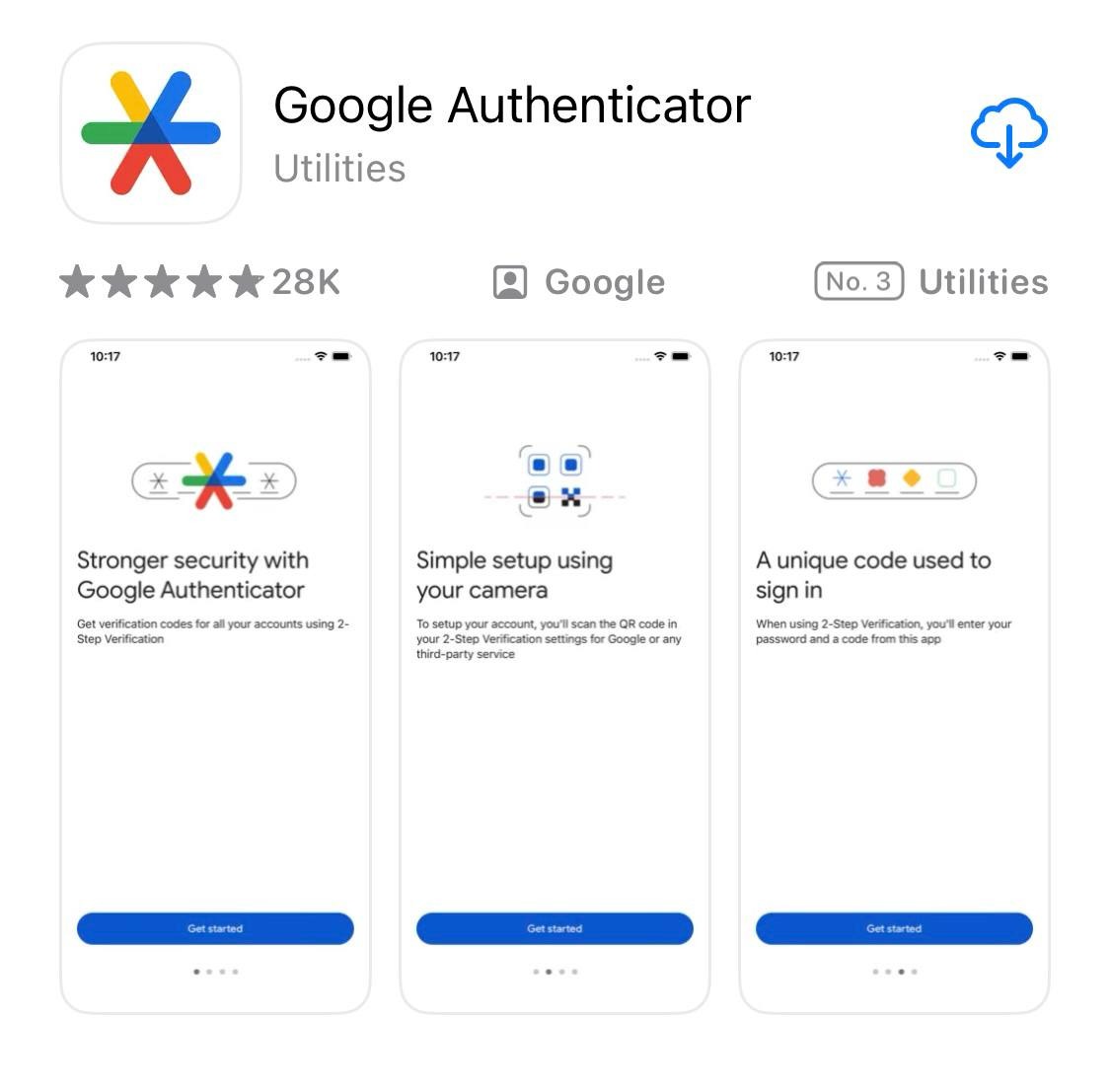
Next, download the Google Authenticator app from the Google Play Store (for Android devices) or the Apple App Store (for iOS devices) if you haven't already. You can also use other popular password managers like 1Password to set up 2FA on Trustname.
Open the app, click on the + sign at the bottom right, and use the Scan a QR Code option to scan the QR code displayed in your Trustname account. Allow access to your device's camera.
- Enter The Verification Code
In Google Authenticator, a time based six digit verification code will be generated. Type the one time code into your Trustname portal to complete the authentication sync.
Each generated code in Google Authenticator only lasts for one minute. Once the first one expires, a new one is generated, but try to copy and paste it in as soon as possible. - Enable The Link
Click on the Enable button to get your two-factor authentication up and running.
- Backup Codes
After setting up 2FA on your Trustname account, Google Authenticator will grant you backup codes that you can use to access your account in case you ever lose access to your device with Google Auth app. You should save these codes somewhere secure to prevent them getting lost.
They serve as master codes and can be used to access your account if you lose access to the Google Authenticator app device. - Confirm And Save
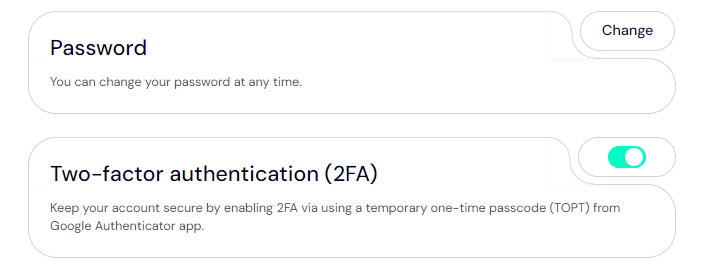
Complete your 2FA setup by confirming your changes and saving the new security settings. Now, you have Trustname's two-factor authentication set up:
Was this article helpful?
That’s Great!
Thank you for your feedback
Sorry! We couldn't be helpful
Thank you for your feedback
Feedback sent
We appreciate your effort and will try to fix the article