Forgot your Trustname password? This guide walks you through the password reset process, explains what to do if you have two-factor authentication (2FA) enabled, and shares a few best practices to help keep your account secure.
Key Takeaways
- Reset Easily – Use the Forgot password? option to create a new password.
- Email Access – Keep access to your registered email for verification.
- Enable 2FA – Protect your account with Google Authenticator.
- Stay Alert – Verify Trustname URLs to avoid phishing scams.
- Password Safety – Use a password manager and avoid storing passwords in shared files.
TABLE OF CONTENTS
- Key Takeaways
- Resetting Your Trustname Password
- For Accounts With Two-Factor Authentication Enabled
- Keeping Your Login Credentials Safe
Forgot your Trustname account login credentials? You can reset your password quickly from the login portal.
Aside from your login credentials, Trustname enables you to secure your account with our two-factor authentication. To help you better keep your password secure in the future, you can write them down physically in a book, or better still, store them using a password manager.
Resetting Your Trustname Password
To reset your Trustname password, follow these steps:
- Head To The Login Portal
Visit the Trustname.com website and click on the 'Login' button in the top right corner of the screen.
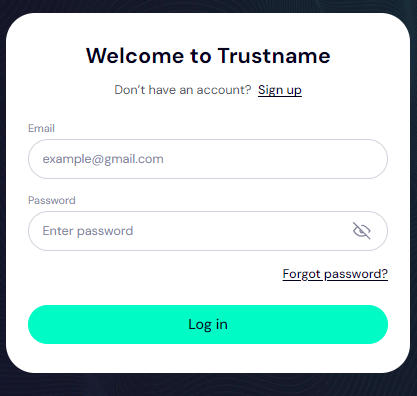
On the login portal, click on the 'Forgot password?' link to access the password reset settings.
- Enter Your Email
Next, type in the email address linked to your Trustname account. You will receive a password reset code to this email, so make sure you have access to it.
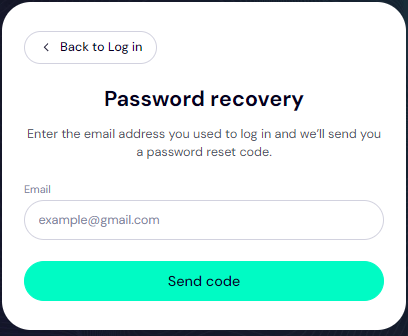
Click on the 'Send code' button.
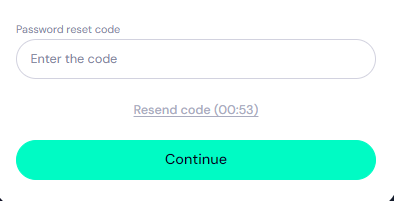
Now, access the inbox of the email you just typed in and look for the code we sent. If you can't find it, make sure to check your 'Spam' folder and add Trustname to your safe sender list.
Copy and paste the code into the required field:
- Enter a New Password
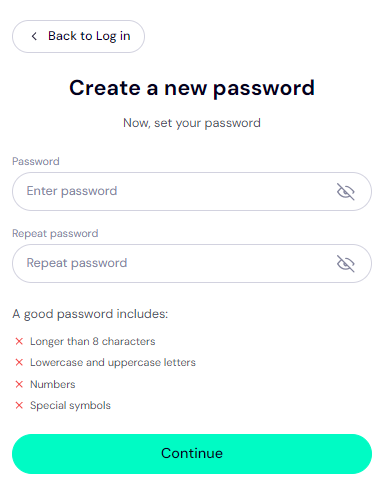
You will be redirected to your password reset page. Type in your new password and repeat it to confirm it. Use a secure password that's at least 8 characters, combine upper case and lower case letters, include at least one number, and at least one special character.
Once you have typed in your password, copy it and paste it somewhere safe (ideally in a password manager) so you don't forget it.
- Log In To Your Account
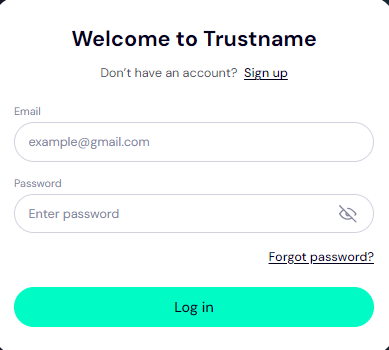
Once your new password is set, you will be redirected to the main login page. Type in your email and your new password, and click the 'Login' button. That's it! You should now have access to your Trustname account.
For Accounts With Two-Factor Authentication Enabled
If you have two-factor authentication (2FA) enabled on your account, once you type in your new password, you will also need to verify your access using Google Authenticator. Head to your Google Authenticator app, copy the code, and paste it into the required field.
You should always enable Trustname's two-factor authentication (2FA) on your account. This protects your account even if your password gets compromised. No one will be able to gain access to your account unless they also have the device where your Google Authenticator is installed.
Readhow to enable two-factor authentication on my Trustname account for more details.
Keeping Your Login Credentials Safe
Here are some extra tips to keep your login credentials safe:
- Use a Password Manager
Password managers are applications that allow you to store and retrieve your passwords easily. Simply head to your app store and download a password manager for your mobile device.
- Watch Out For Phishing Scams
As a domain owner, you should always beware of phishing attempts. Trustname will only send password reset codes whenever you try to change your password or login credentials and won't send unprovoked messages.
In a phishing attempt, the scammer tries to impersonate your domain registrar and redirect you to a fake page (that looks very similar to the authentic one), so that you input your login details.
Always confirm the URL before clicking it. Our only domain names are 'Trustname.com', 'www.trustname.com', 'https://trustname.com'. Any other website or similar variation is not Trustname.
- Avoid Logging In Over Public Wi-Fis
Many public Wi-Fi connections are not encrypted, hence, you should not login to your account over public Wi-Fis. However, if you must, you should have a secure VPN enabled to mask your traffic.
- Avoid Saving Your Credentials In Shared Files
Also, avoid saving your passwords in shared documents where other people can access them.
Was this article helpful?
That’s Great!
Thank you for your feedback
Sorry! We couldn't be helpful
Thank you for your feedback
Feedback sent
We appreciate your effort and will try to fix the article