
Moving your domain from IONOS to Trustname is a simple process that mainly involves preparing your domain at IONOS, initiating the transfer at Trustname, and then securing your new setup. This change gives you more transparent pricing, better support, and stronger built‑in security features.
Key Takeaways
- Better Support – Trustname offers responsive, expert 24/7 help via email, live chat, and tickets, unlike the commonly reported slow and confusing IONOS support.
- Transparent Pricing – Essential features such as DNSSEC, SSL, 2FA, and Whois privacy are free at Trustname, and the WELCOME777 code reduces the transfer fee to about half the standard rate.
- Stronger Privacy – Trustname's two‑tier Whois privacy uses proxy details and strict legal requirements before exposing your data, giving more protection than basic privacy at traditional registrars.
- Smooth Transfer – For a successful move, ensure the domain is older than 60 days, turn off privacy and domain lock, update contact email, and obtain the correct EPP/auth code at IONOS.
- Easy Management – After transfer, you can manage DNS, enable DNSSEC and domain lock, set up 2FA, and control all key domain settings from a clean, single Trustname dashboard.
TABLE OF CONTENTS
- Key Takeaways
- What Perks Should You Expect With Trustname?
- Things To Note Before Transferring The Domain Out
- Preparing For The Transfer Away From Ionos
- Transferring your domain from IONOS to Trustname
- Managing Your Domain at Trustname
- Can You Get a Free Domain Transfer?
- Troubleshooting Failed Domain Transfers
As registrars grow, one would expect improvement in their customer support, prices, infrastructure, and service offerings to meet the needs of their expanding customer base.
However, that's not the same with IONOS (or 1&1), which is why many users have ditched their platform for a better alternative like Trustname. These people (like you) are probably done with the terrible customer service, spammy upsells, negligence, and incessant charges for basic domain management features.
To streamline the process of transferring your domain from IONOS to Trustname, you need to ensure your domain is eligible for transfer, remove all locks placed on your account, and obtain the EPP code to verify the transfer.
In this guide, you'll learn everything you need to know about moving your domain from IONOS to Trustname. We also included the perks you get when you partner with us free domain management features, robust security, a sleek user interface, and more. Ready to make the move?
Let's get started!
What Perks Should You Expect With Trustname?
Obviously, you don't need any convincing as to why you should transfer all your domains from IONOS to Trustname. But we've seen some things IONOS users complain about, and here's our assurance you won't experience the same with us
- Quality Customer Support
One of the major complaints about IONOS hosting is its unreliable customer support. Despite having three levels of customer support, users still complain of their unresponsiveness. What happens when you experience a technical issue and need immediate support?
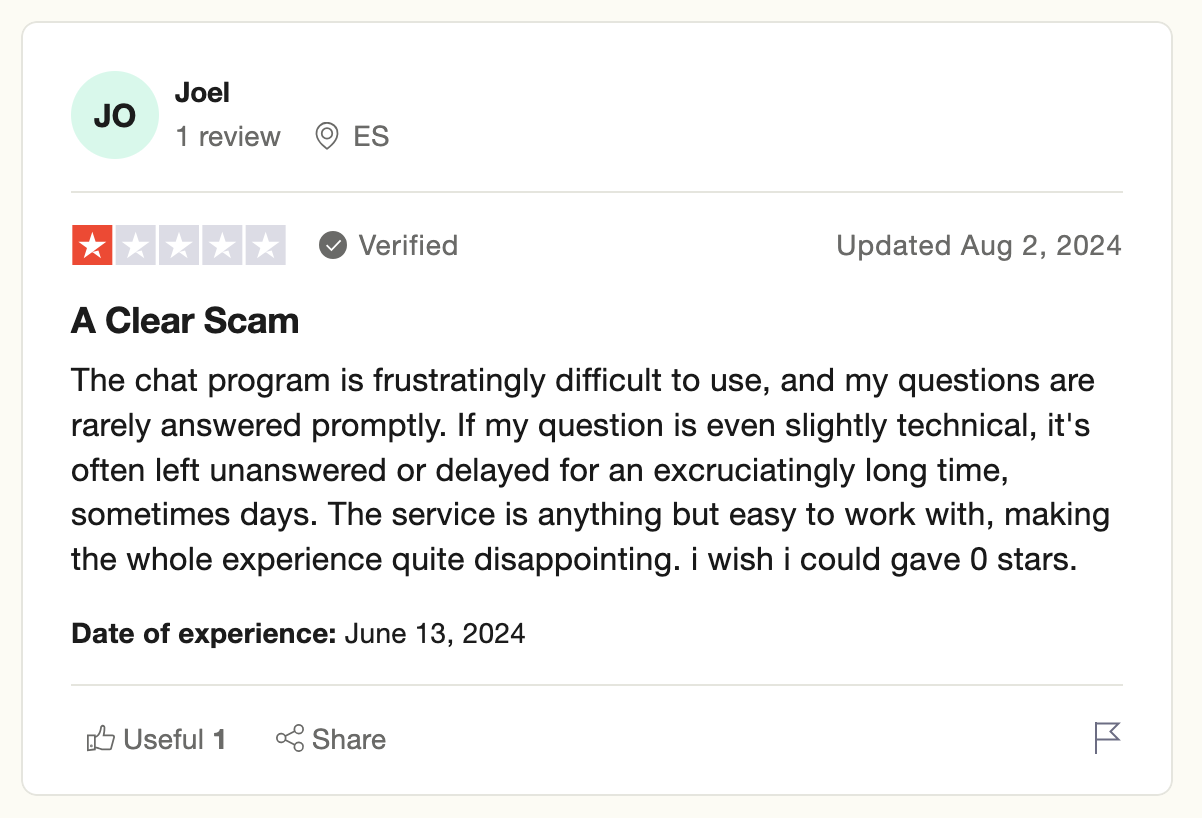
At Trutsname, we understand that your domain is a primary part of your business and needs to be available 24/7/365. This is why we offer round the clock customer support to help you when you need it the most.
Our support agents are well trained industry experts with first hand experience handling domain and web hosting related issues. You can reach us via email, live chat, or an online ticketing system.[+] [Callout] Info Insert title here [+] [Callout] Title/Title with Icon We prefer answering user queries immediately, so it's better to use the ticket or live chat option.
- Transparent Pricing With No Annoying Upsells After Sign Up
Once you sign up or transfer your domain to Trustname, we will not clog your account dashboard with annoying upsells.
We believe in transparency, so our pricing is transparent.
From the start.
You won't need to pay a dime to access any of our advanced domain management features, as they're added to your account for free once you sign up with us. See for yourself
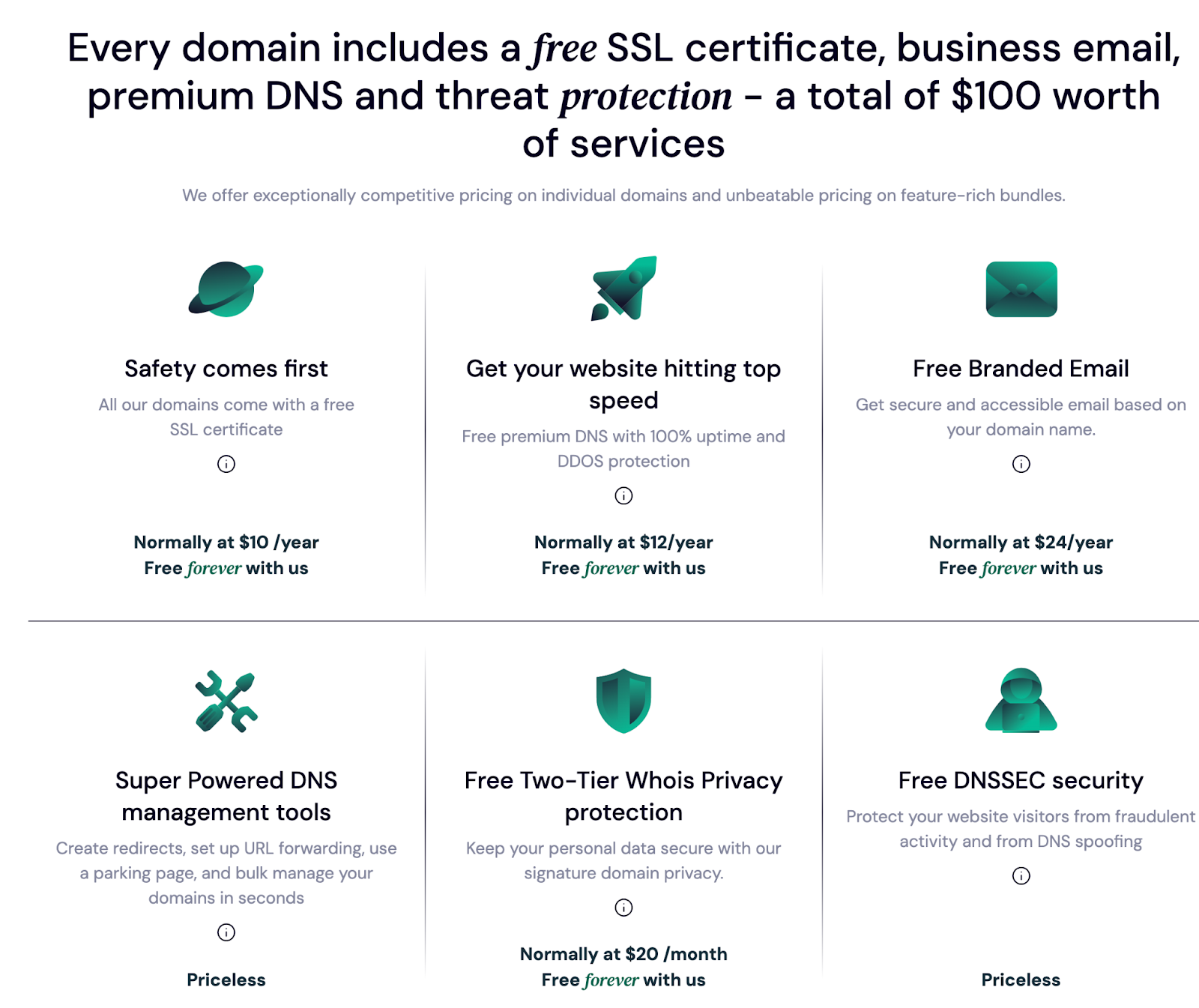
This isn't the same as IONOS.
For example, when you register your domain with them, you have to pay for 2FA, DNSSEC, and SSL all of which are free on Trustname.
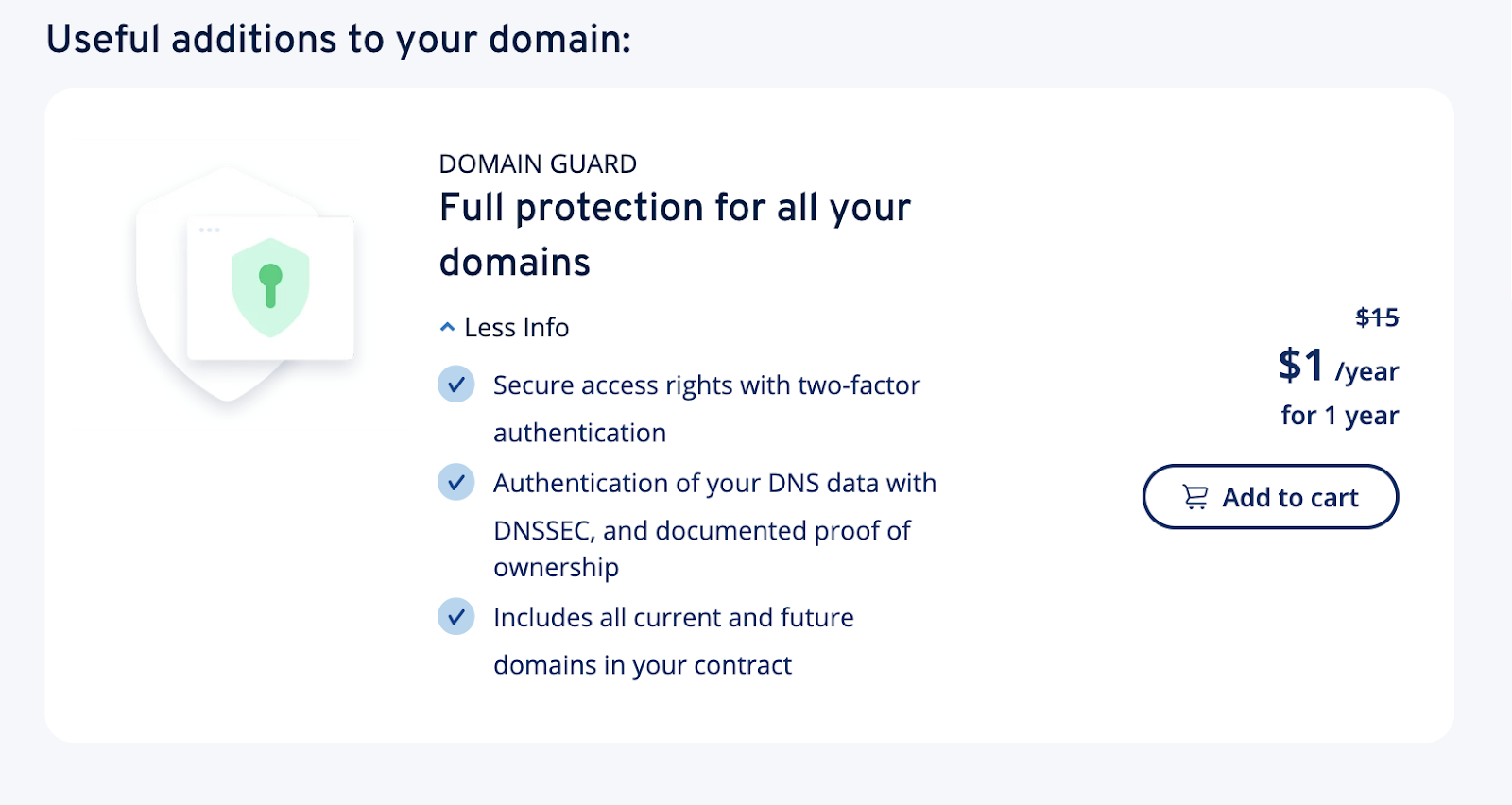
Plus, the price may seem (extremely) cheap from the outset, but you'll have to pay X25 to renew your domain and X15 to access the security features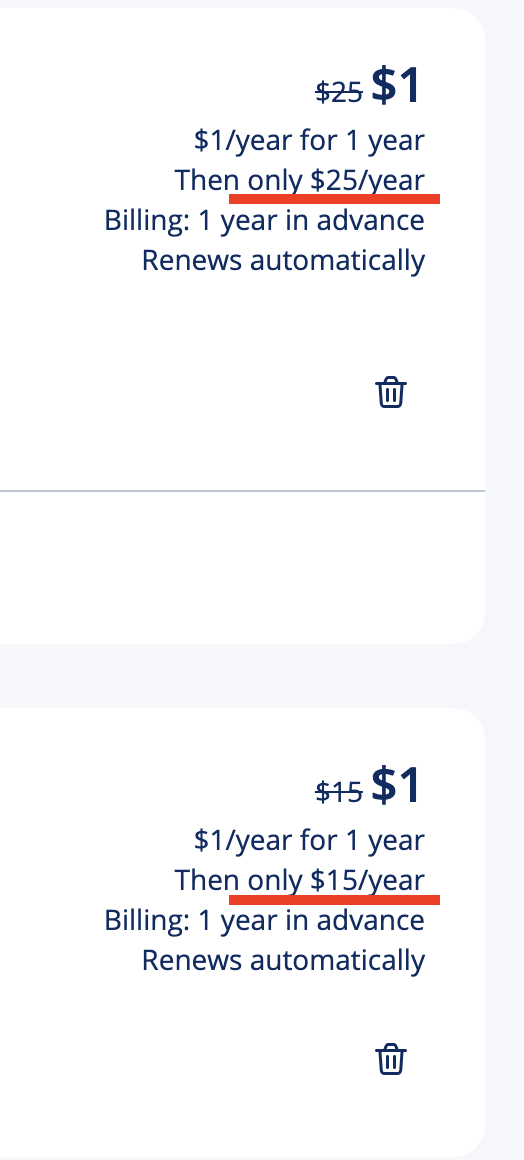
This excludes SSL certificates ($25/year) and business email ($12/year). In total, expect to pay over $50 when renewing your domain with IONOS. Sometimes, you also get unexpected charges on your account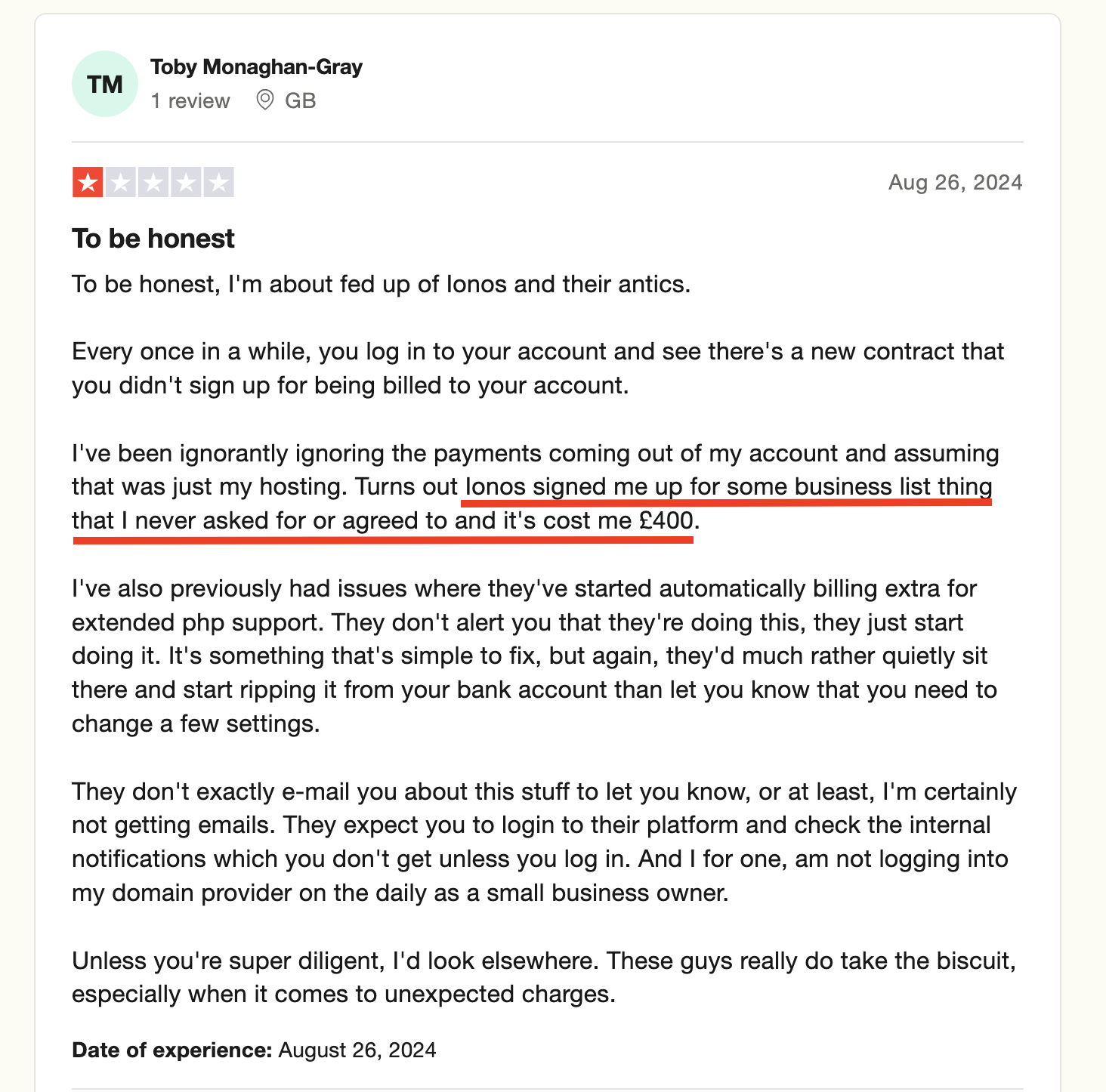
- Intuitive, Clean User Interface
If you love a modern, clean, and intuitive user interface, you have encountered issues with IONOS. Not only does their interface look basic, but you also have to navigate through multiple menus and options just to find simple features.
This makes it challenging to manage your domain(s) effectively.
In contrast, Trustname's dashboard is tailored for the everyday Internet user. It features a minimalist, modern design, and everything you need to manage your domain is accessible in 1 to 2 clicks. The best part? You don't have to jump between pages to manage your domain settings.
You can update your DNS nameservers, set up auto renewal, transfer domain ownership, enable DNSSEC, and perform other vital tasks on a single page. Cool, isn't it? - Unbeatable Two-Tier Privacy
Another massive advantage of using Trustname is our two-tier domain privacy protection. Unlike the basic Whois protection that registrars like IONOS offer, this provides an extra layer of security to protect your domain from the public. If you're wondering how it works, here's a summary
[+] [List] Green Ordered - Whenever you register your domain on Trustname, you can choose to add your details or use our third-party proxy service, Private Partner LLC, as the registrant.
So, whenever someone searches for your domain in the Whois database, PP LLCs appear instead of yours, concealing you from any malicious activity. No worries, you still retain complete control of your domain and can always revert to your personal info at any time. - Here, you'll get the regular Whois privacy that protects your details (or PP LLC's if you choose that) by replacing it with an alias from one of our proxy partners.
Both layers ensure ultimate privacy and secure your personal details from malicious actors. Also, wherever someone files a legal complaint against your domain, PP LLC. will be the first point of contact instead of you. Cool, right?
That's not all.
Before we disclose your information, the complainant will also need to get three court orders from the US, St. Kitts & Nevis, and Estonia (where Trustname is headquartered). This stringent process makes it difficult for anyone to tamper with your domain.
- Whenever you register your domain on Trustname, you can choose to add your details or use our third-party proxy service, Private Partner LLC, as the registrant.
Things To Note Before Transferring The Domain Out
Before you transfer your domain from IONOS, there are some things you need to be aware of.
- Change Your Domain Nameservers
Your domain nameservers are like the phonebook of the internet. They help point user's web browsers to your website by translating your domain name into the corresponding IP address of the web server that hosts your website content.
Whenever you're transferring your domain from one registrar to another, it's important to note that your domain's nameservers will remain in your current registrar until the transfer is completed. During this time, your website uptime may be affected, especially if the transfer takes several days.
[+] [Callout] Warning Insert title here [+] [Callout] Title/Title with Icon -> To avoid downtime during the transfer process, change your domain name servers to point to your new web host.
For example, since you're currently using IONOS, change your domain settings to point to Trustname's before initiating a transfer. This way, your business remains functional throughout the transfer process without any interruptions.
- Transfer Your Domain In The 'Active' Period
Every domain has a lifecycle, which is the stages it goes through before it's released into the market for re-registration. You can only transfer your domain during the 'Active’ or 'Grace' periods.
When it's in the 'Redemption or Pending Delete' period, you won't be able to transfer your domain to Trustname.
- The Transfer Fees
You're required to pay a base fee whenever you transfer your domain to us. This covers the ICANN, processing, and registration fees. Also, when you make the payments, we automatically renew your domain for another year.
This means if your domain was supposed to expire on November 5, 2024, the new expiration date will be November 5, 2025.
- Domain Name Management And Web Hosting Are Different
Most registrars offer both domain name registration and web hosting, but they're two separate services. When you transfer your domain to us, it doesn't include your website.
However, if you want to host your website on Trustname, you need to purchase a web hosting plan and contact our support team to help you migrate your website seamlessly.
Preparing For The Transfer Away From Ionos
To transfer your domain away from IONOS, here are some pre-steps to take for a seamless process
Ensure Your Domain Is 'Qualified' For a Transfer
As mandated by ICANN, you can only transfer your domain name out of IONOS if it has been registered with IONOS for more than 60 days. Also, if you've recently transferred your domain to IONOS or changed the contact details, you can't transfer it out until this period lapses.
This applies to all ICANN accredited domain registrars.
Disable Private Registration
Private registration is a service that allows you to replace your domain registrant details with an alias to protect them from public access to the Whois database. If you've enabled your account, you'll need to turn it off before initiating a transfer.
No worries, this doesn't affect your domain security in any way.
Trustname offers an upgraded version of this feature two-tier Whois protection at no extra cost. You can easily enable it on your account immediately after the transfer is completed.
To turn off private registration on IONOS, follow these steps
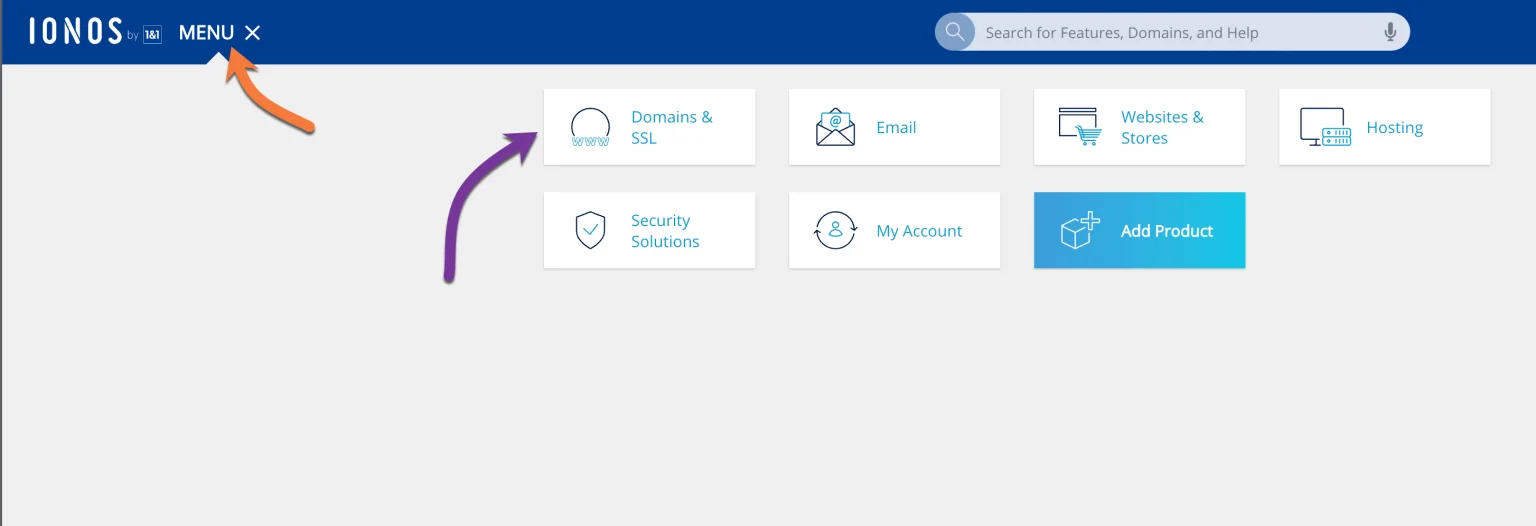
- Log In to your IONOS account and click 'Menu'. From the drop down, click 'Domains & SSL.'
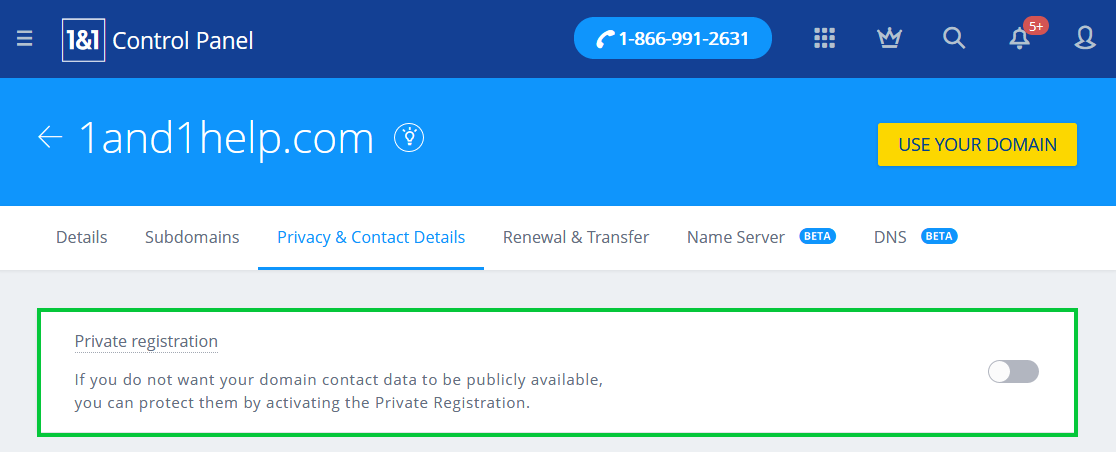
- On the Domains & SSL page, click on 'Privacy & Contact Details' and the toggle button next to 'Private registration' to turn it off
Unlock Your Domain
Domain lock is another security feature that prevents unauthorized transfers or changes to your domain. Most registrars, including Trustname, impose a domain lock on your account by default, and you'll need to turn it off before initiating a transfer.
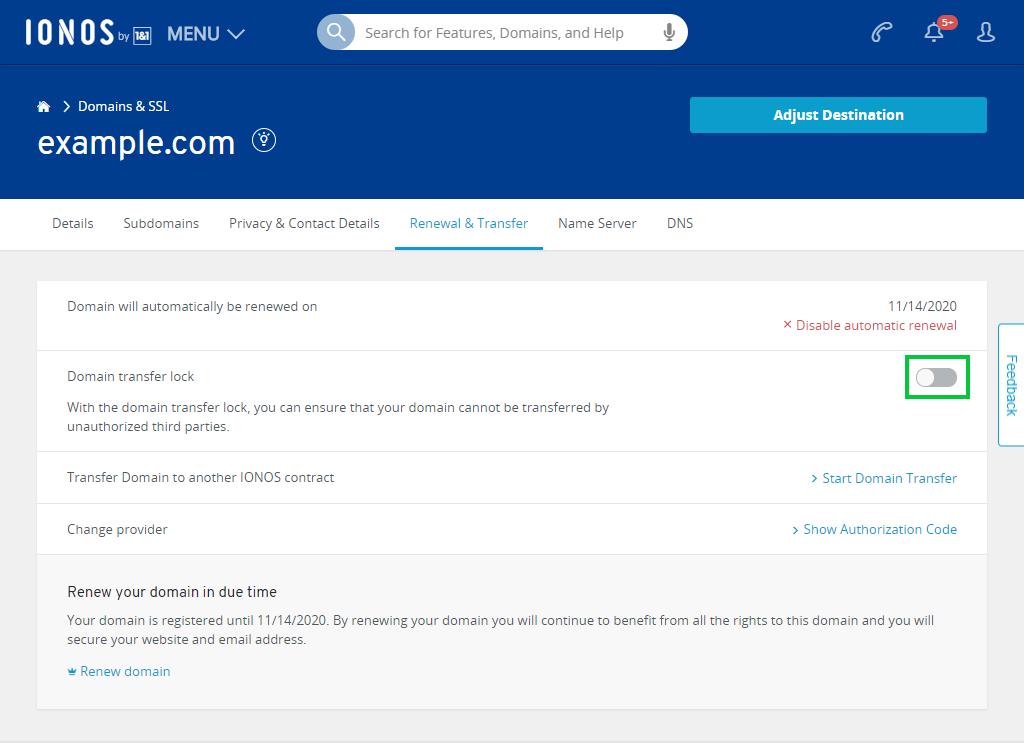
Follow these steps to turn off the domain lock on your account
- Log In to your IONOS account and click 'Menu >>> Domains & SSL.'
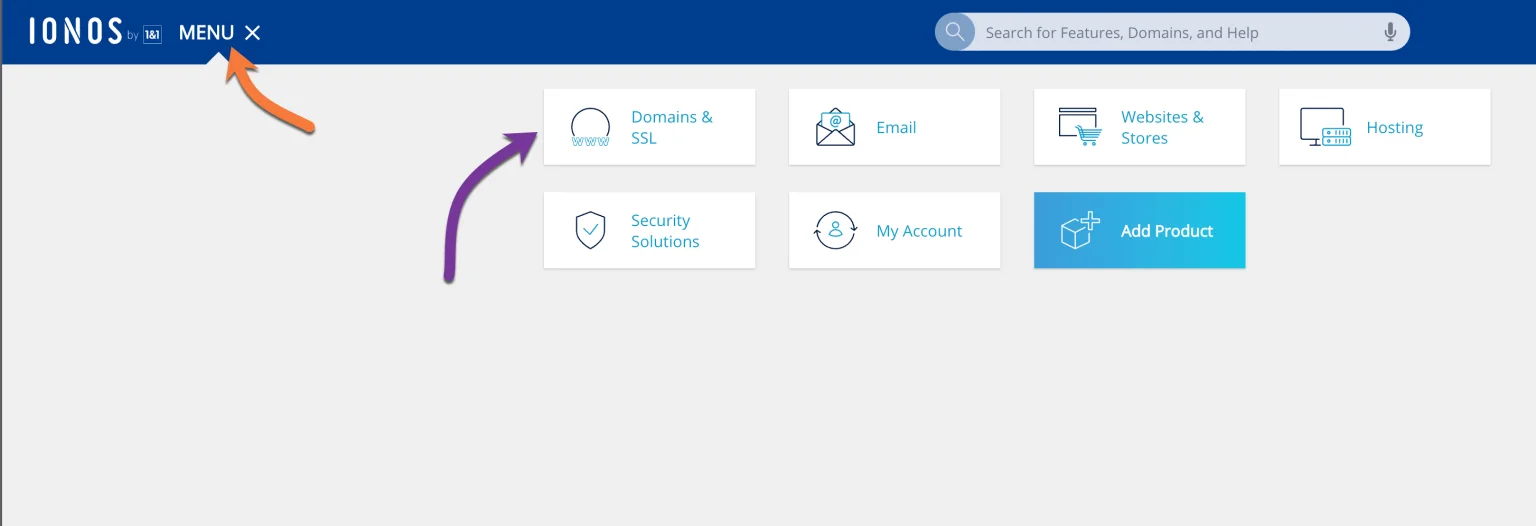
- On the Domains & SSL page, click on 'Renewal and Transfer' as shown below. If you have domain lock enabled, click on the toggle button to deactivate it
Ensure Your Contact Details Are Accurate And Updated
Another thing to note is the accuracy of the contact details listed on your account, especially your email address. During the transfer process, important notifications and updates will be communicated via this email, so it must be accurate, up to date, and accessible.
Also, the email on your account shouldn't be linked to the domain you're transferring to, as it may be temporarily turned off during the transfer process. A better option is to use an email link to another domain.
To run a quick check on your domain, follow these steps
- Log In to your IONOS account and click 'Menu'. From the drop down, click 'Domains & SSL.'
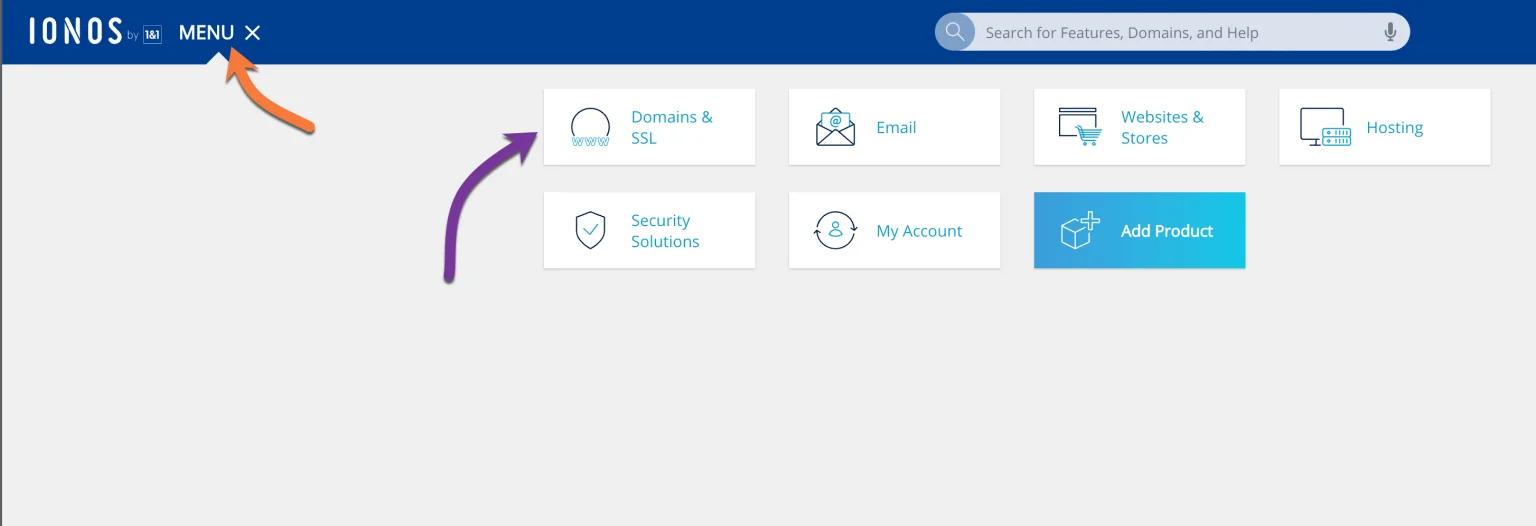
- If you have more than one domain listed, click the wheels icon next to the domain you want to transfer, then select 'Privacy & Contact details'. Right on this page, you'll see a section named IONOS Domain Contact Details. Click on the 'Reg-C' to edit and update your contact email accordingly.
Obtain The Authorization Code For The Transfer
Lastly, you'll need an authorization code (also called a Secret Key, EPP, or auth code) to transfer your domain name to Trustname (or any registrar).
This code validates the transfer and is part of ICANN's transfer policy for all accredited registrars. Once you've gotten the code, input it on the Trustname transfer portal to initiate the transfer process. We'll discuss how to do this in the next section.
Here are the steps to obtain your authorization code from IONOS
- Log In to your IONOS account and click on 'Menu' to access all the features associated with your account.
Right here, click 'Domains & SSL' as you've done in the preceding steps.
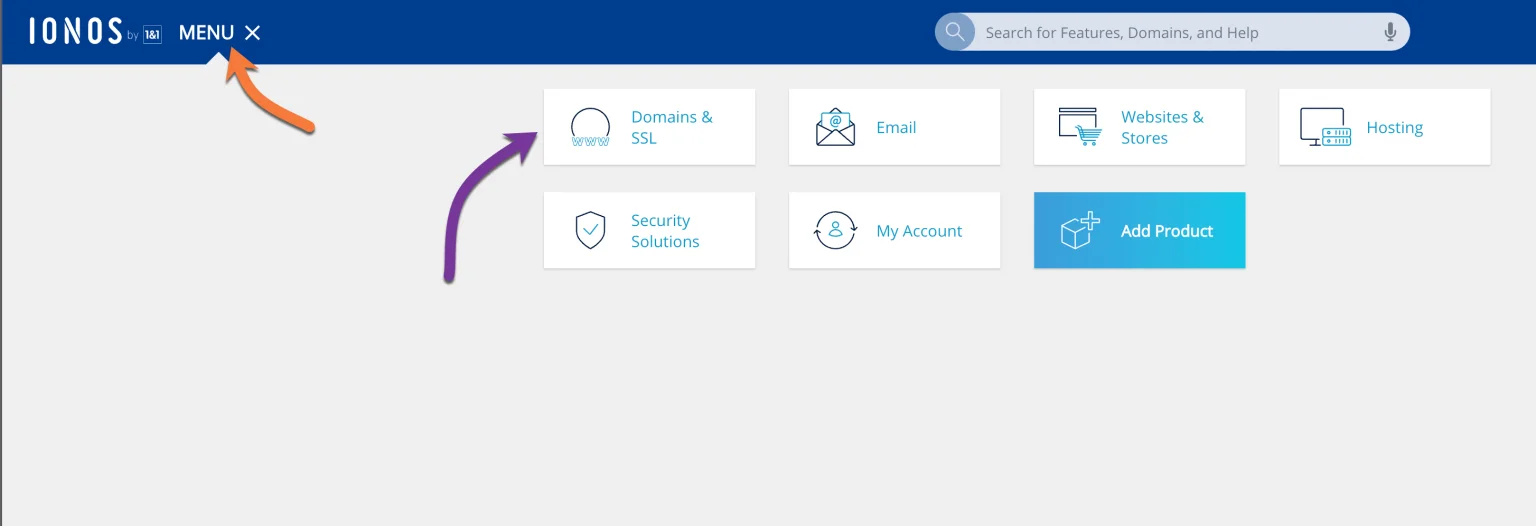
- On the Domains & SSL page, you'll see a list of domains associated with your account.
Next to the domain you want to transfer, click on the wheels icon. A drop down menu will pop up on your screen. Then, select 'Renewal & Transfer'.
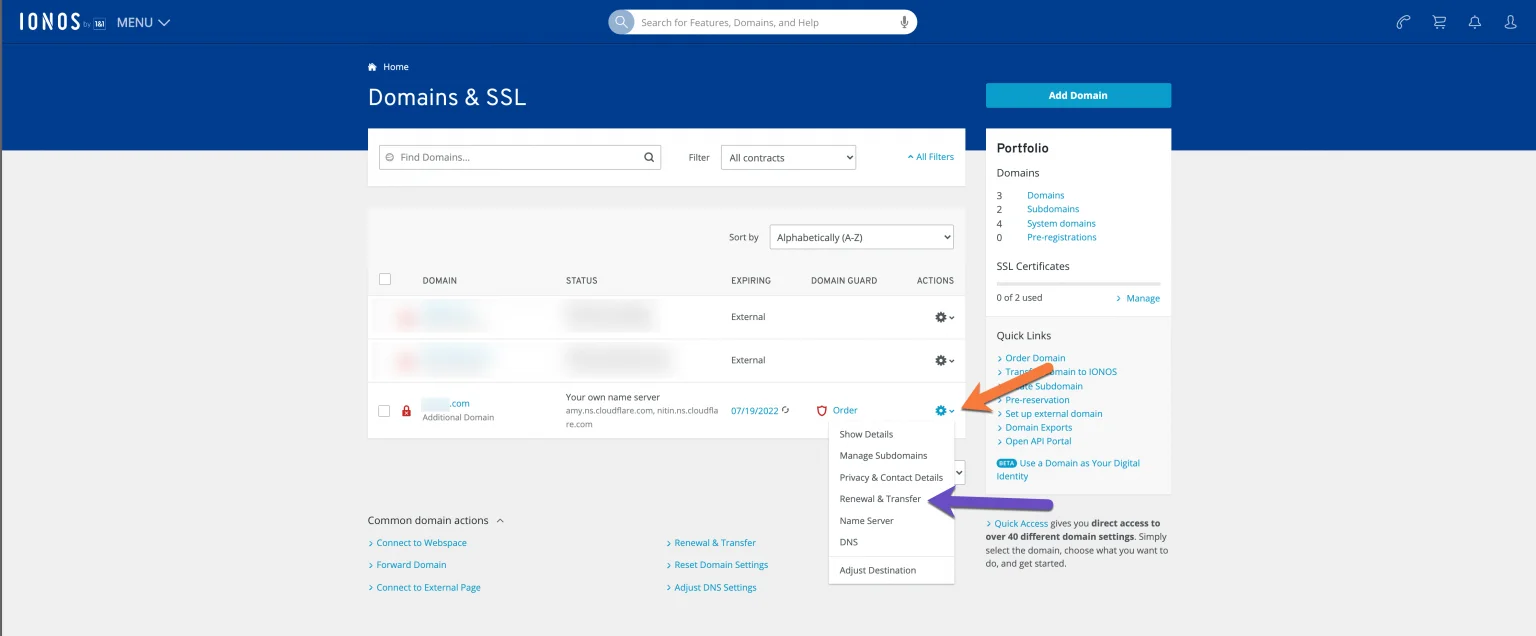
If you have just one domain listed on your account, just click 'Renewal & Transfer' right on the dashboard.
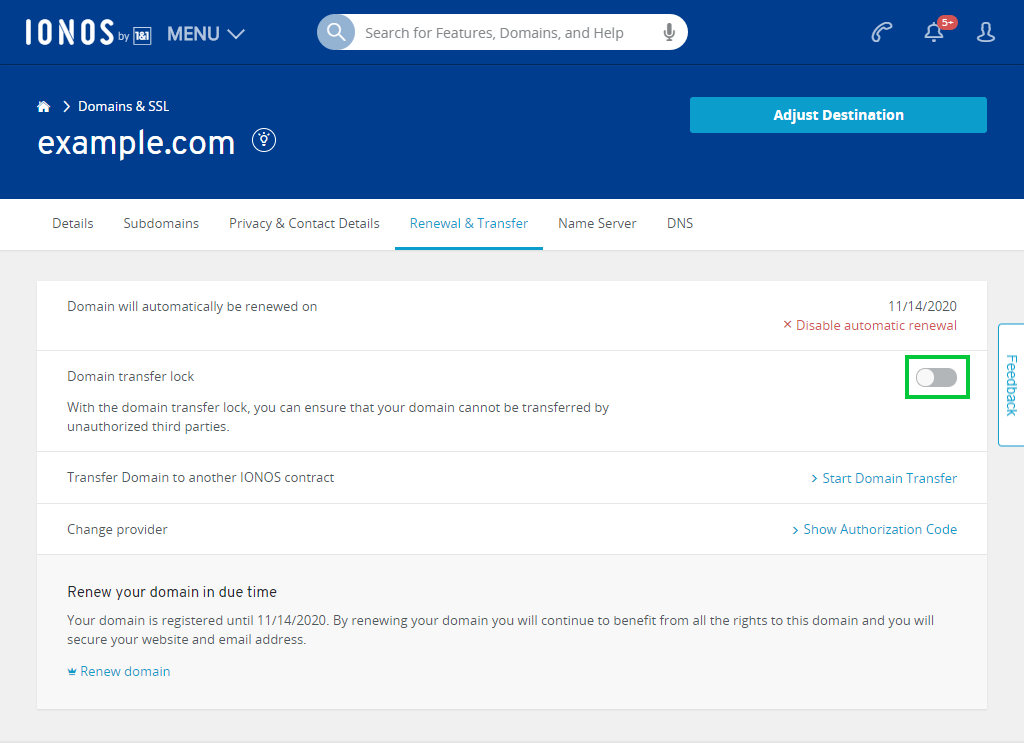
- Next, navigate to 'Change provider' and click 'Show Authorization Code'.
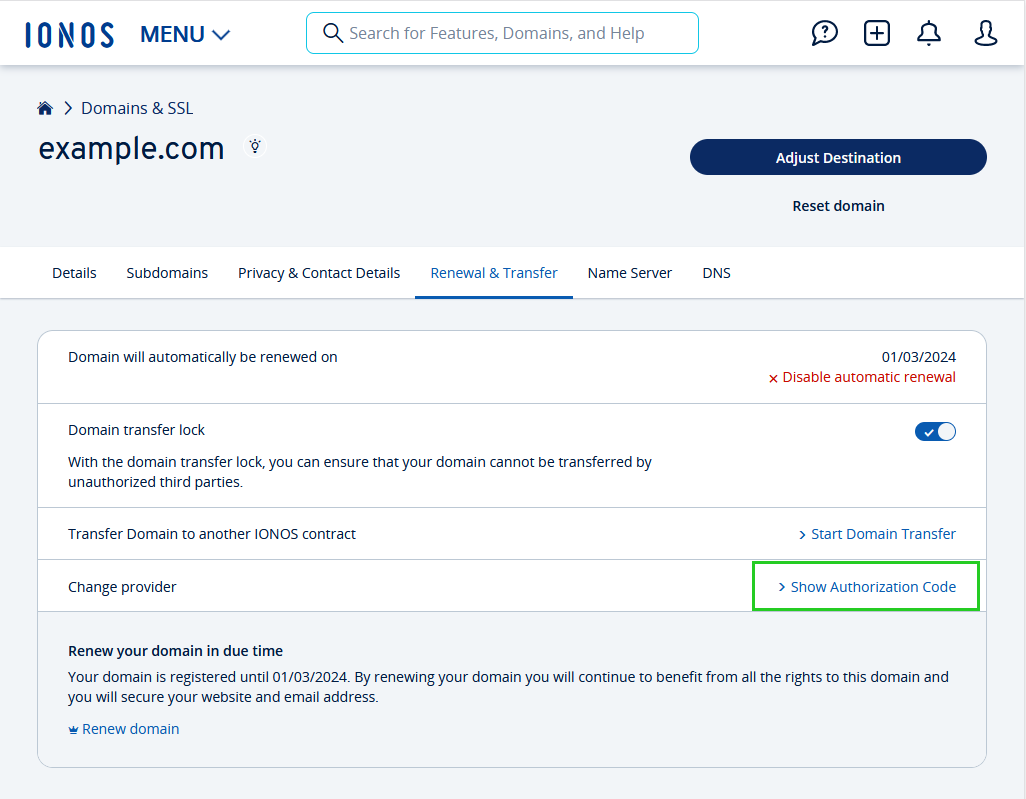
Your auth code will be displayed in a few minutes. Once you've received the auth code, copy it to a safe, easily accessible location, such as a Notepad or text editor file.
And you're all set! The following section details the steps required to become a Trustname user.
Transferring your domain from IONOS to Trustname
This is the most exciting part! To finalize your domain transfer process
Initiating a Domain Transfer On Trustname
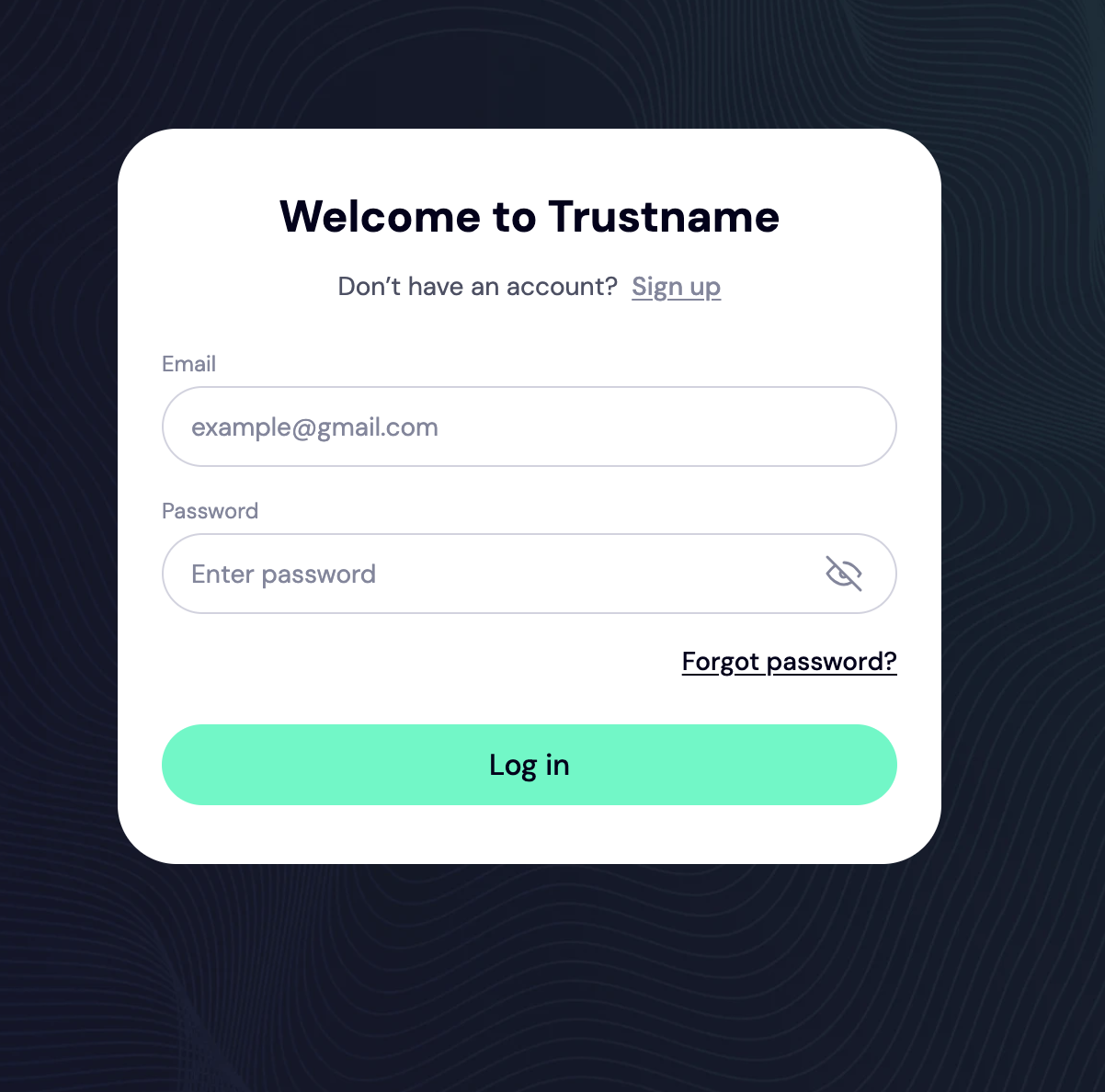
- To log In to your account, click 'Log In now' on the top right of the page
- On the logIn page, enter your account credentials in the fields provided as shown below. Then, click ‘Log In'.
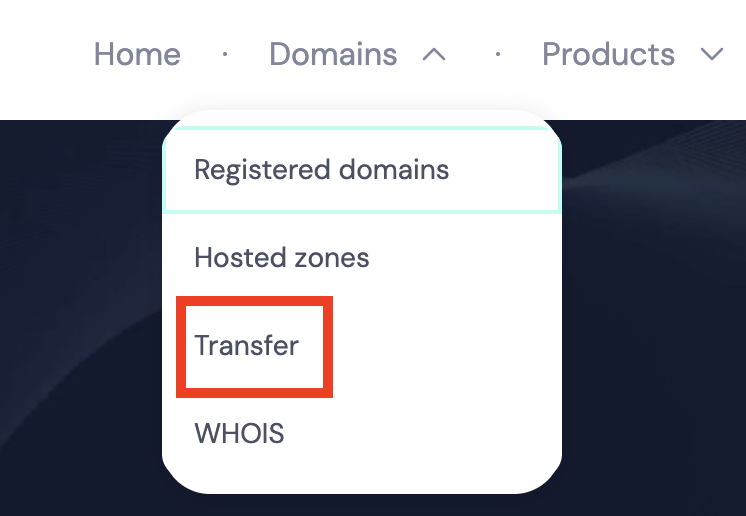
- Once you're logged in, click on 'Domains >>> Transfer'.
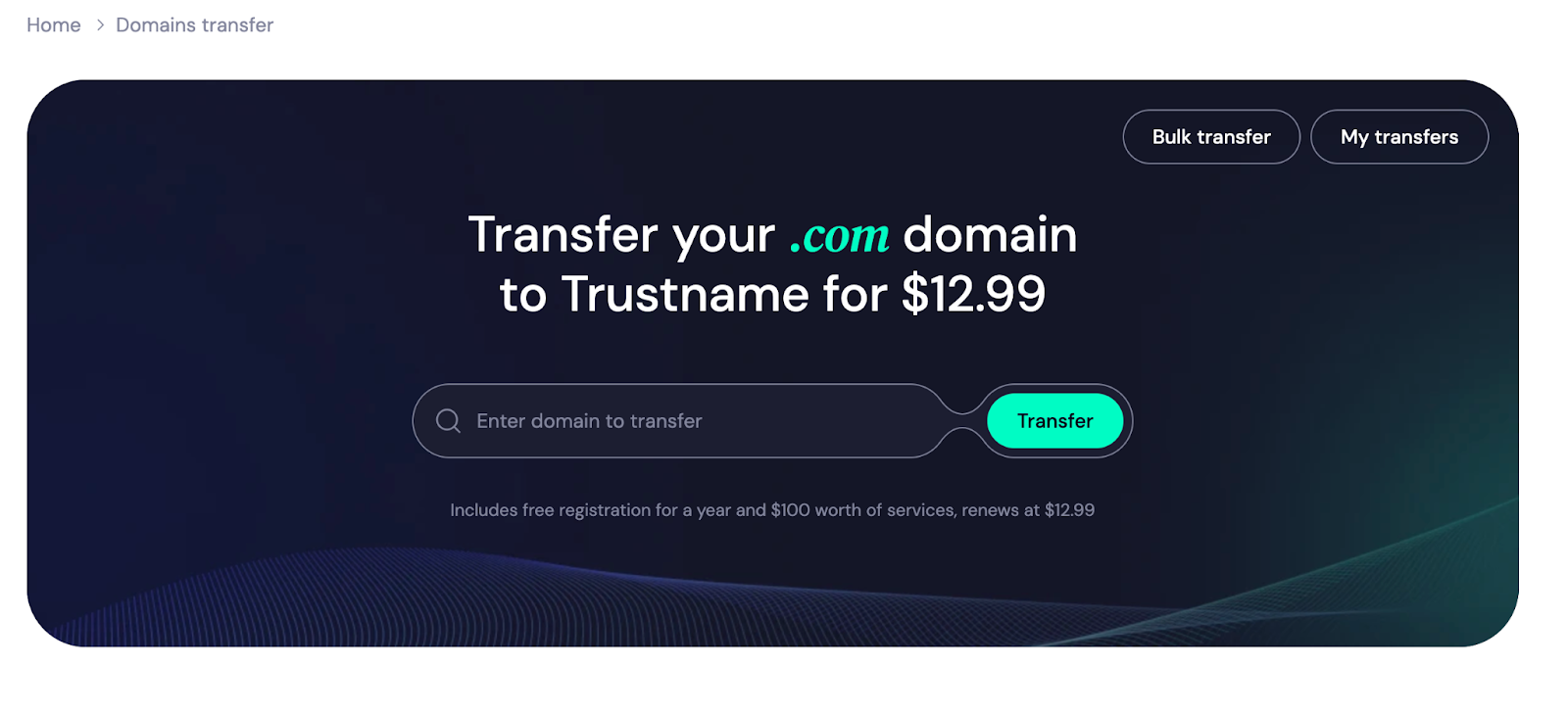
- Now, you're on Trustname's domain transfer portal. Type in your IONOS domain into the search field as shown on your screen and click 'Transfer'
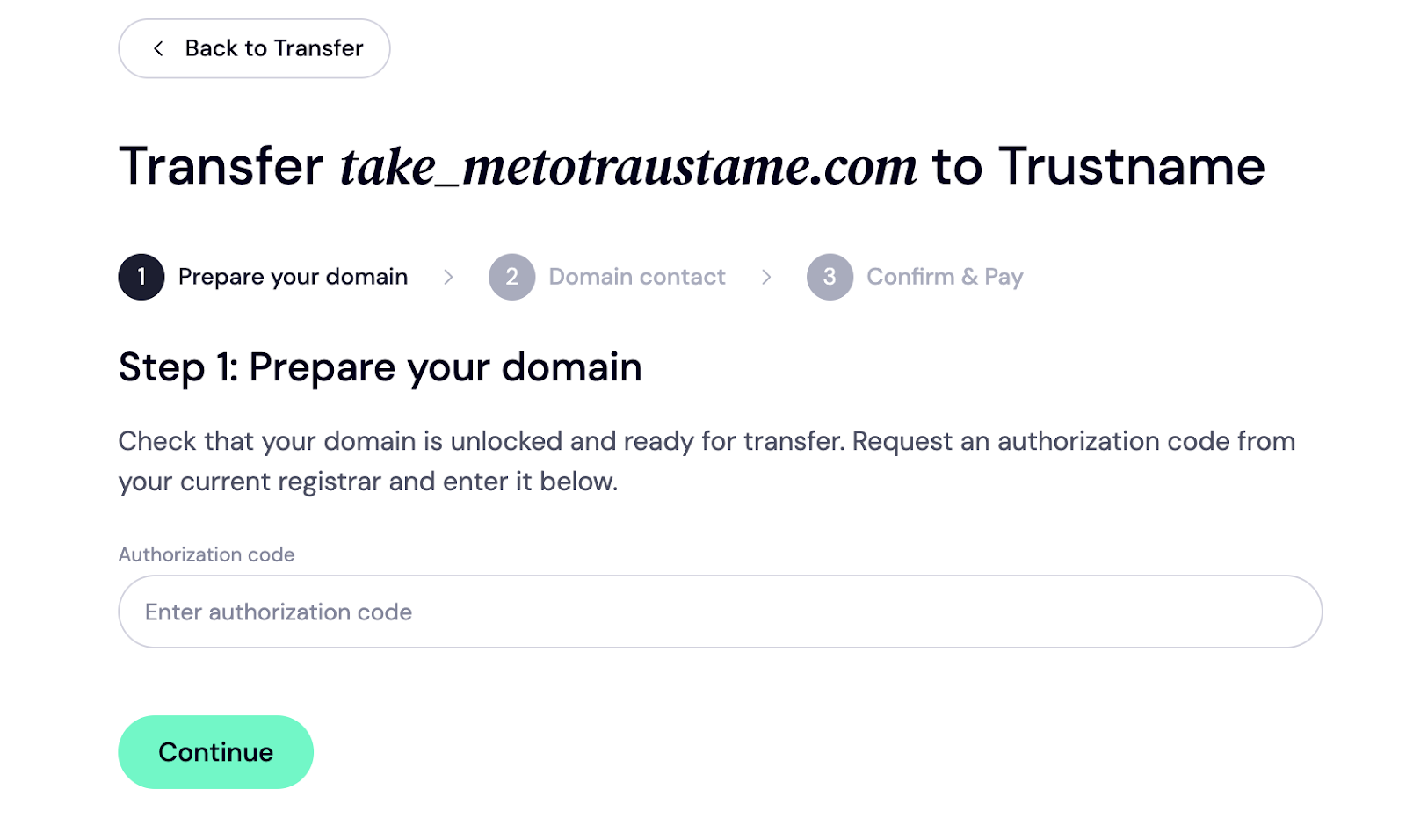
Enter the Authorization Code
Next, enter the authorization code generated from IONOS in the field below and click 'Continue'.
Add Domain Contact
On this page, you need to add your domain contact details. Once you click 'Choose Contact' below, you'll be faced with three options
- Add new contact
Here, you can enter the details of your domain, including the registrant's name, address, email, and phone number
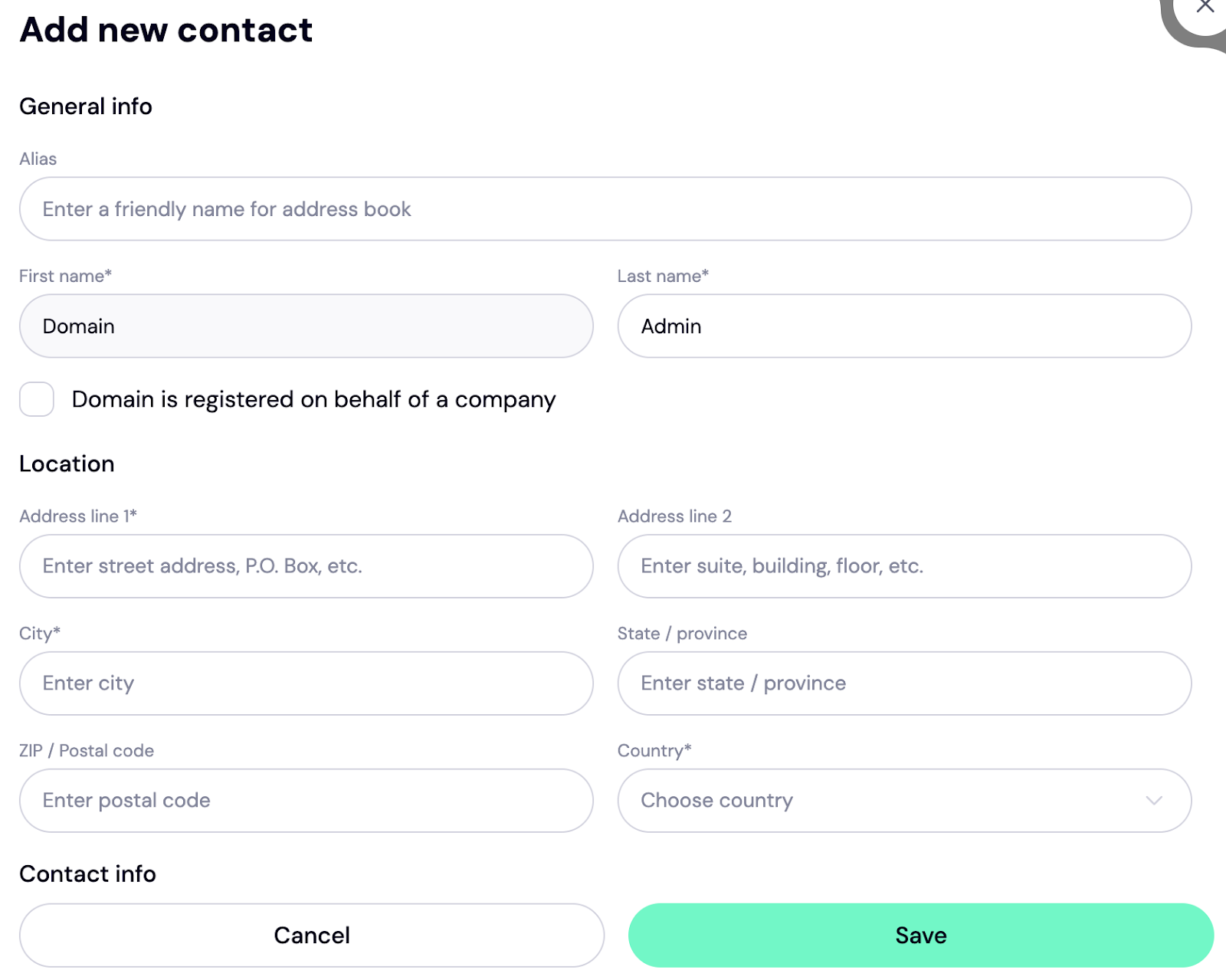 If you're registering the domain for your business, simply hit the checkbox next to 'Domain is registered on behalf of a company' to enter your business details.
 - Pre-defined contact
Remember the two-tier Whois privacy we shared in the preceding section? This is the first tier of our proprietary protection service. In fact, we totally recommend using this feature to safeguard your domain from the public eye.
These are the details that'll appear as your contact details if you choose this option
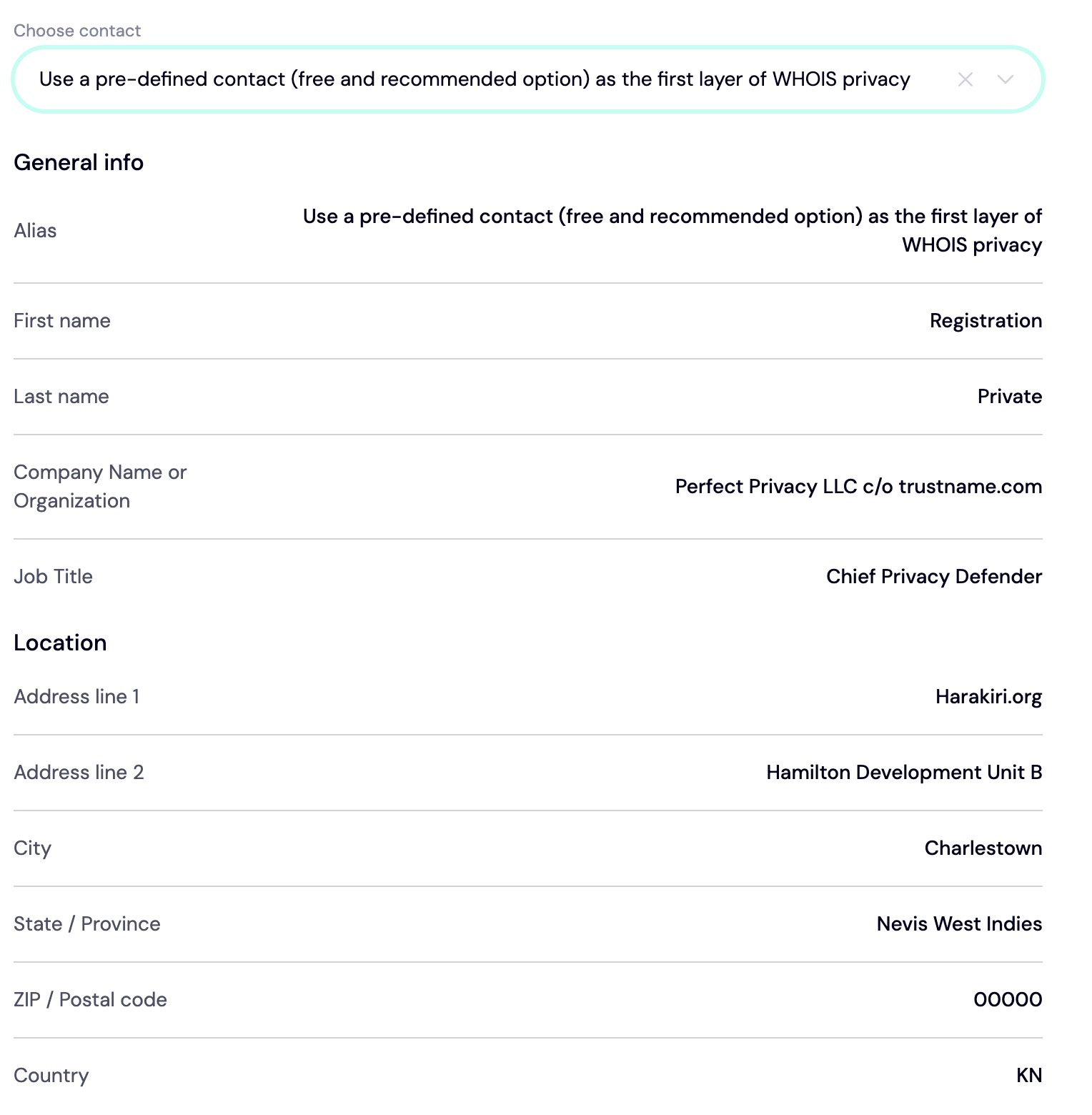
- New default
Alternatively, you can use the generic Whois Domain Privacy (it's the same as the Private Registration on IONOS) to mask your contact information (either yours or PP LLC.’s) from the Whois database. Once you’ve filled in your details, click 'Continue' to proceed to the payment page.
Pay For an Extended Registration
Here, you're required to enter your billing details to pay for your domain transfer to Trustname. Once you do, you automatically get an extra year added to your current expiry date.
Follow these steps to make your payment
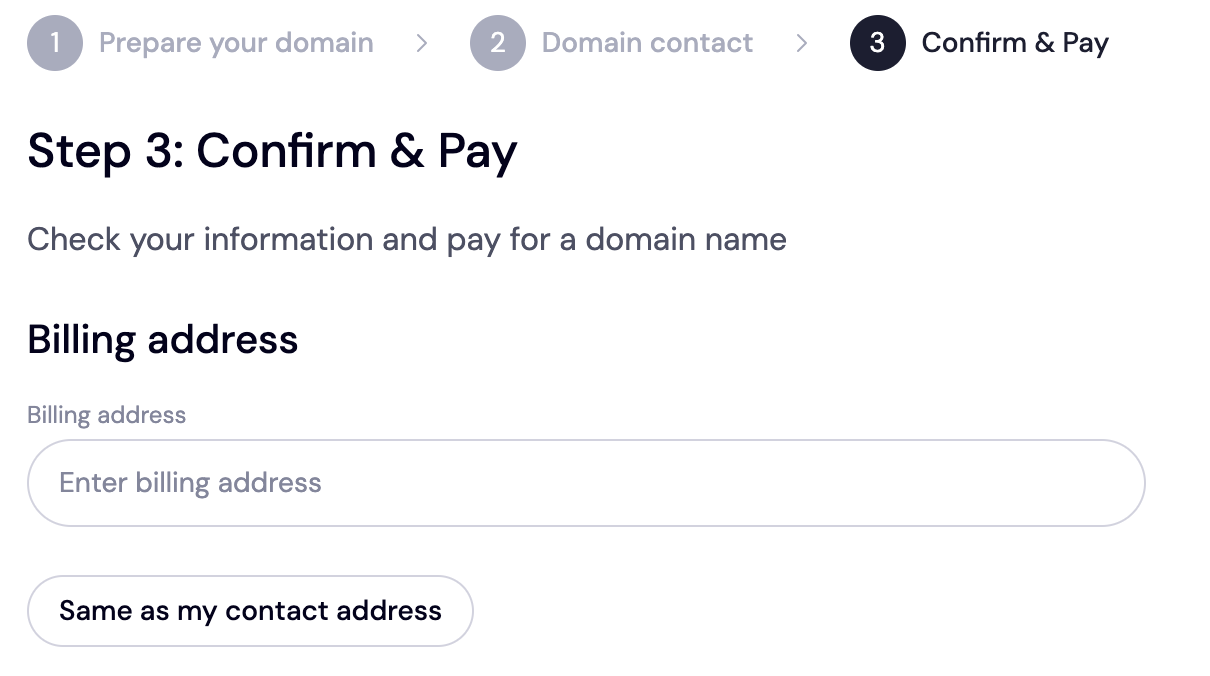
- Enter your billing address into the form field as shown on your screen. You can also click the 'Same as my contact address' to expedite this process
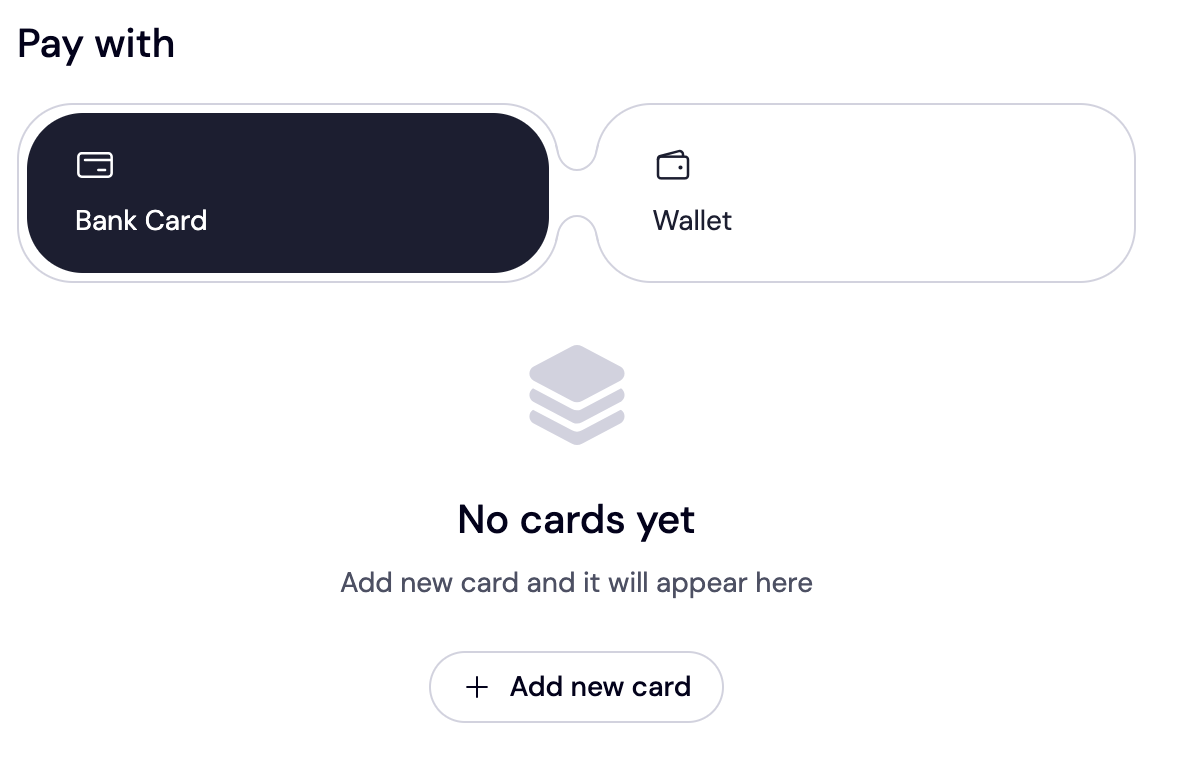
- Next, choose your payment method from the options available. You can either add your bank card (we accept Visa, MasterCard, American Express, Union Pay, Discover), etc., or use the existing funds (if you have them) in your Trustname wallet to make payments
Trustname Welcome Promo Code - WELCOME777
- Our transfer fees are $14.99 per year, including ICANN fees (we charge $0 for processing and taxes)!
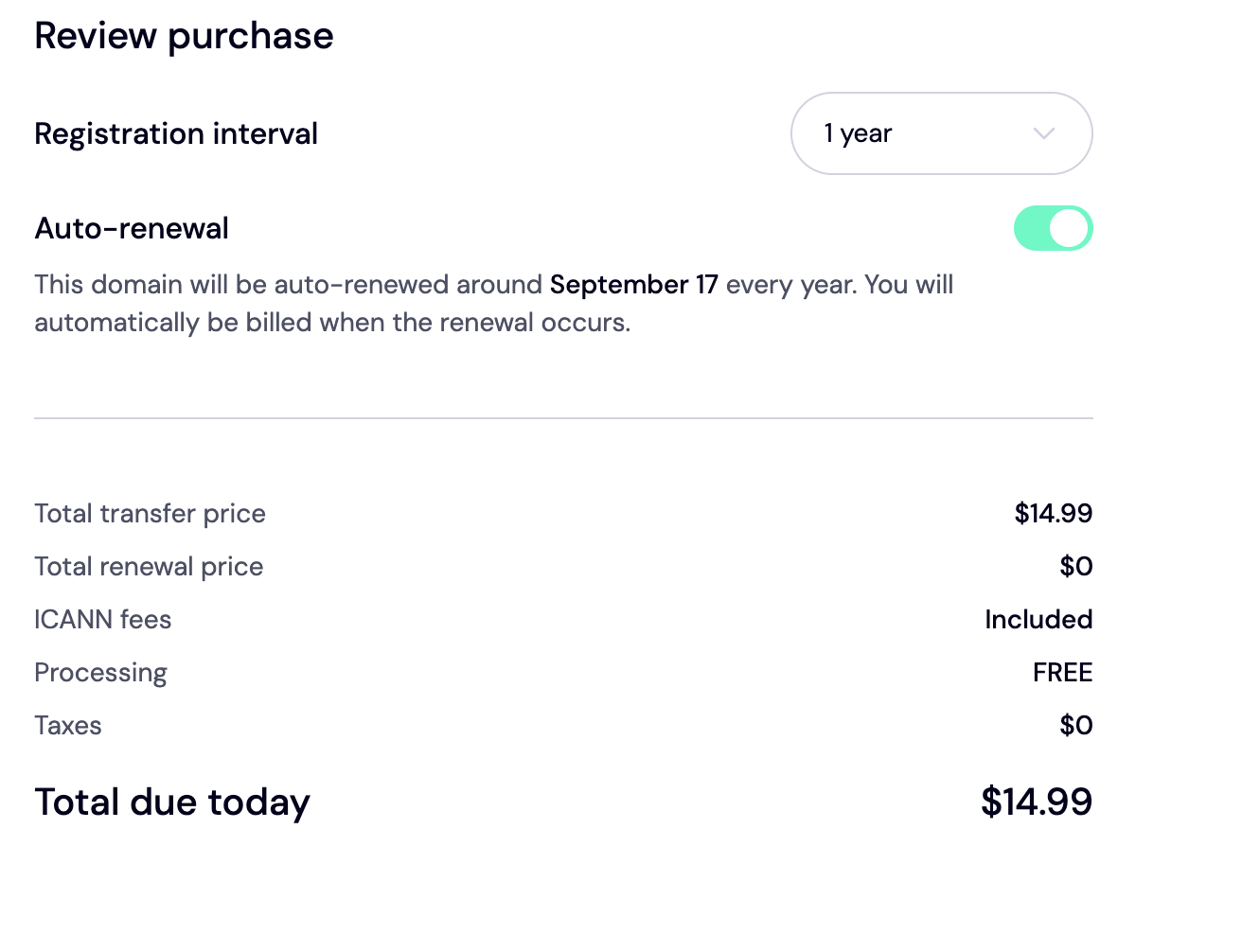
But what if you can save even more? - As a part of our welcome package, you can enjoy a 50% discount on the transfer fees when you use our promo code WELCOME 777.
- This slashes the transfer fees to $7.77.
- Your domain will renew at the standard renewal price of $14.99, but with no additional charges.
- This is one of the best prices you can get in the market compared to IONOS, which charges almost X50 for renewals, including fees for basic domain management features.
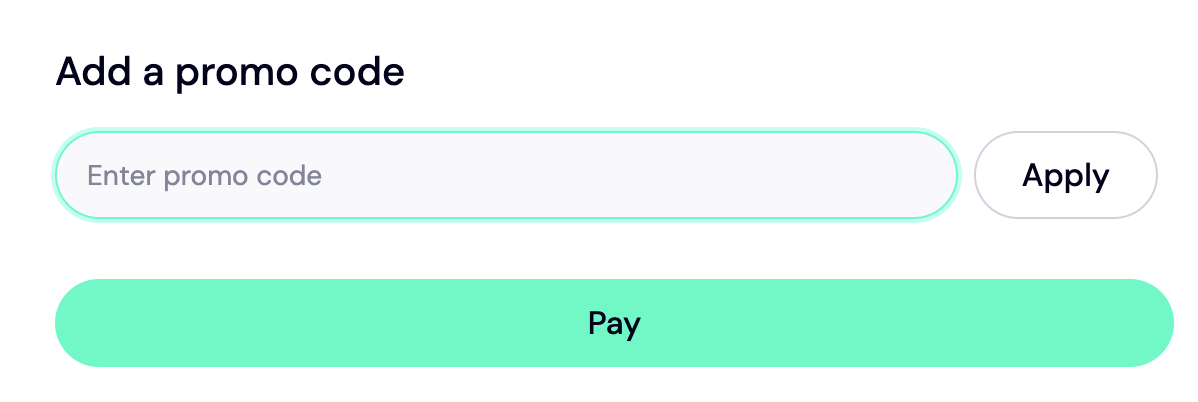
- To enjoy this promo, enter WELCOME777 in the 'Add a promo code' section as shown below
Choose The Duration For Your Registration
In his stage, select the number of years you want to be registered for. The minimum for this is one year, and the maximum is ten years
If you subscribed for less than 10 years, enable auto renewal on your account to prevent your domain from expiring without notice.
Lastly…
Make Your Payment
Once you've chosen your domain registration duration, click 'Pay', and that's it! Your domain name will be processed for transfer.
It takes 5 to 6 working days (at most a week) to transfer your domain name from IONOS to Trustname. After this time, you'll have to log In to your Trustname account to approve the domain transfer.
To Do This
- Log In to your Trustname account using your credentials.
- Navigate to 'Domains >>> Transfer >>> My Transfers'. Here, you'll see all the domain transfers to your account (including the one you just initiated). All unaccepted transfers will be listed as 'Pending'.
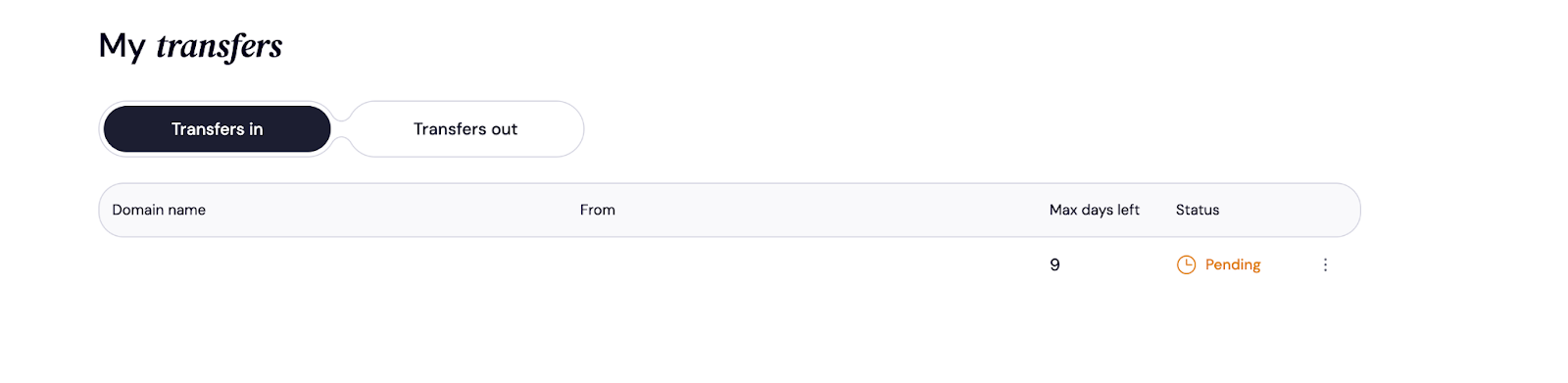
- To accept the transfer, click on the three dotted menu and 'Accept.' A notification will appear on your screen like this
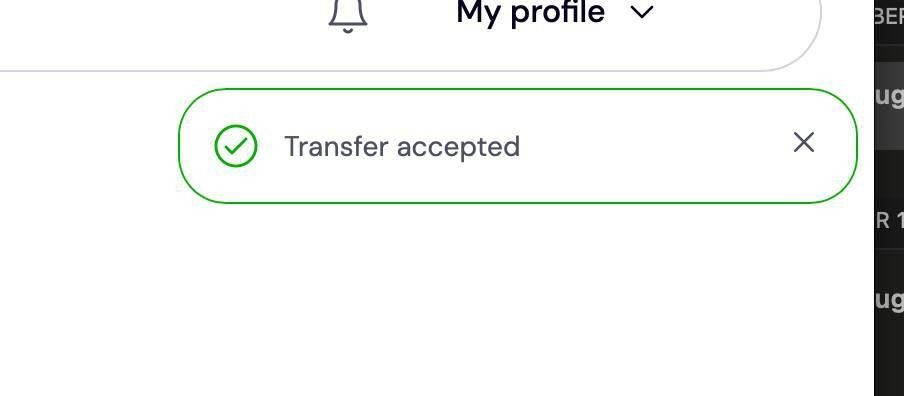
That's it! You're officially a Trustname user!
Managing Your Domain at Trustname
Now that you have transferred your domain to us, you have full access to all our advanced domain management and security features to manage your domain effectively and secure your account. Here are a few of them
- Enable Our Proprietary Two-Tier Privacy
Upon registration, we enable the second tier of our two-tier privacy protection on your domain account by default. This is the Whois privacy protection service, which protects your contact details from public view in the Whois database.
The first layer, the pre-defined contact, is optional, and you can either turn it on or off on your account at will. To do this, head over to 'Domains >>> Registered Domains >>> Domain Contacts'.
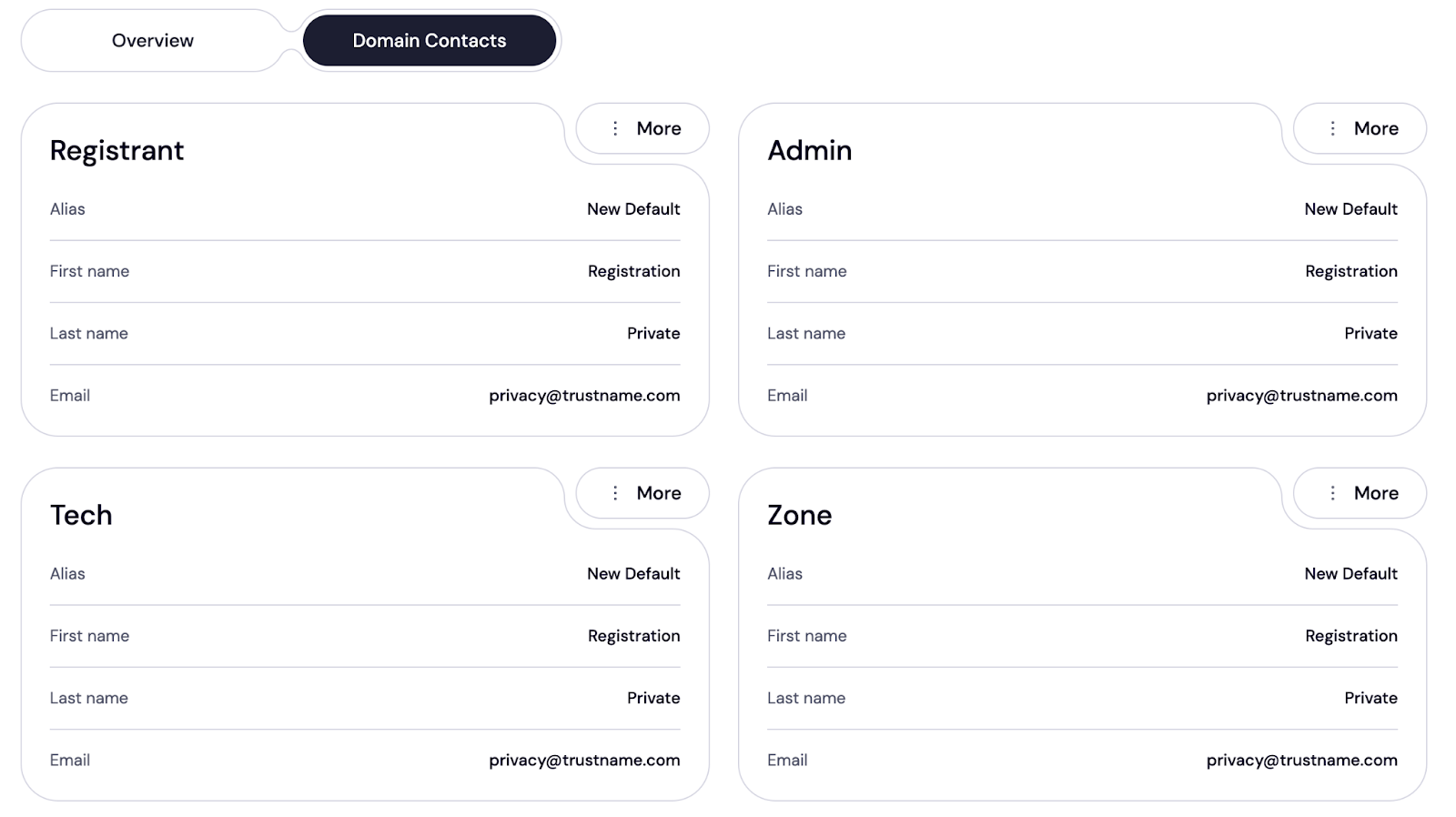
Click here to learn more about our two-tier Domain privacy protection and how it works to protect your account.
- Use The Domain Lock
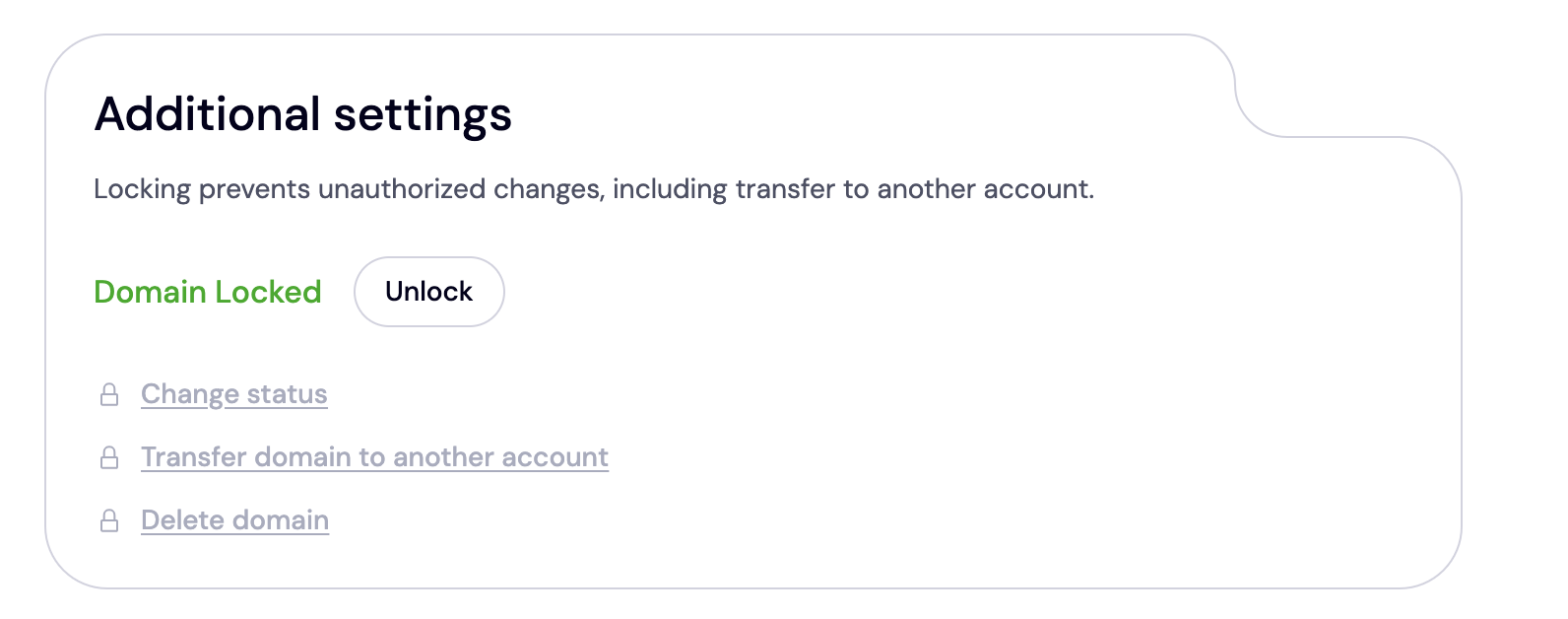
We also enable domain lock on your account by default after you transfer it to us. You can turn it on/off at any time on your customer portal.
To check if your domain is locked, head over to 'Domains >>> Registered Domains >>> Select Domain' and scroll down to the 'Additional settings' section, where domain lock is listed
- Verify The DNS Settings
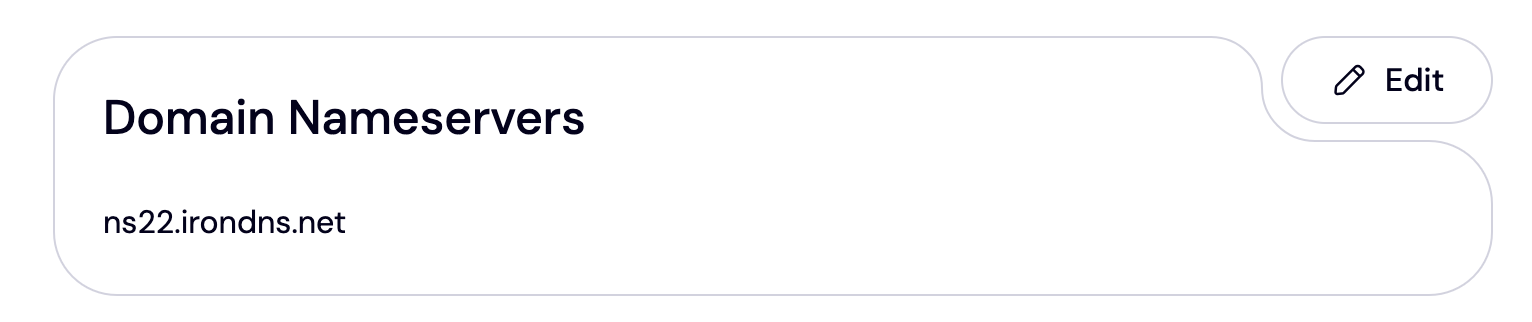
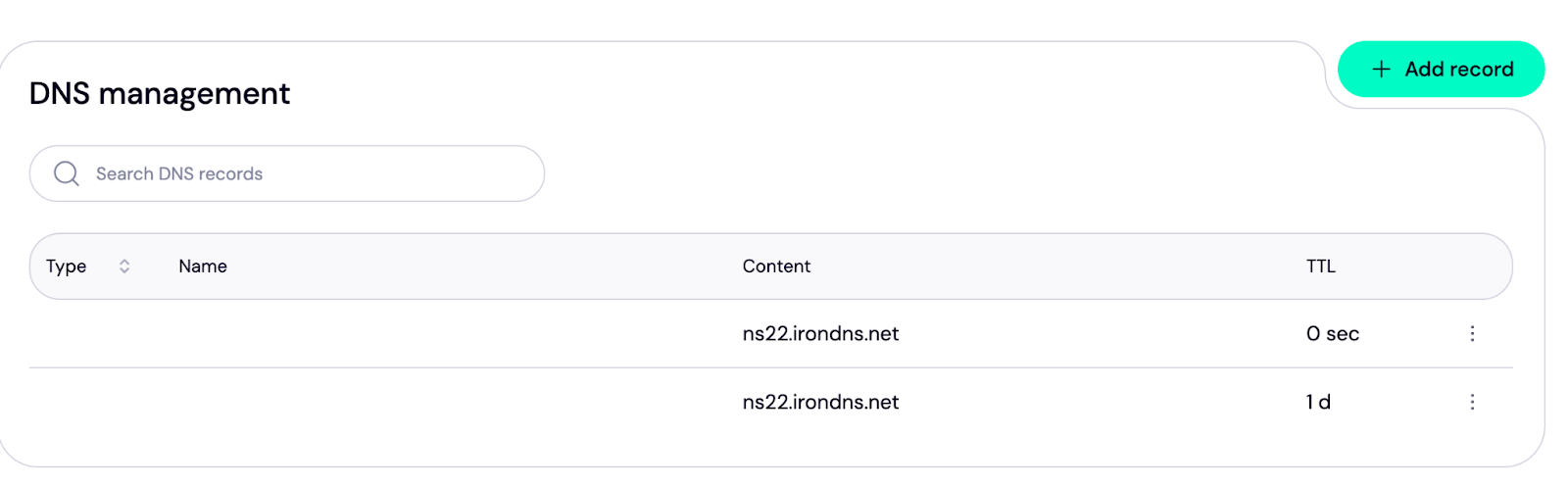
On the same page, you can add, review, and manage your domain name servers and DNS records.
To review your domain name servers, navigate to 'Domains >>> Registered Domains >>> Select Domain'. The nameservers are listed under the Domain Nameservers section
To access your DNS record, scroll to the top of the page. Under General info, look for Hosted Zone and click 'View' as shown below
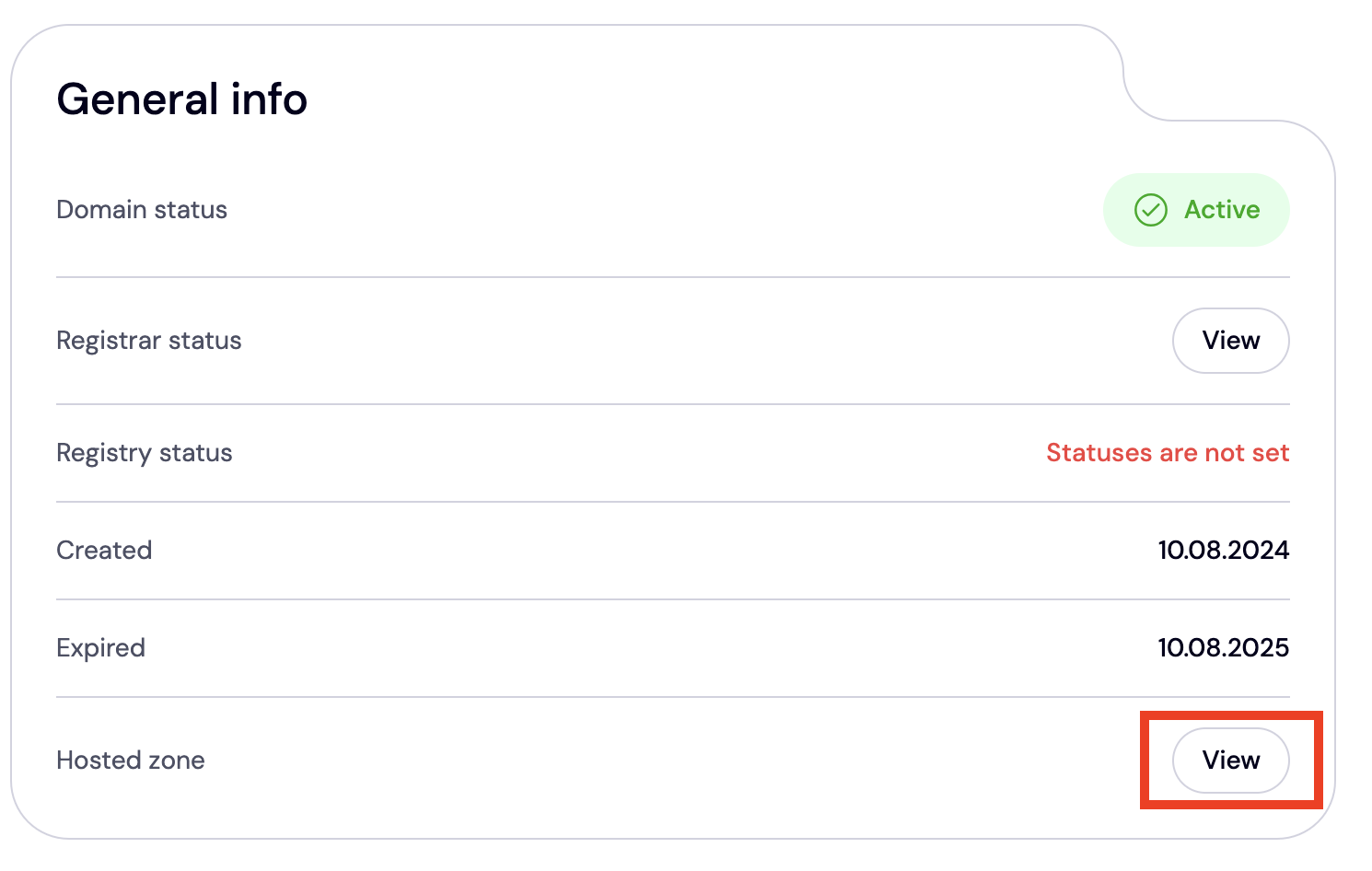
You'll be redirected to the DNS management page. Here, you can add (or remove existing) DNS records, check your nameservers, and enable DNSSEC
- Set Up Two-Factor Authentication (2FA)
You can also enable 2FA on your account to prevent unauthorized access to your domain even if your password has been compromised. Whenever they try to access your account with your credentials, they'll need the code generated by the authenticator app on your device.
To set up 2FA on your Trustname account[+] [List] Green Ordered - On your customer portal, look out for 'My Profile' on the top right corner of the page and click 'Account Settings'.
- On this page, scroll down to the 'Two-factor authentication (2FA)' section and click the toggle button
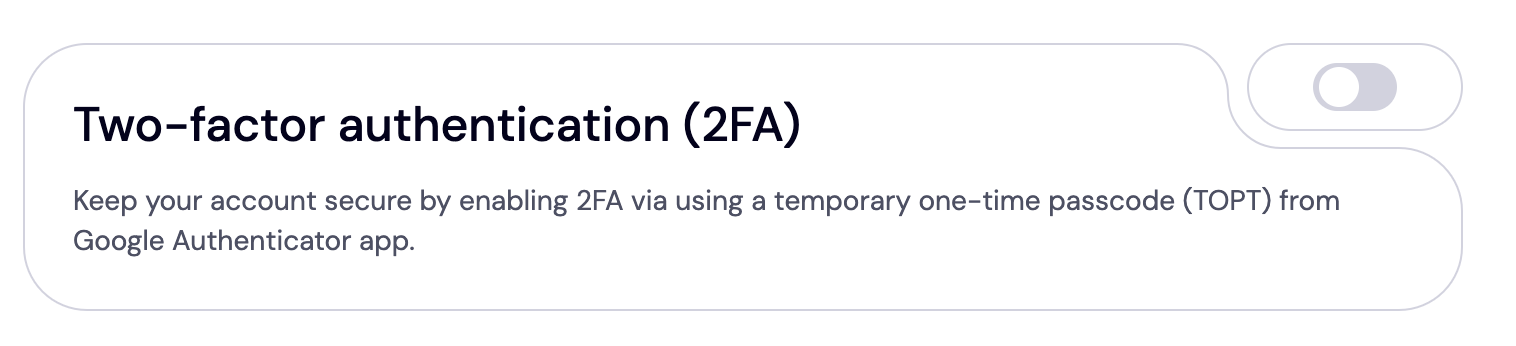
You'll see a pop-up on your screen containing a QR code and a setup key.
- Open the Apple or Google Play Store on your phone and download an authentication app. We recommend Google Authenticator because it's one of the most secure options available.
- Once you create an account in the app, scan the QR code or enter the setup key displayed on your screen. Immediately, a six-digit code will be generated on the app.
- Enter the six-digit code into your Trustname account to complete the authentication process. Then, click 'Enable'.
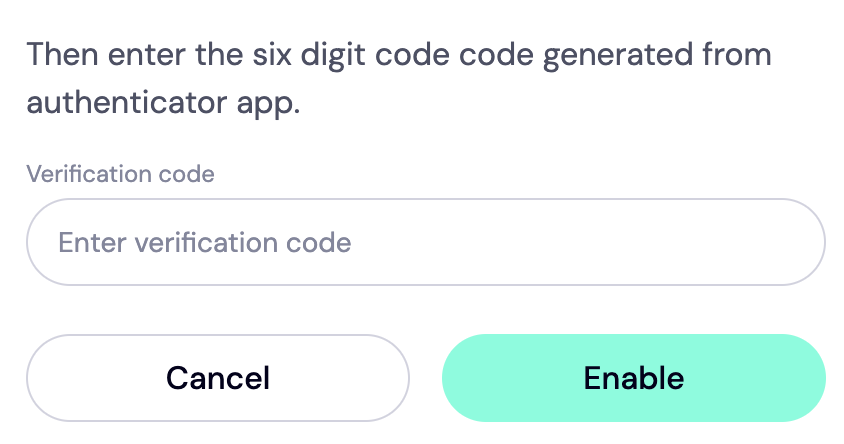
If you're using the Google Authenticator app, you'll be given backup codes to help you access your account in case you lose your device. Copy these codes into a notepad or text editor file for safekeeping.
Read more: How to set up two-factor authentication on your Trustname account.
Can You Get a Free Domain Transfer?
Sadly, transferring your domain name to Trustname isn't free. However, we give you a whole lot of freebies that help you save money in the long run.
For instance, when you transfer your domain to us, we don't charge any fees for registration, taxes, or payment processing, unlike other registrars. You only need to pay the $14.99 once and get an extra year of domain subscription added to your current expiry date.
Using our promo code, WELCOME777, automatically applies a 50% discount to the transfer fee, so you only need to pay $7.77.
Troubleshooting Failed Domain Transfers
Although we've built our platform to streamline the domain transfer process, issues can still arise. If your domain transfer fails.
Here are some common reasons and how to remedy them
- Domain Is Ineligible For Transfer
If you recently
[+] [List] Green Ordered - Transferred your domain from another registrar to IONOS
- Changed the registrant (or contact) details on your domain
within the last 60 days, you won't be able to transfer your domain. This is because ICANN imposes a 60-day lock on all domains that have either been recently modified or transferred. - Transfer Lock Is Still Enabled
If the domain lock on your account is still turned on, you won't be able to transfer your domain out of IONOS. Check your domain settings to verify if the domain lock is turned off.
- Wrong EPP Code
If your EPP or auth code is incorrect, the transfer won't be completed. This is why we recommend copying the code directly from IONOS and pasting it into Trustname or into a text editor file, for safekeeping.
- Failure to Approve The Transfer On Trustname
Even though your domain has been successfully transferred from IONOS to Trustname, you'll still need to approve the transfer on your customer portal. The transfer will be pegged 'Pending' until you do so.
- Missing Approval Requests
All information about your domain transfer will be sent via email, so always check your inbox! Also, if you have enabled privacy protection on your IONOS account, you'll need to verify your identity before transferring your domain.
Rounding Up
Transferring your domain from IONOS to Trustname is the best decision you can make for hassle-free domain management.
We offer competitive prices, an uncluttered user interface, an advanced security system, and 24/7 access to a quality customer support team. To top it all off, we offer everything you need to manage your domains in one place.
To transfer your domain from IONOS to trustname, you'll need to remove all the domain locks on your account, Whois privacy protection (if enabled), and generate an authorization code to validate the transfer.
Next, head over to the Trustname domain transfer portal, enter your domain, add the authentication code, fill in the required contact details, and make payment. We charge a base fee for all our transfers, which covers registration, ICANN, and processing fees.
We also gift you an extra year added to your current expiry date.
That's all!