
Transferring your domain from Web.com to Trustname lets you avoid high fees, upsells, and poor support for a more affordable, reliable setup. The steps are straightforward prepare your domain by unlocking it and getting the auth code, then handle the transfer and security on Trustname's side.
Key Takeaways
- No Extras – Get SSL, email, DNS, and privacy free with $14.99 renewals, no upsells or hidden charges.
- Superior Privacy – Trustname's free two-tier Whois uses proxy layers and multi country court orders for top protection.
- Reliable Help – Access 24/7 expert support via live chat and tickets, far better than unresponsive options elsewhere.
- Smooth Prep – Check eligibility (over 60 days), unlock the domain, turn off privacy, update email, request EPP code from Web.com.
- Easy Finish – Enter the domain and code at Trustname, add a contact (try the pre-defined one for privacy), pay $7.77 with the WELCOME777 promo, and approve the transfer.
TABLE OF CONTENTS
- Key Takeaways
- What Perks Should You Expect With Trustname?
- Here's What You Should Know Before Transferring Your Domain Out
- Preparing Your Domain For Transfer
- Finalizing The Domain Transfer From Web.com To Trustname
- Safeguarding Your Domain At Trustname
- Can You Get A Free Domain Transfer?
- Troubleshooting Failed Domain Transfers
- Rounding Up
Looking for the best alternative to Web.com? You're in the right place!
We get it. Since Web.com acquired Dotster, almost everything has changed even after they promised it wouldn't. The costly renewal fees, unresponsive support, paid domain management essentials, and incessant charges can get (really) frustrating.
This is why a ton of Web.com users moved to Trustname. Compared to their previous registrar, they now enjoy low renewal fees, no extra charges, domain essentials out of the box, reliable support, and an unmatched security system.
In this guide, we'll show you how to move your domain from Web.com to Trustname so you get the best value for your money and enjoy the benefits of a registrar that truly values your business.
What Perks Should You Expect With Trustname?
To prove that you made the right decision to transfer your domain to TrustName.
Here are some benefits you stand to enjoy:
- No Hidden Fees Or Annoying Upsells
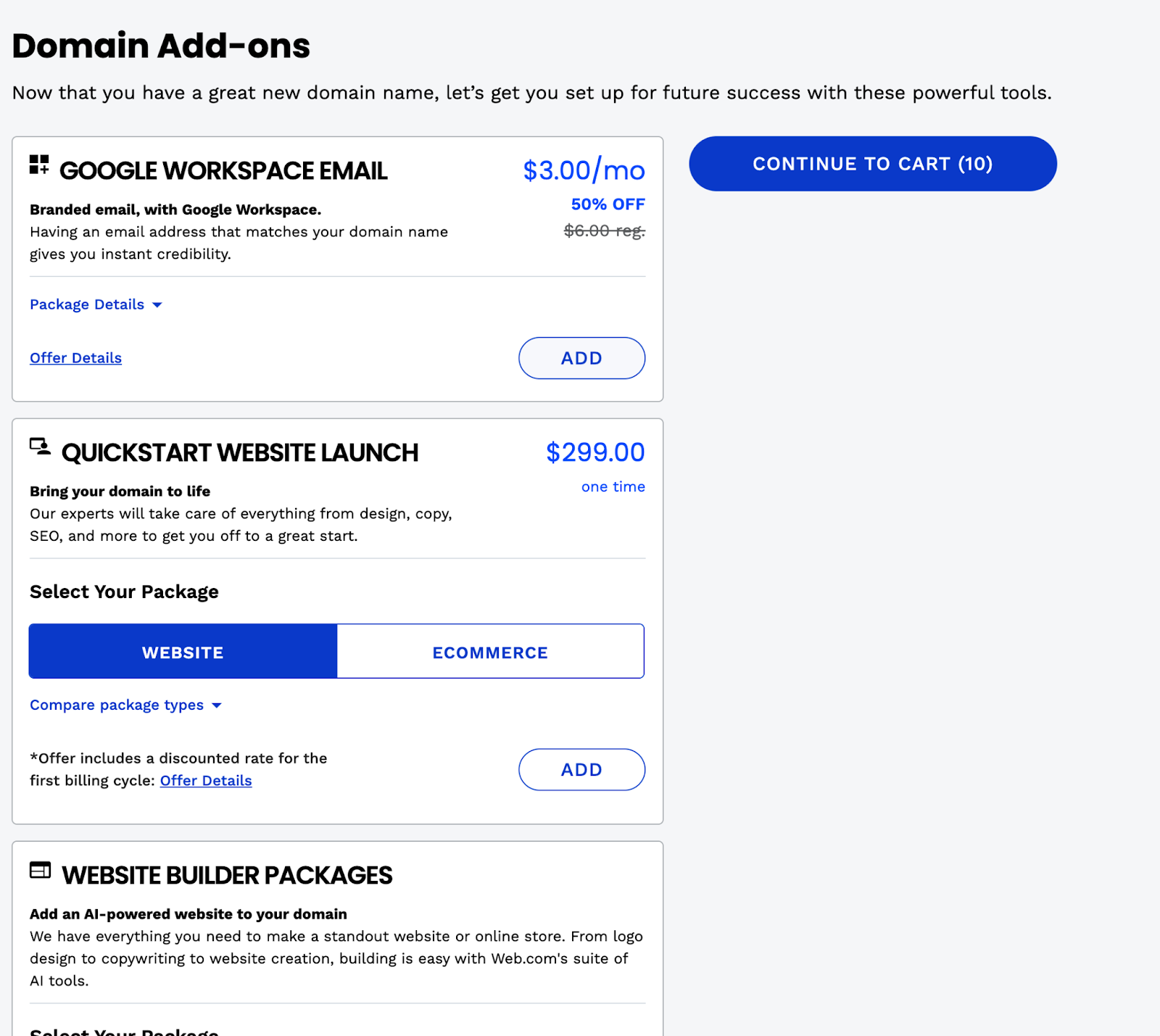
One of the common complaints Web.com customers have is the incessant upsells on their dashboards, outrageous renewal prices, and hidden fees. We tried buying a domain on Web.com, but got bombarded with upsell offers for add-ons
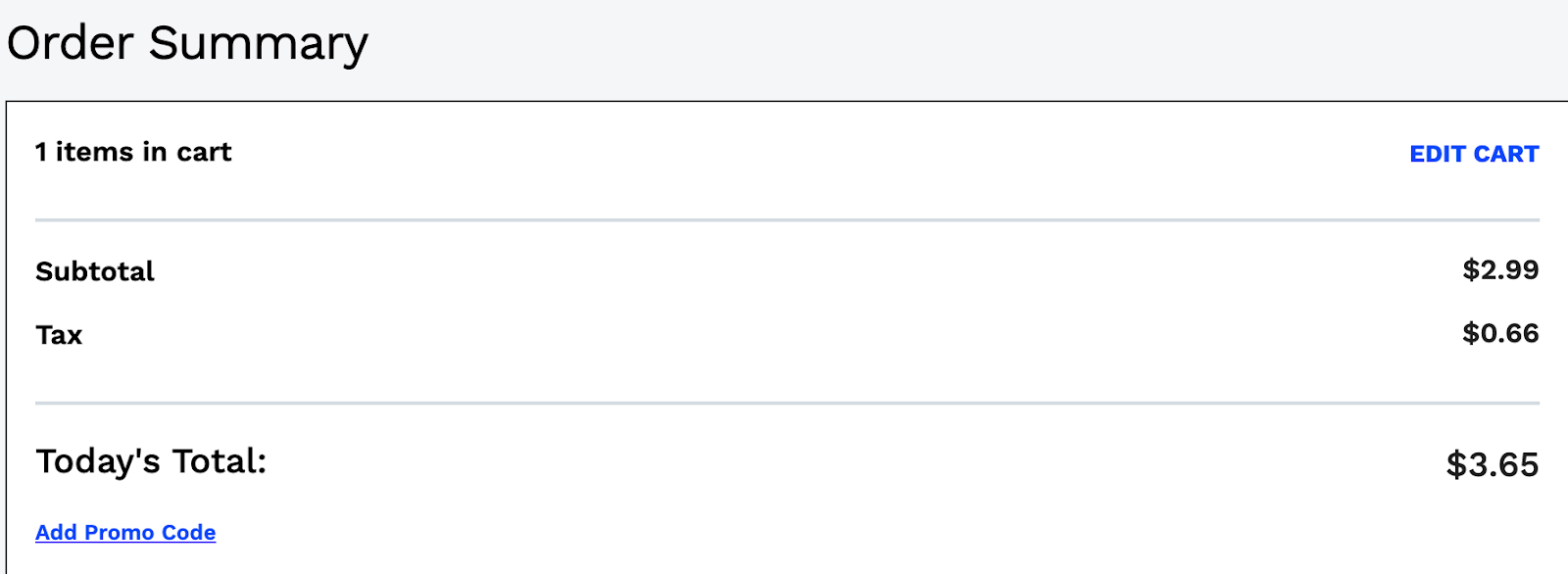
They also added charges for taxes
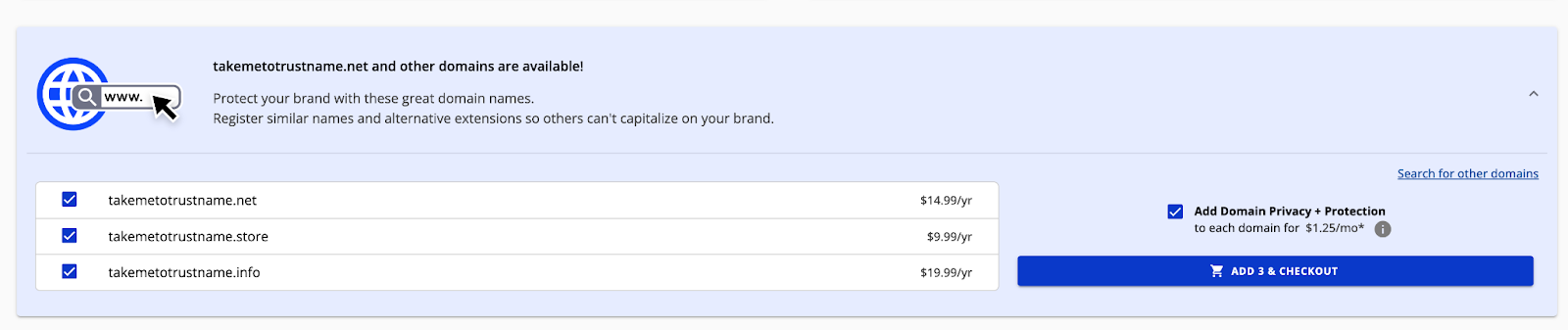
Even after buying the domain, they advertised more addons on our homepage
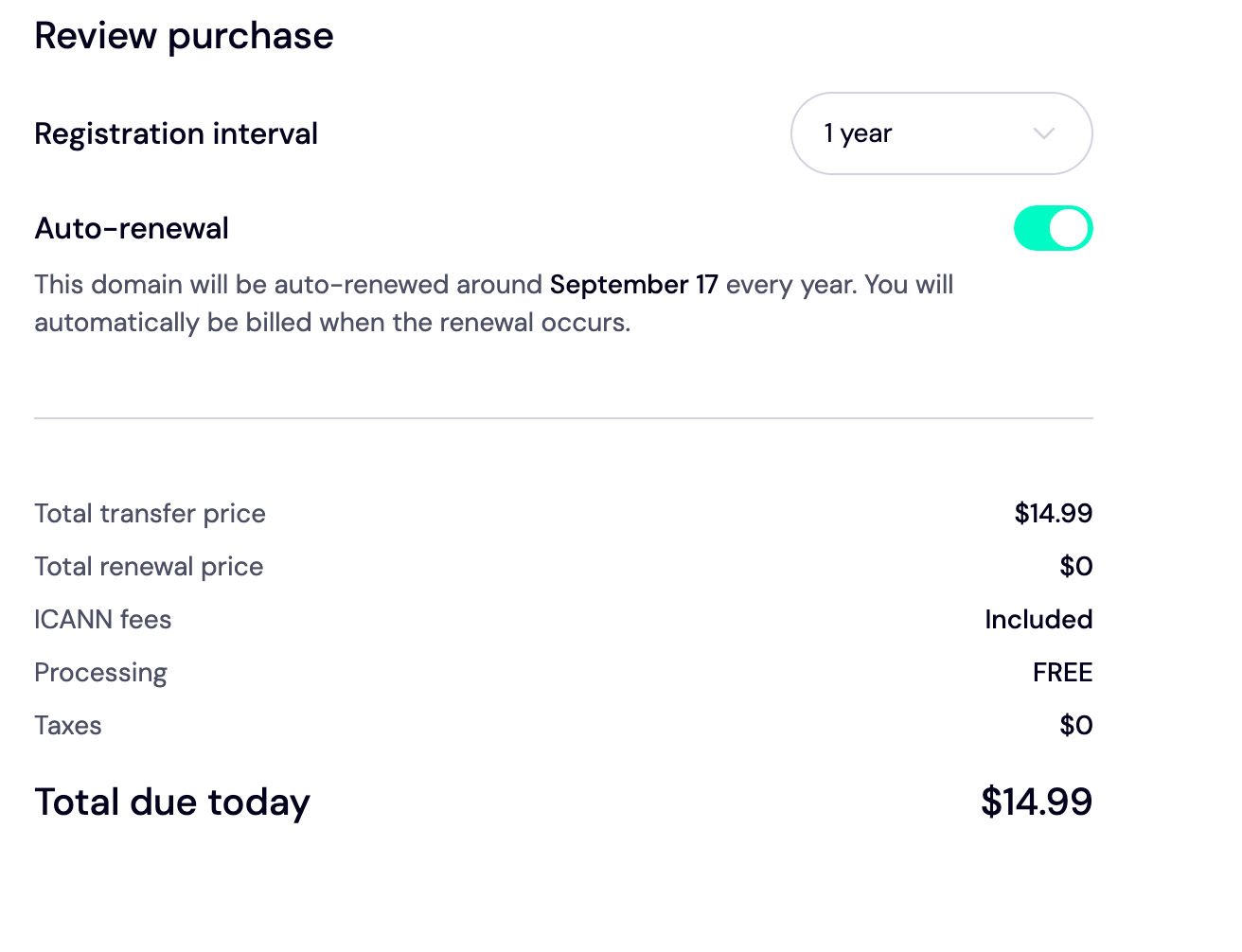
At Trustname, we charge a standard fee for domain renewals. Once you transfer your domain to us, you only need to pay $14.99 for renewals. This includes taxes, ICANN fees, and other costs associated with domain management features. In addition, you get an extra year added to your current expiry date. See for yourself
- Domain Management Features Are Out Of The Box.
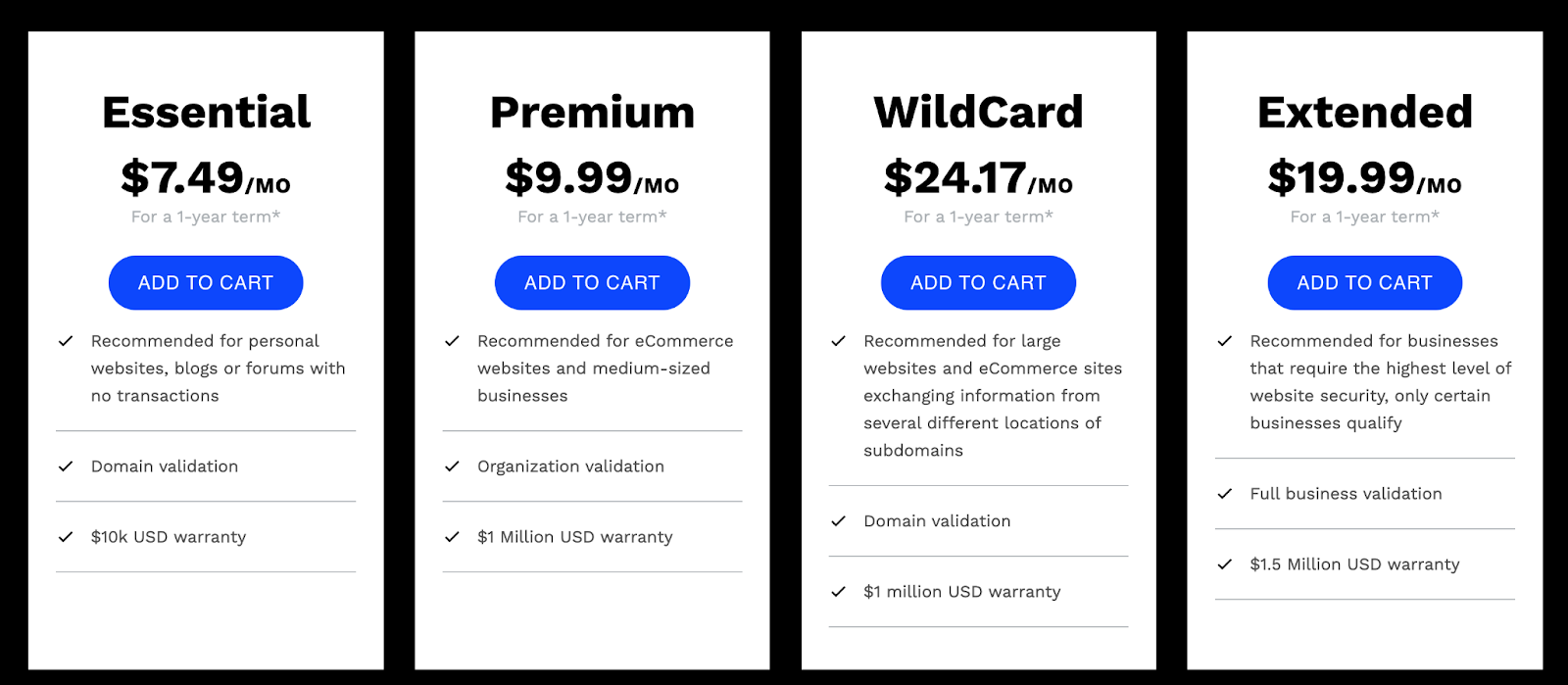
Most domain registrars, such as Trustname, offer free SSL certificates when users sign up. But Web.com charges $7.49 for a basic SSL certificate
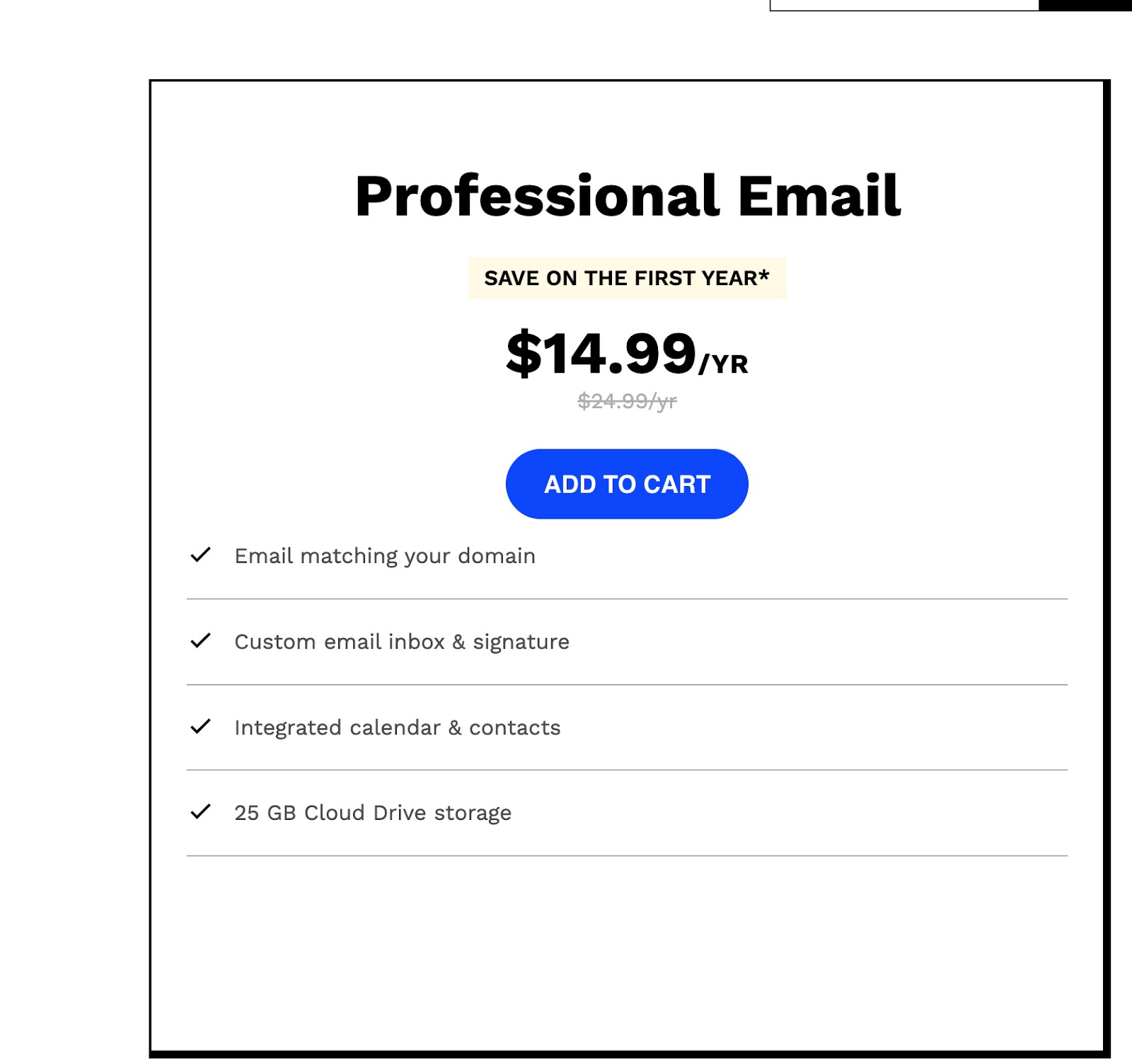
Branded emails also come with a $14.99/year fee
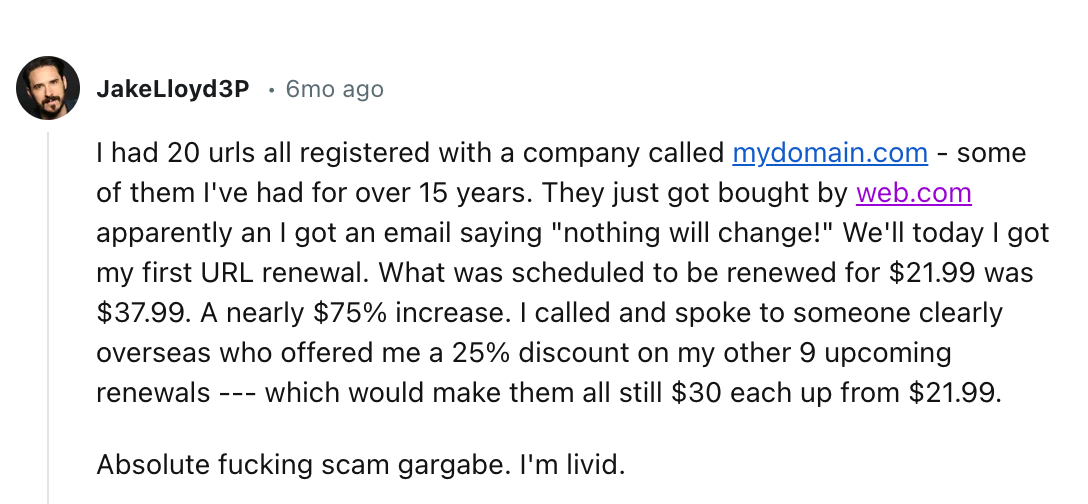
After all the payments for add-ons and domain essentials, you'll be paying over $130/month for your domain name. Don't take our word for it.
Why pay these outrageous fees when you can enjoy them for only $14.99/month at Trustname?
As business owners ourselves, we understand what it feels like to be burdened with hidden costs. This is why we're always upfront about our fees from the outset, which helps you budget effectively for your domain payments.
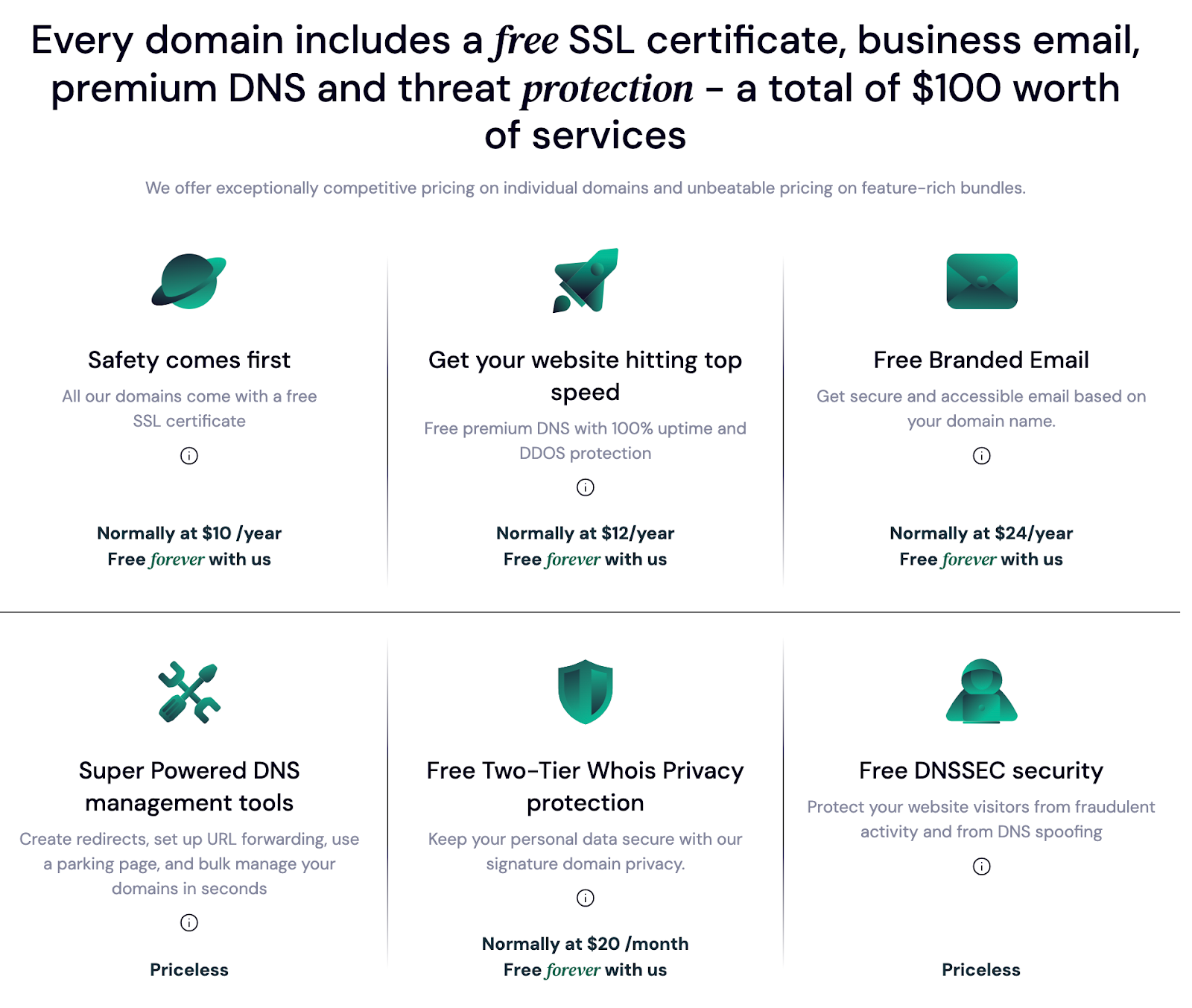
For every domain you transfer to us, you get an SSL certificate, access to our Premium DNS, branded email that incorporates your domain name, and our Two-Tier Domain Privacy for free all valued at $100.
- Unmatched Domain Privacy Protection
Another massive advantage of using Trustname is our two-tier domain privacy protection. Unlike the basic Whois protection Web.com offers, we built a more robust system to protect your domain from public access. It's not hard to see why some tagged us as the 'Bulletproof' registrar!
This is how our two-tier domain privacy works.
Whenever you register your domain using Trustname, you can choose to add your details or use our third-party proxy service, Private Partner LLC, as the registrant.
So, whenever someone searches for your domain in the Whois database, PP LLCs appear instead of yours, concealing you from malicious purposes. Note that this only occurs on paper, and you retain.
FULL rights to your domain name. Plus, you can always change it to your personal details at any time. This is the second tier of our domain privacy protection.
On the first tier, you'll get the standard Whois privacy that protects your details (or PP LLC's, if you choose that) by replacing them with an alias from one of our proxy partners.
Web.com, on the other hand, charges $9.99 for the basic Whois privacy protection (same as our first layer of privacy protection)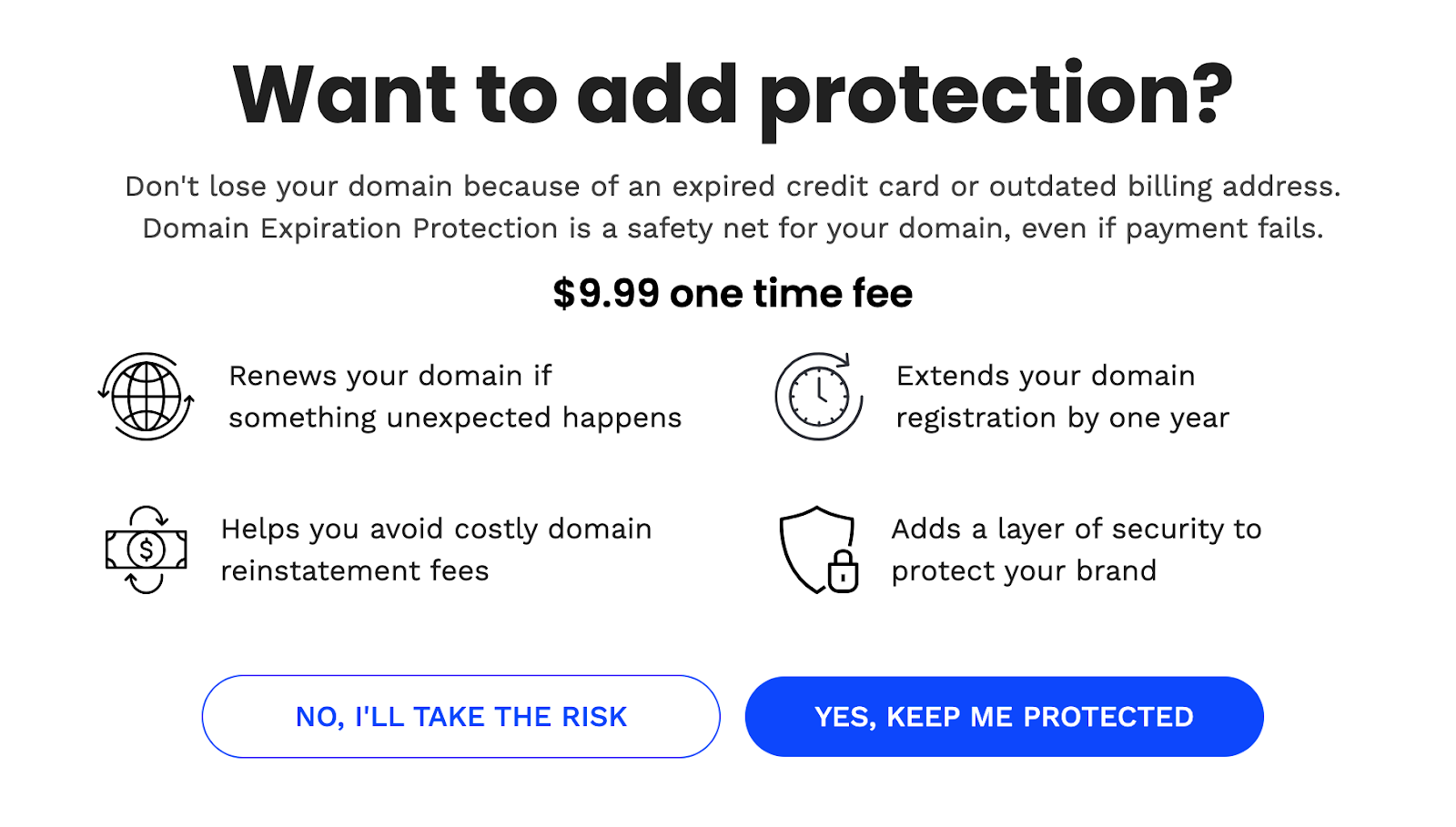
- Excellent Support
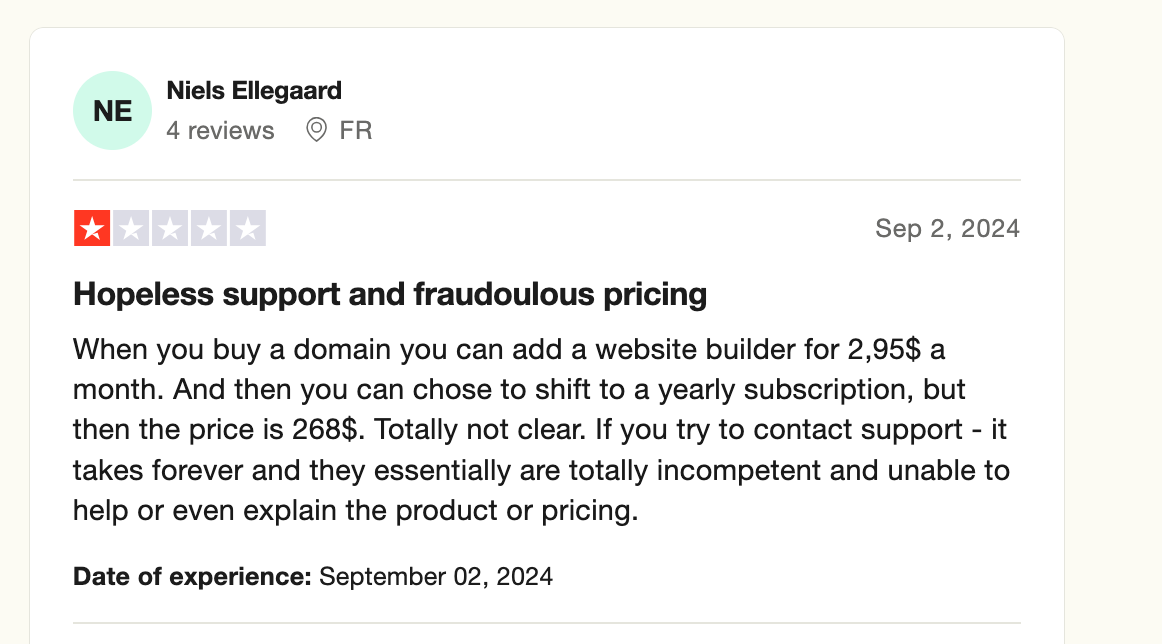
Another huge issue Web.com has been unable to manage is its customer support. Their users complain of an unresponsive and unskilled team, and this is why they take their business (domains) elsewhere
At Trustname, we understand that not all our customers are IT guys. This is why we’ve built an excellent support system that responds to your queries when you need it the most. Whether you need help setting up your domain, making payments, or troubleshooting issues, our team is available 24/7/365 to assist you every step of the way.
We're not trying to sell hard far from it but we can only boast about our services. Unlike Web.com, we don't leave your queries hanging for days without a response. Our customer support team is a group of well trained professionals in web hosting, customer relationship management, and domain management.
Also, we've built fast support channels (live chat and an online ticketing system) to receive your queries in real-time and respond swiftly.
Here's What You Should Know Before Transferring Your Domain Out
Before initiating a domain transfer on Web.com, here are some vitals you need to be aware of
- Reconfigure Your Domain Name Servers
Your domain nameservers are like the digital phonebook of the internet. They're responsible for directing user web browsers to the IP address of the web servers where your website is hosted.
When you register your domain with Web.com, the nameservers are automatically assigned to their servers (unless you reconfigure them or use a different web host).
During domain transfers, you won't be able to edit any DNS settings, including your nameservers. If your domain is linked to a website hosted by Web.com, you should point it to your new web host (Trustname or any other web host you're using) before initiating a transfer.
This way, you prevent the risks of experiencing downtime.
- A Note On Transfer Pricing And Policy
Trustname charges a standard fee of $7.77 (with our promo code) to transfer your domain name to us.
This includes the ICANN fees (we charge $0 for processing and taxes!). We also extend the expiry date of your current domain by an extra year. Usually, our regular domain registration fee for one year costs $14.99, so you're actually saving more by transferring your domain to us!
- Domain Expiration
As with most registrars, you can only transfer your domain to us when it is in the 'Active' or 'Grace' phase. The active phase is the period after registration and before expiration. The grace period is 1 to 30 days before expiration.
If you do not renew your domain during this timeline, you'll have to renew it before initiating a transfer.
We recommend initiating a transfer at least two weeks before it expires or after the Grace period. Once you are fully registered with Trustname, you get an extra year to your current domain's expiry date.
- Transfer Your Website Separately
Moving your domain name to us does not automatically include your website. If you want to host your website with us (or another provider), you need to purchase a separate hosting plan. Then, contact our support team to help you migrate your website without hitches.
Preparing Your Domain For Transfer
To transfer your domain smoothly, you have to run a few checks from your current registrar (Web.com) account to ensure your domain is ready for transfer. Here are the tasks
Verify Domain Eligibility
The Internet Corporation for Assigned Names and Numbers (ICANN) imposes a 60 to day lock on domains that were recently transferred, registered, or modified. You won't be able to transfer your domain out of the Web.com account until this timeline lapses. Confirm that your domain is eligible for transfer and is not affected by the ICANN lock.
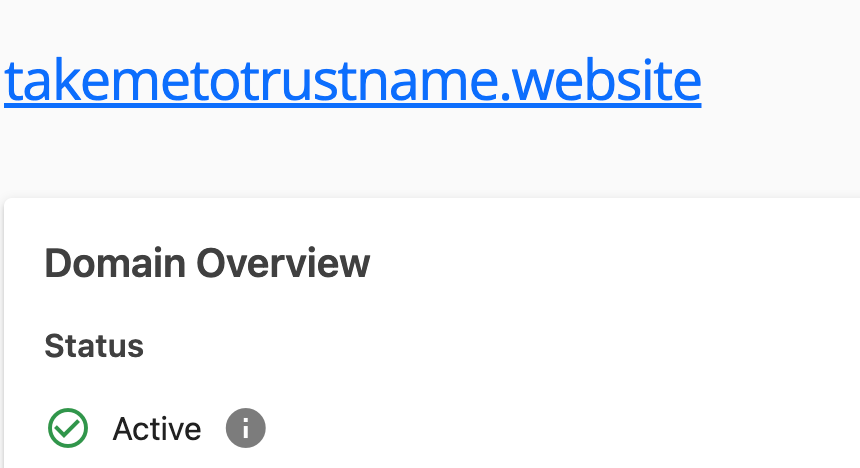
To do this, Log In to your Web.com account and click Domain. Right on the dashboard, you'll see your 'Domain Status'
Web.com places a registrar lock on your account for 30 days if you just recently changed your password. In this case, you need to contact Web.com support to remove the lock.
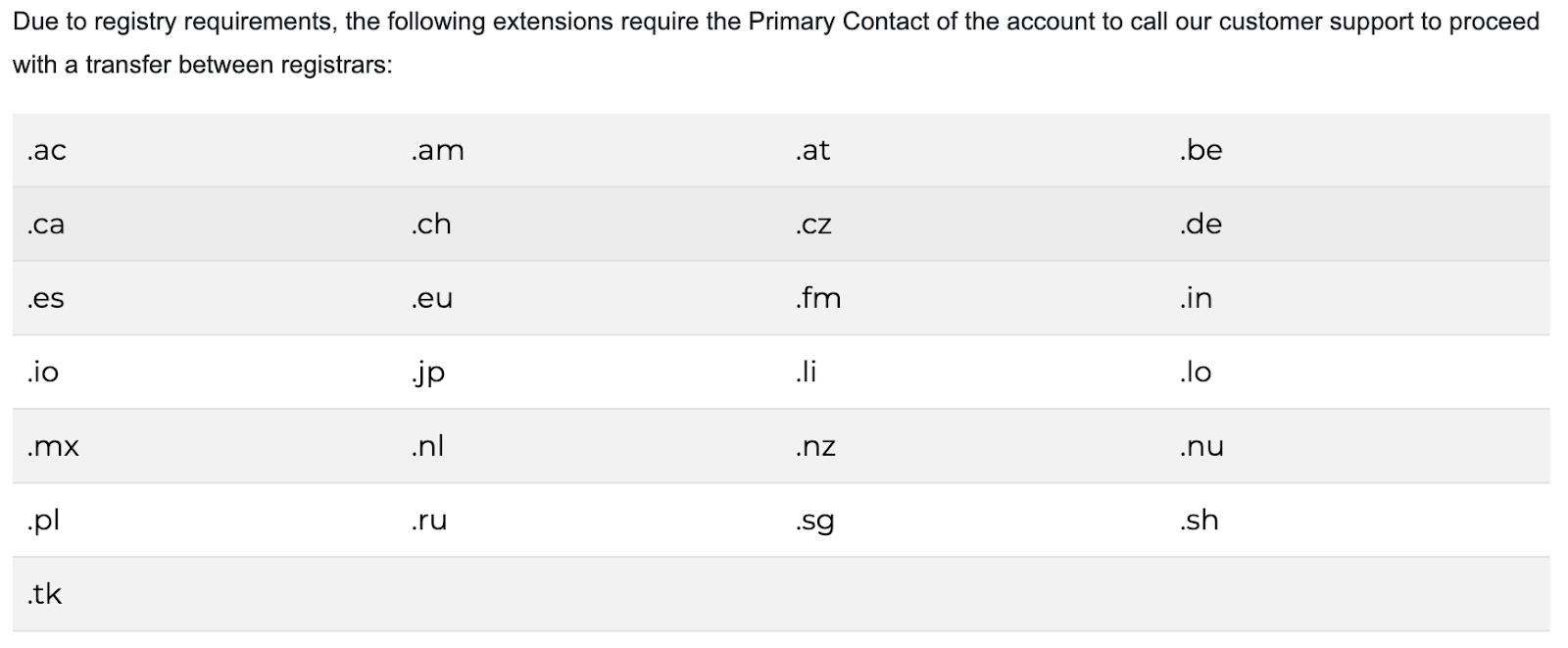
Also, if your domain has any of the TLDs/extensions as shown below, you'll need to contact Web.com support before initiating a transfer
Remove All Domain Locks
Most domain registrars, like Trustname, place a domain lock on your account to prevent unauthorized transfers. Now that you're set to move to a new registrar (Trustname), you'll need to turn off all the locks on your domain.
We also have this feature listed in our domain management tool stack, and you can enable it once the transfer is complete.
How To Remove A Domain Lock
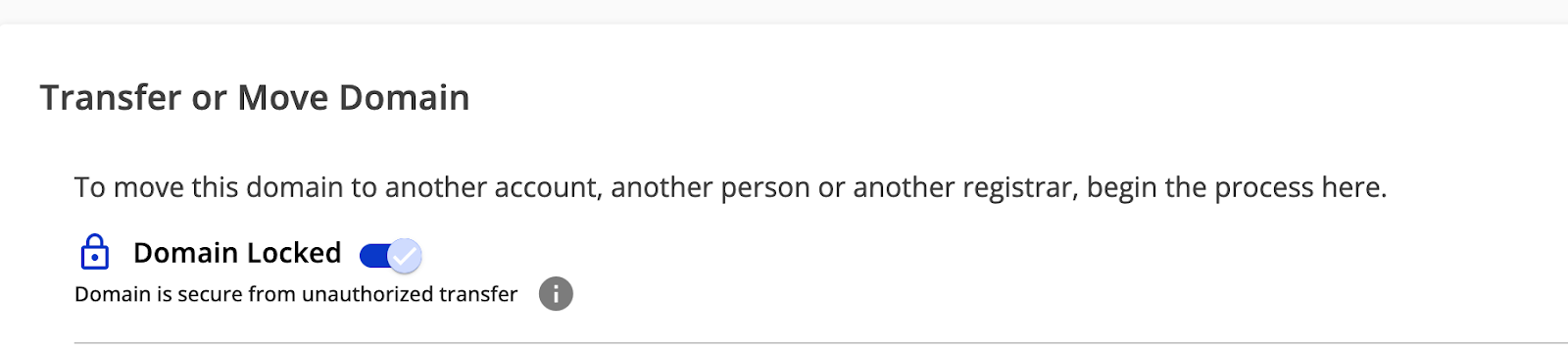
Right on your customer portal, navigate to Domains. Scroll to the 'Transfer or Move Domain' section near the bottom of the page. Click the drop down, and you'll see a toggle button to turn off the lock
Disable Whois Privacy Protection
Whois privacy protection is a service offered by most ICANN accredited registrars to mask your domain's contact details on the Whois database. If you paid for the 'Use Privacy Service' upon registration at Web.com, you're already using this service and need to turn it off before initiating a domain transfer.
What To Do:
On the 'Domain' page, check for 'Privacy' and turn off

No worries once you transfer your domain name to us, you can enable this feature again on your account. The best part is that we have advanced privacy protection Trustname's Two-Tier domain privacy protection for optimal privacy, and it's completely free.
Ensure Your Email Address Is Up To Date
Next, you need to cross check your contact details, especially your email address, before proceeding with the transfer. Your email address is the first point of contact between Web.com and Trustname, and all details/notifications about your domain transfer will be sent there.
Keep in mind that if your contact email is hosted by Web.com and attached to the domain you're transferring, it will be disabled once the transfer begins. To ensure your email remains functional after the transfer, use a third-party hosting service, like Gmail, or better, the email from other domain name.
Once you change your email address on Web.com, they'll place a registrar lock on your account for the next 60 days, and you won't be able to transfer your domain until it lapses. However, you can contact their support to expedite the process.
What To Do:
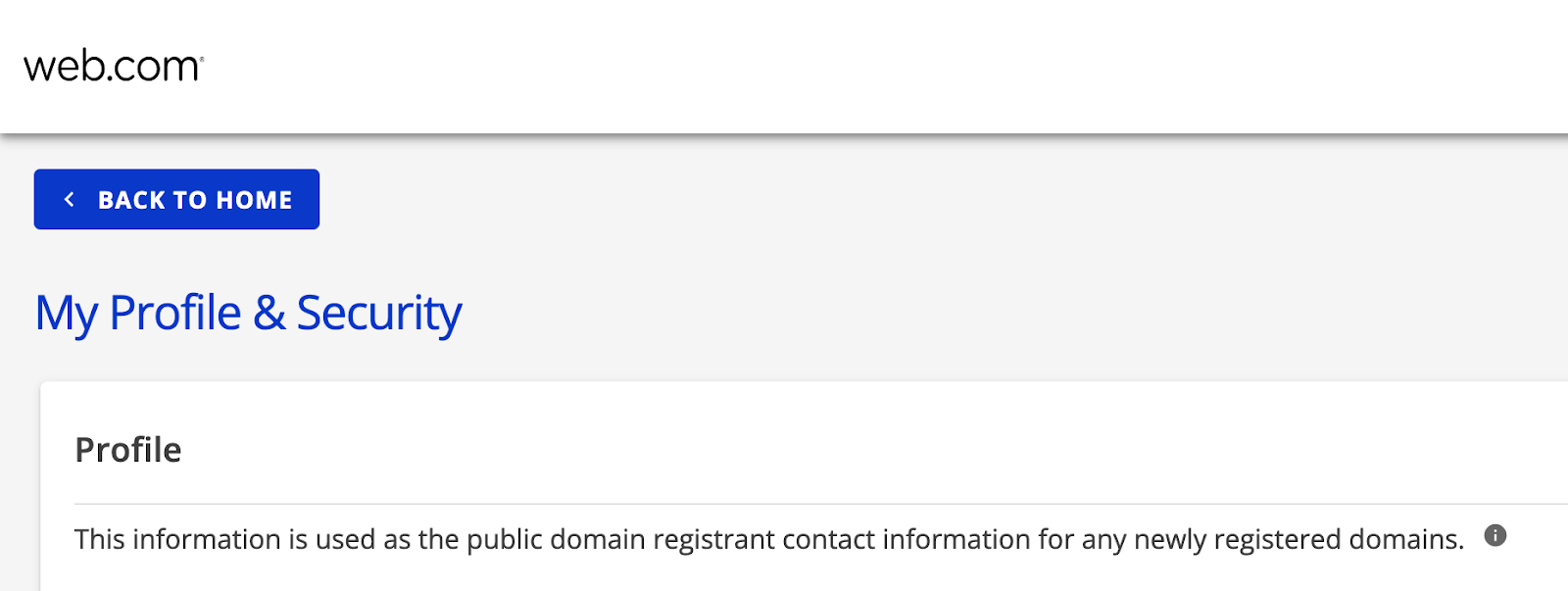
Run a quick check on all your domains to verify that the information listed is correct. To do this, click the profile icon at the top right corner of your screen. Your contact details are listed under 'My Profile & Security'.
Obtain The Authorization Code
The authorization code (or EPP/auth code, secret key) is a unique set of characters used to transfer a domain from one registrar (Web.com) to another (Trustname). It's your registrar's way of verifying that you (the domain's rightful owner) are transferring your domain.
What To Do:
To check your auth code, click Domains and scroll down to the 'Transfer or Move Domain' section at the near end of the page. Under Transfer to a New Registrar, click 'Request Auth Code'.
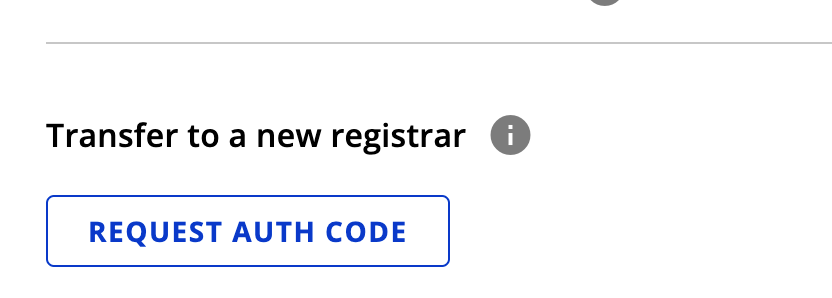
The auth code will be sent to your email within the next seven days.
Finalizing The Domain Transfer From Web.com To Trustname
This is where it gets interesting! Now, you're ready to finalize your domain transfer we can't wait to have you. Follow these steps to get started
Head Over To Our Domain Transfer Page
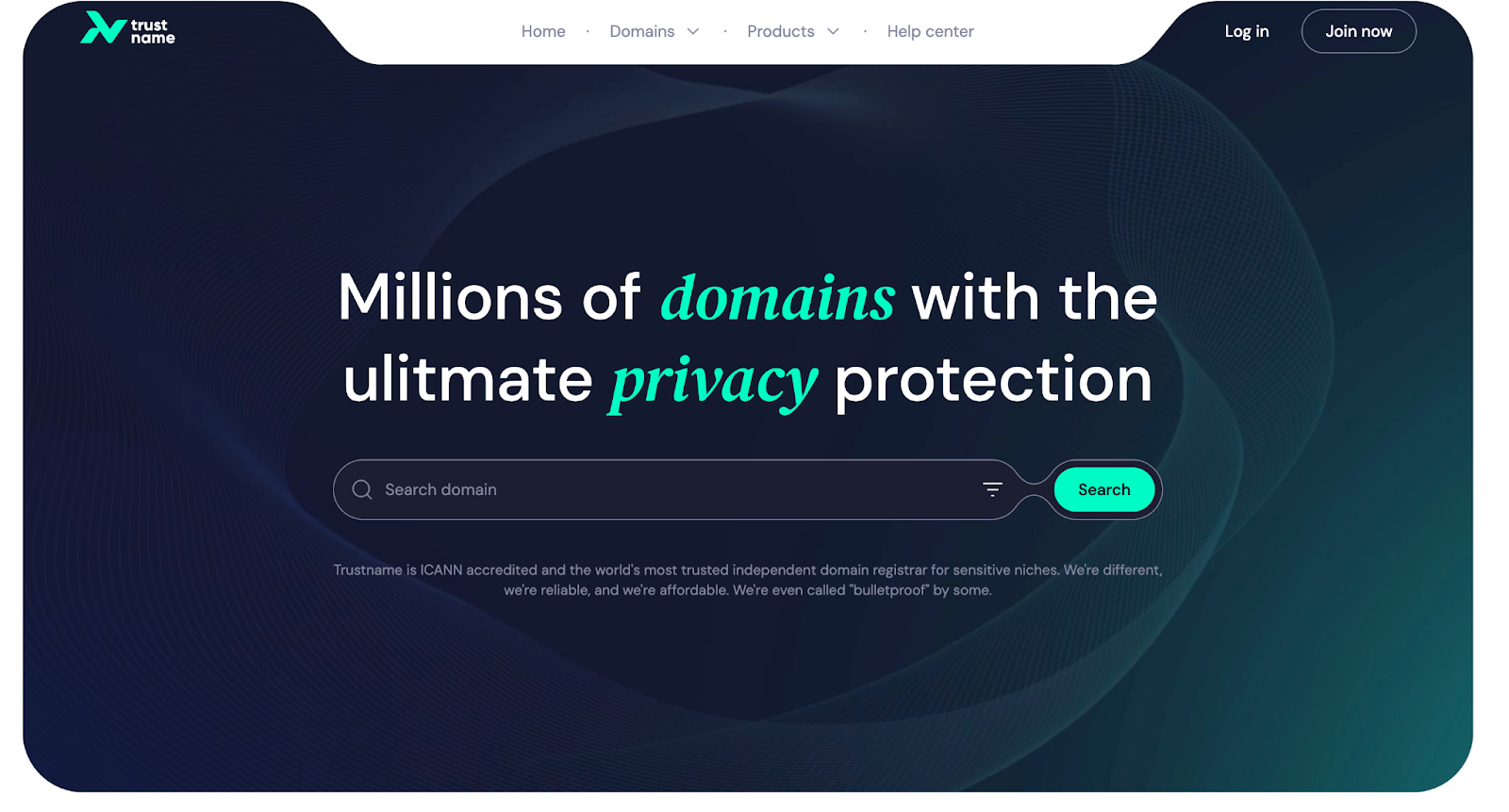
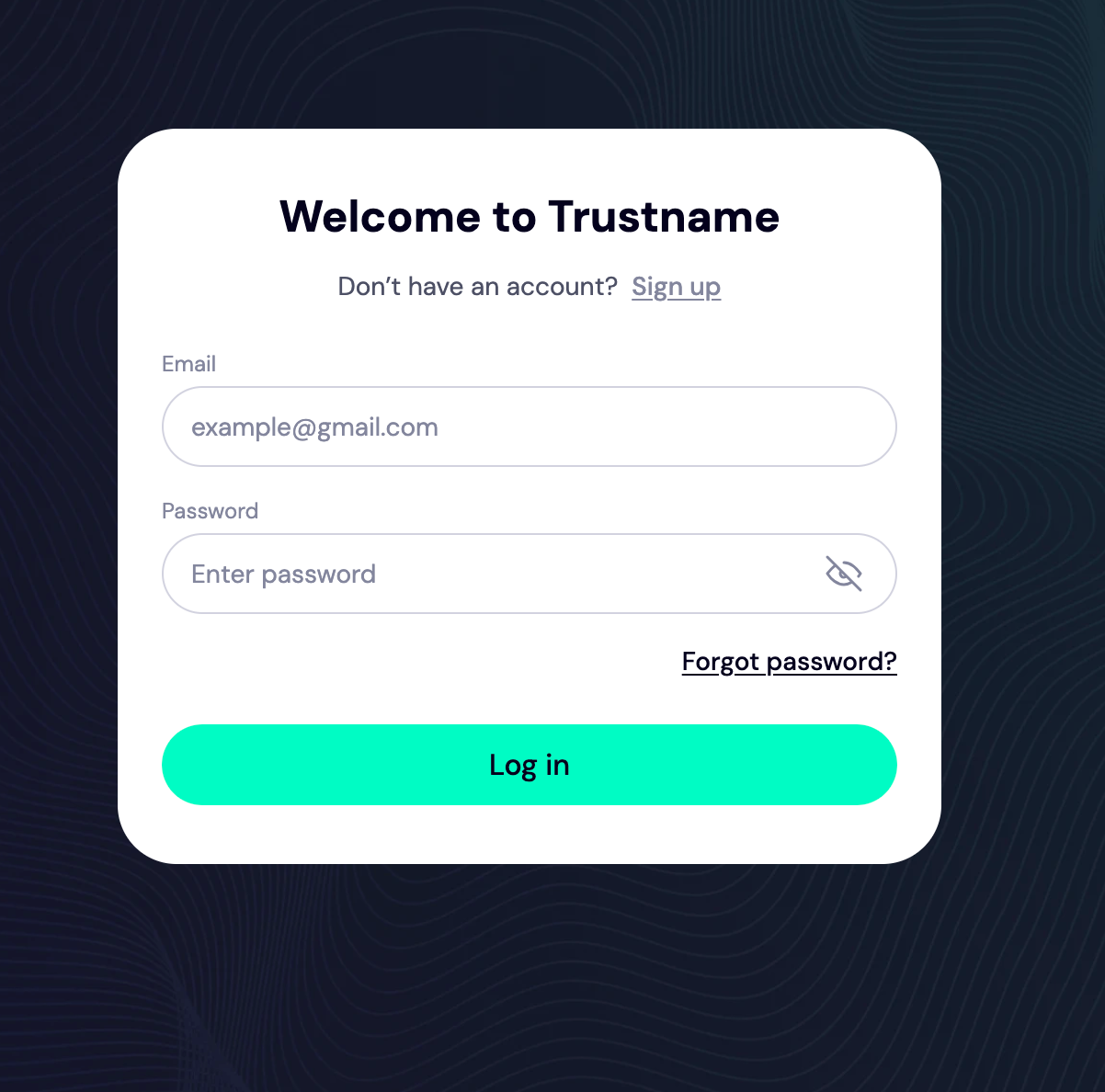
- Type Trustname.com in your web browser and click 'Log In' at the top corner of the page to access your Trustname account
- You'll be redirected to the login page. Input your credentials and click 'Log In' to access your customer portal
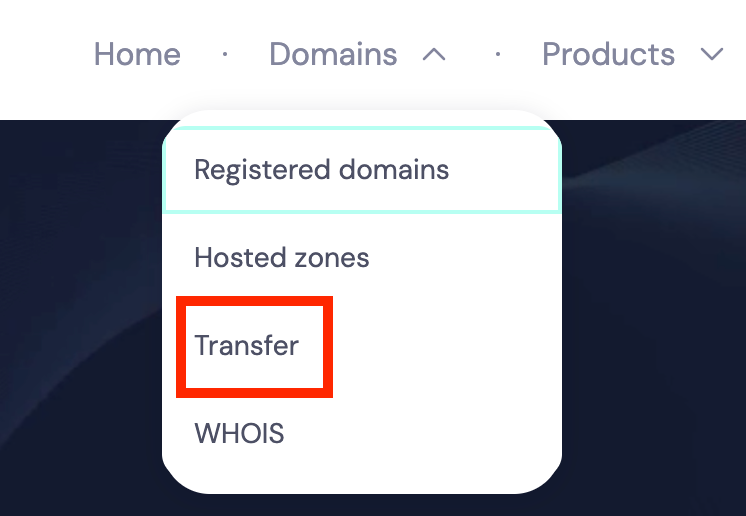
- Now that you're logged in click 'Domains >>> Transfer' from the navigation bar
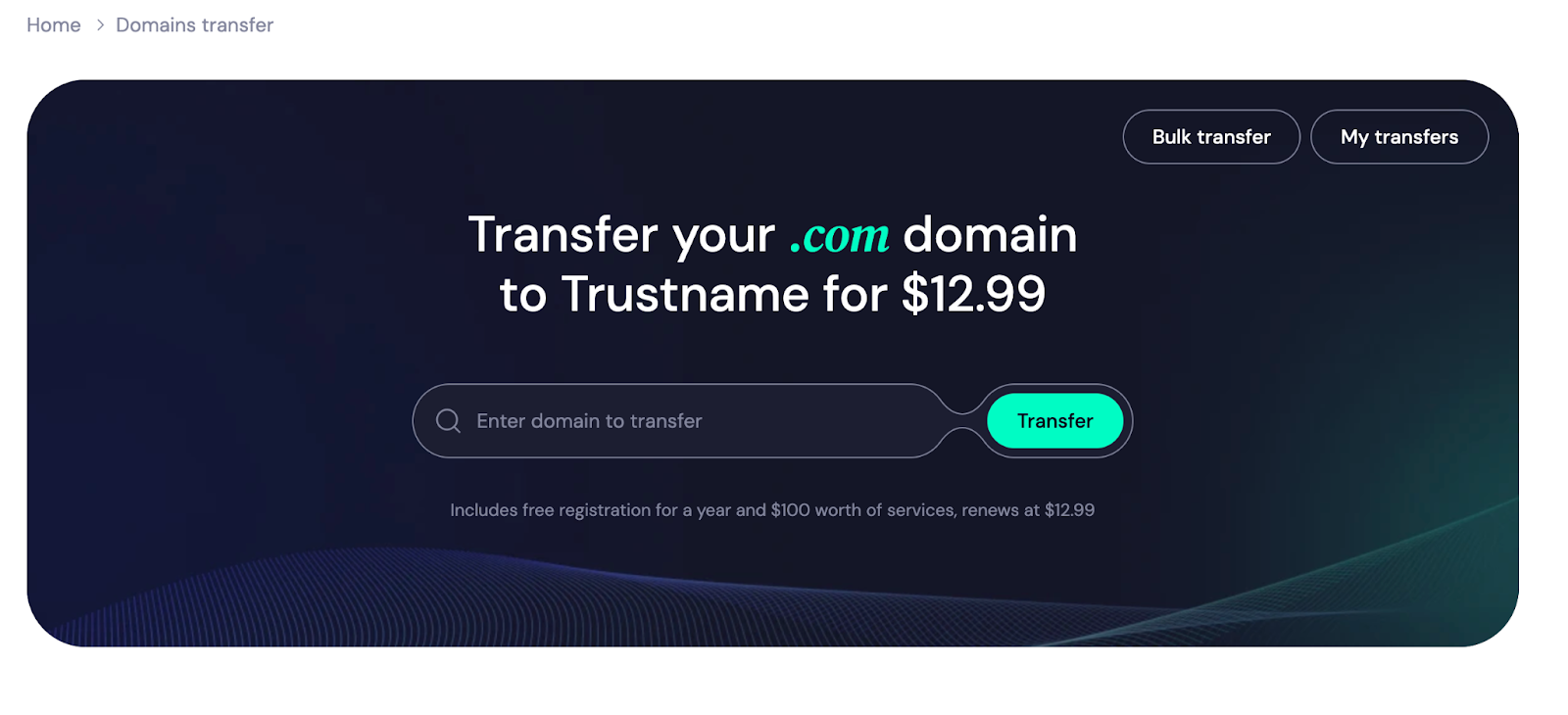
- On the transfer page, enter your Web.com domain into the field below and click 'Transfer'. You'll be redirected to another page to enter the authorization code
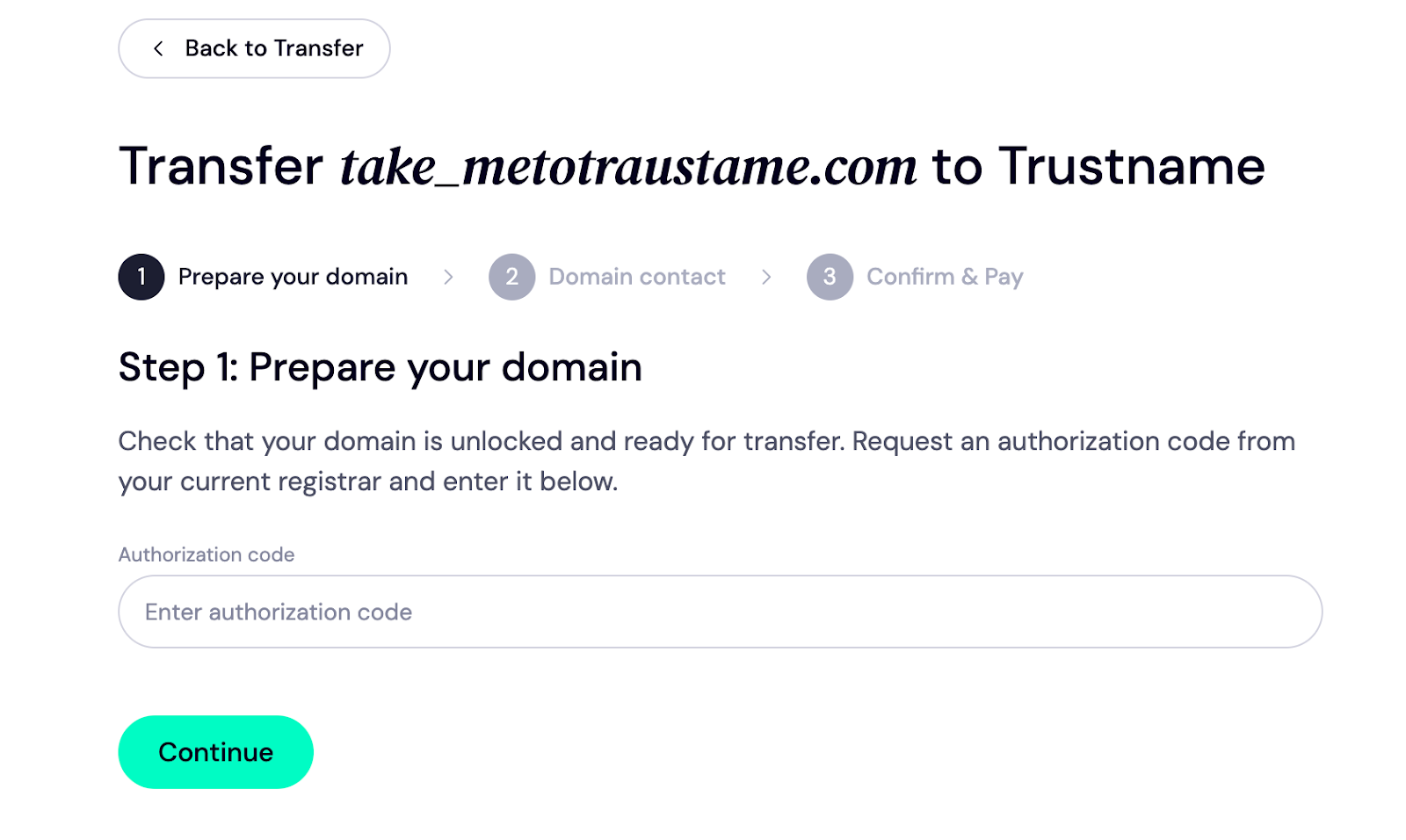
Enter The Authorization Code
Next, enter the authorization code you copied from your Web.com account and click 'Continue'.
Fill Up The Domain Contact
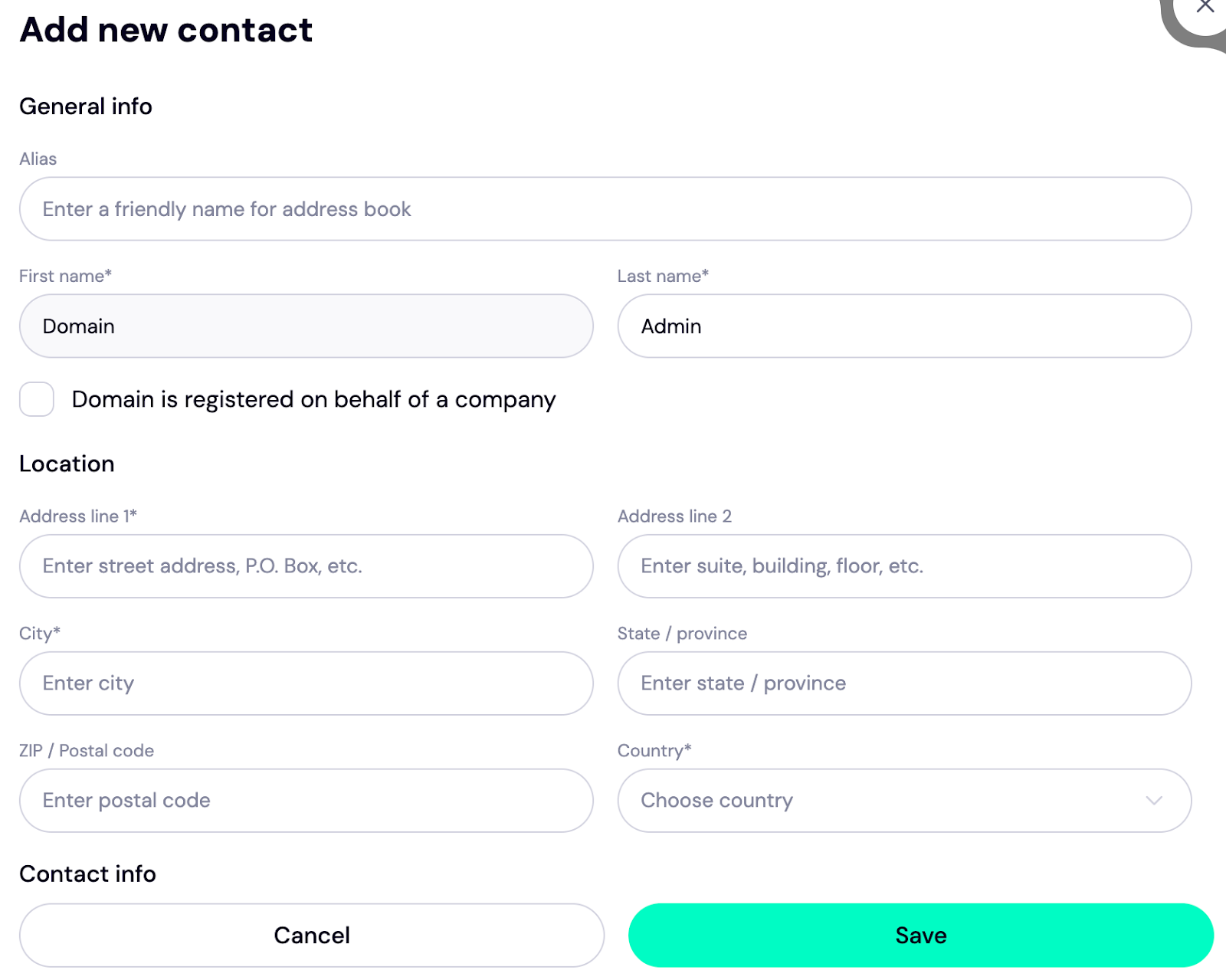
In this section, add your domain contact information. This will be used as the registrant details (domain owner), so you need to input the correct information.
To add your data, click 'Choose Contact >> >Add New Contact'.
If you'd rather take advantage of our two-tier domain privacy protection, choose 'Use a pre-defined contact'. Your contact details will be displayed like this
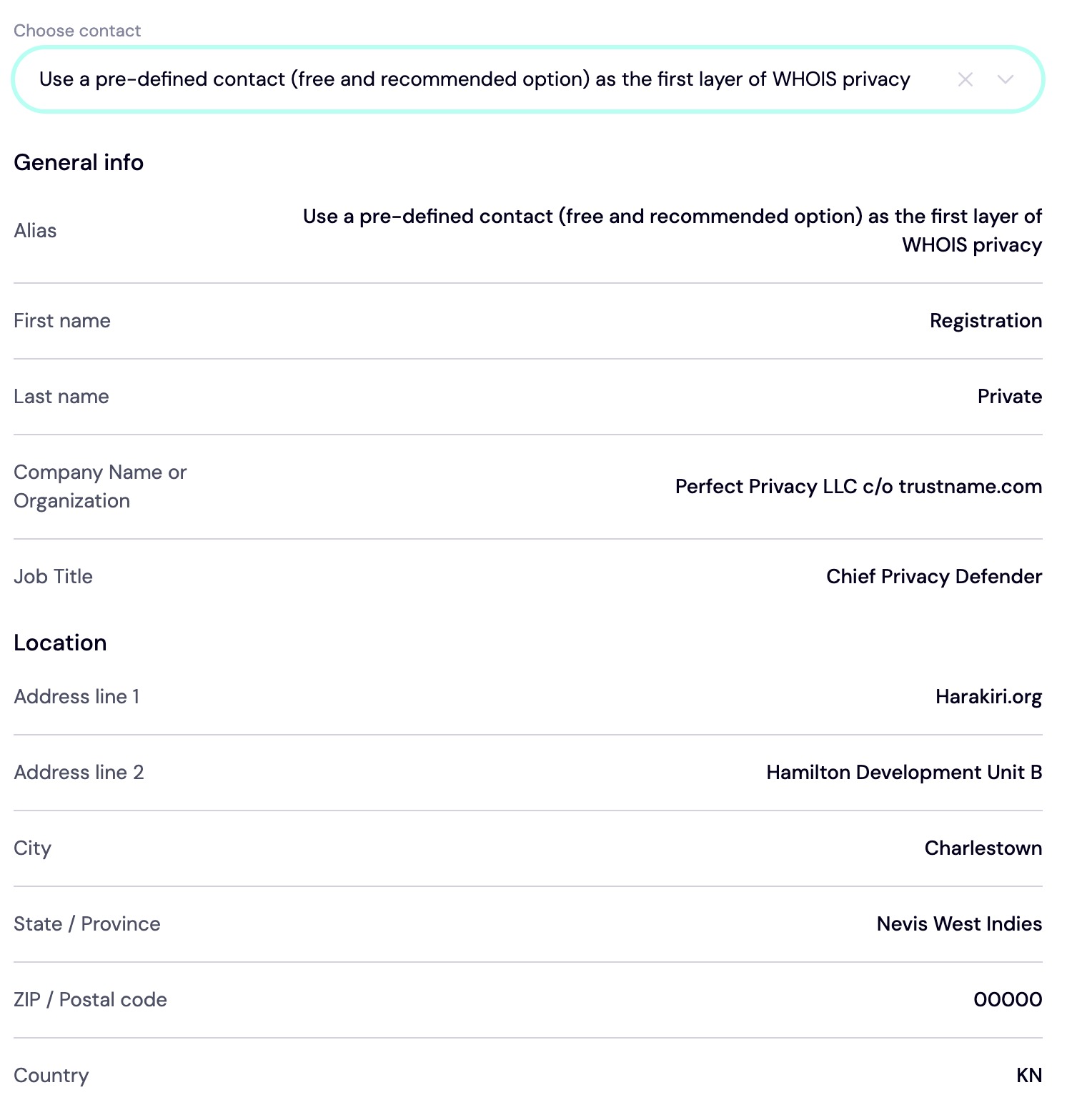
It only appears like this on paper, and you can revert to your own details at any time.
You still retain complete control over your domain name when you choose 'Use a pre-defined contact'. We only offer this feature to secure your domain account and provide optimal privacy.
Once you're done choosing your contact option, click 'Continue'.
Congratulations! You made it to the final stage.
Pay For An Extended Registration.
In this section, you'll add your billing address and make payments for the domain transfer. Once the payment is completed, you'll also receive an extra year on your current expiry date.
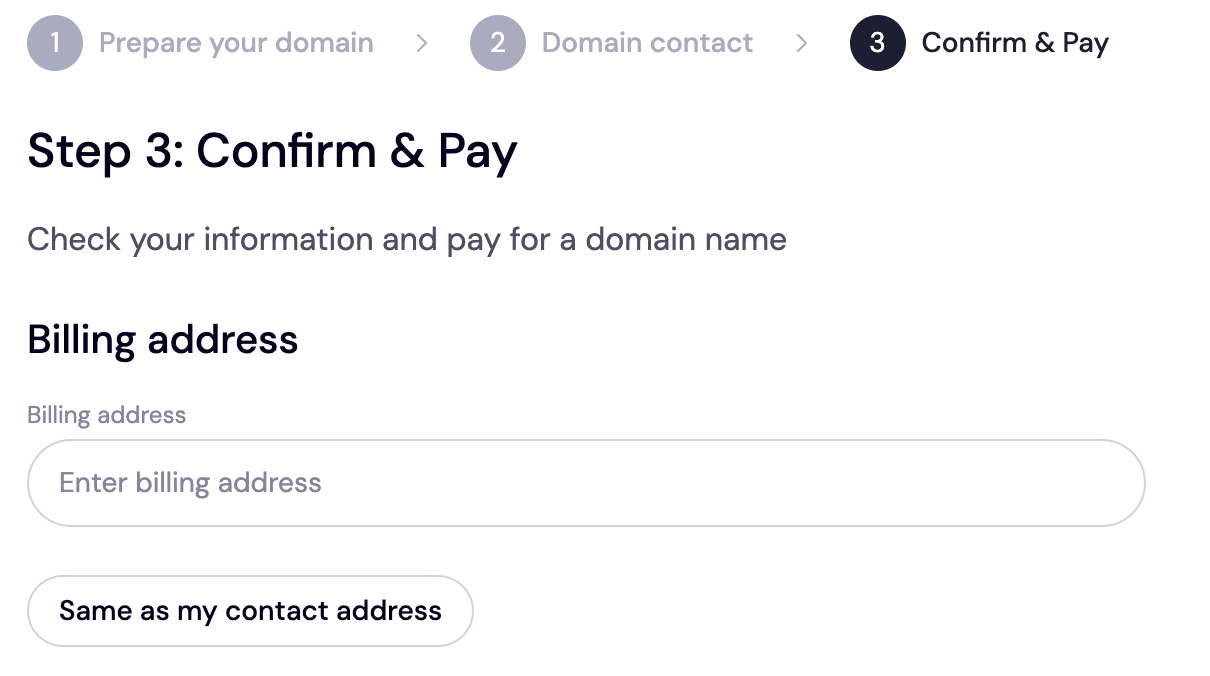
- Enter your billing address in the field shown below. If it's the same as your contact address, just click 'Same as my contact address' so you don't have to fill it manually again
- Next, choose your payment method. You can either pay with your card or use the existing funds in your Trustname wallet (if you have one).
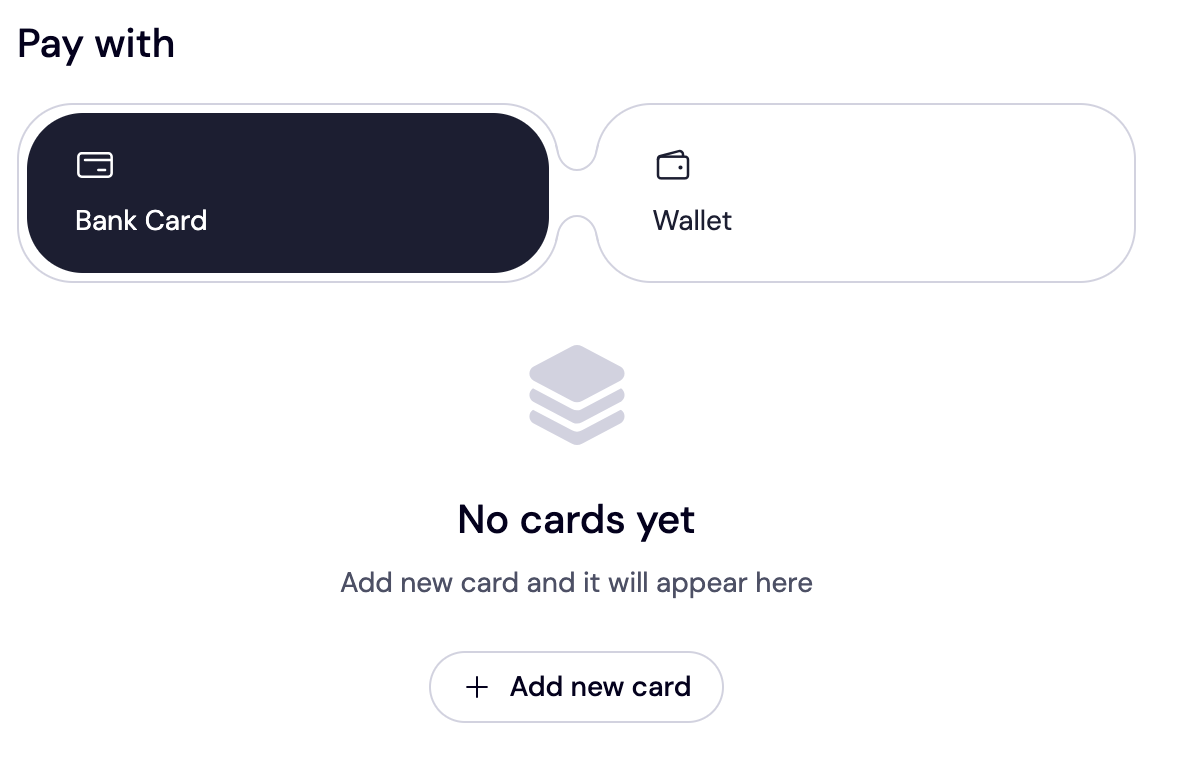
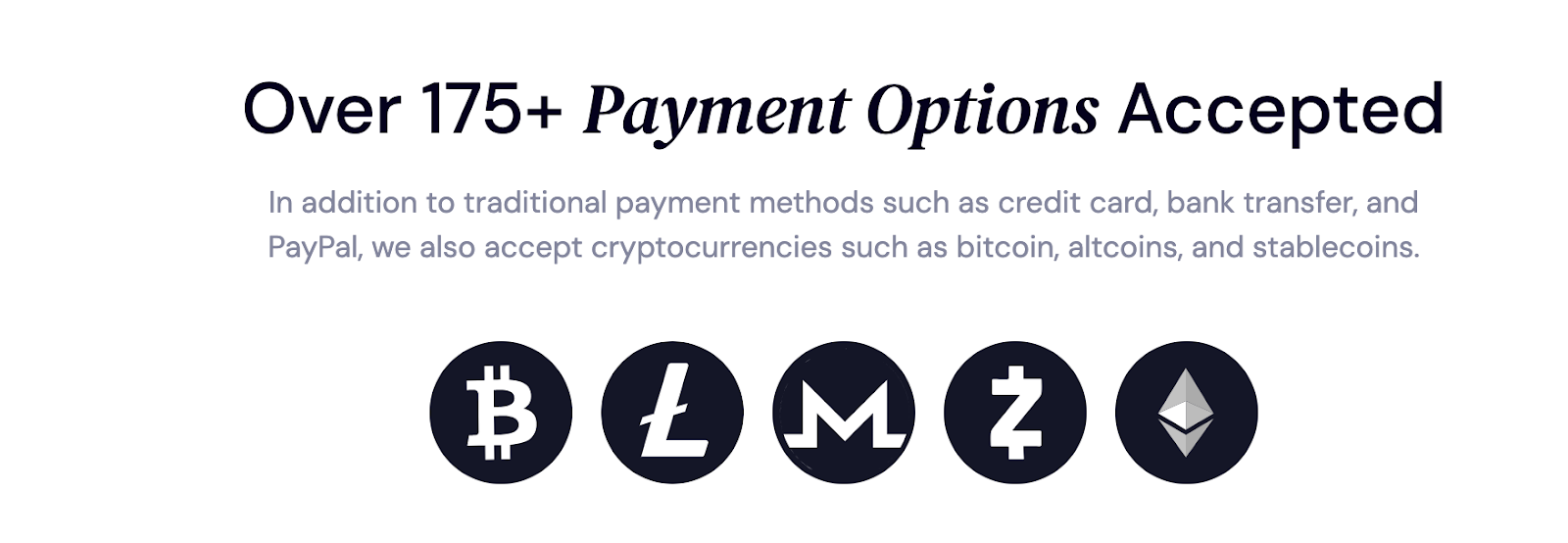
If you haven't added your card yet, click 'Add a new card'. You can also choose cryptocurrencies as your payment option we accept Bitcoin, altcoins, and stablecoins!
Trustname Promo Code – WELCOME777
As we mentioned earlier, our transfer fees are pegged at $14.99/year, including ICANN, processing and taxes
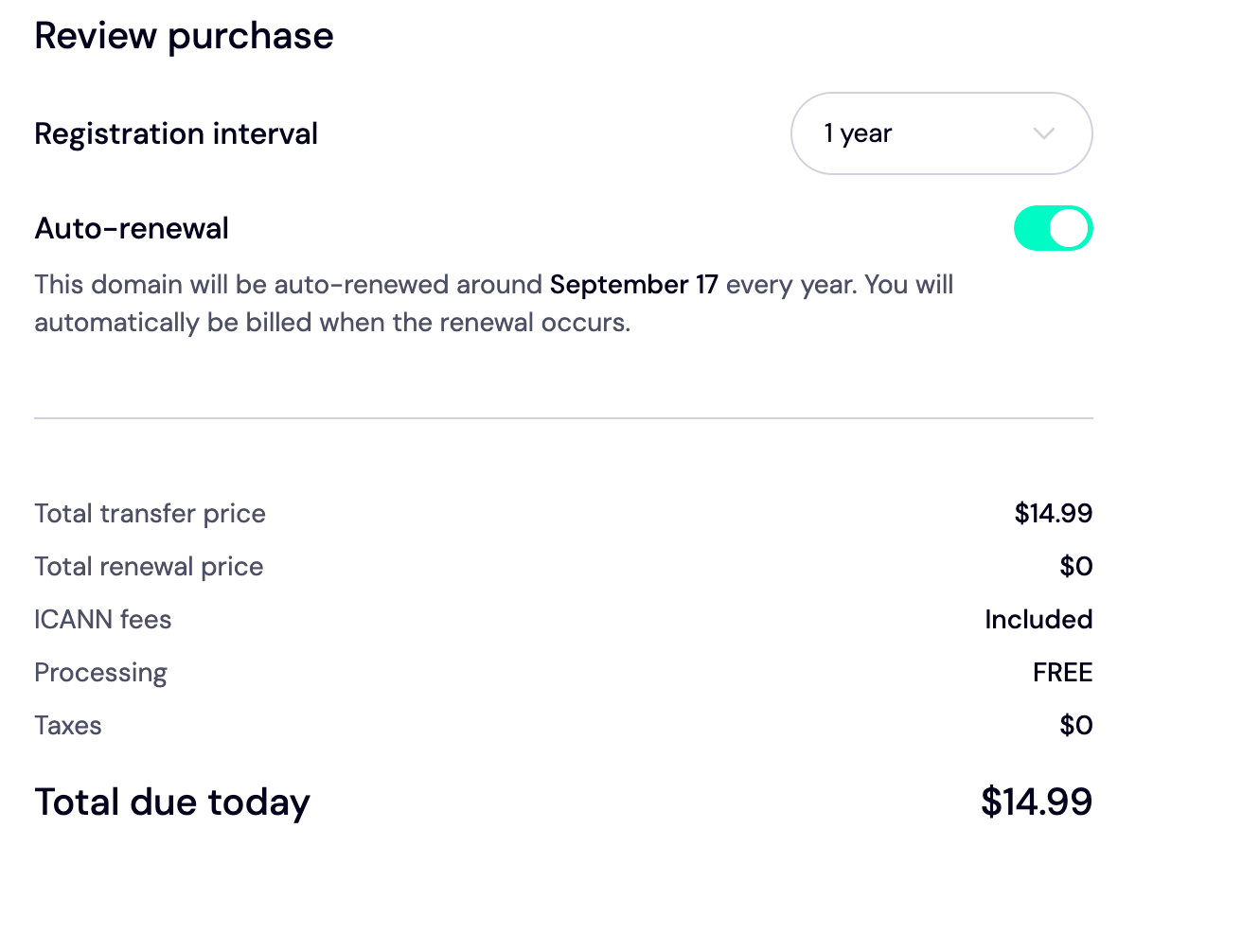
As a first time registrant, you can enjoy a 50% discount on the transfer fees when you use our promo code-WELCOME777. We also give you an extra 1 year on your domain's current expiry date.
However, this promo doesn't apply to the renewal fees. When you're ready to renew your domain (or register your domain for more than a year), you have to pay the standard renewal price $14.99. This includes all the fees for domain essentials, ICANN, and taxes!
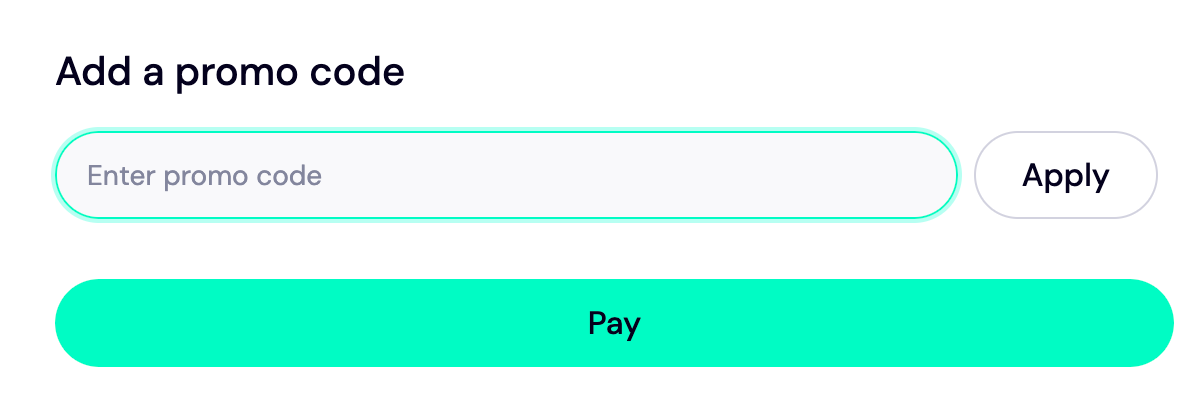
To enjoy the promo code, enter WELCOME777 in the 'Add a promo code' section
Choose The Duration For Your Registration
As with other domain registrars, you can only register your domain for between 1 to 10 years at a time
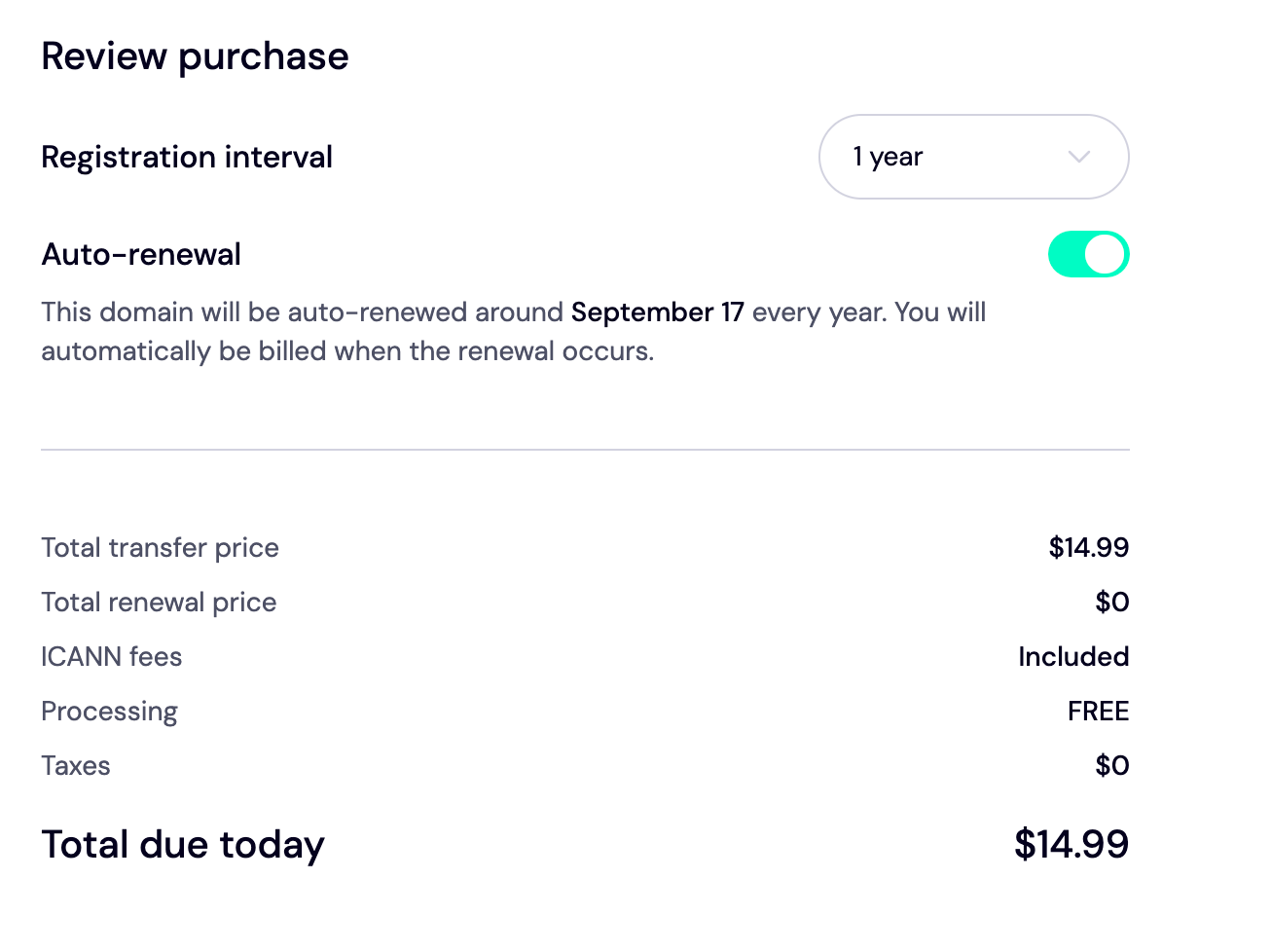
Once you've chosen your registration interval, move on to the next step.
Always enable auto-renewal on your domain account to prevent your domain from expiring without notice.
Make Your Payment
Now that everything has been checked, go ahead and click 'Pay' on your screen. Voila! Your domain name will arrive in Trustname within 5 to 7 days.
Welcome to Trustname!
Safeguarding Your Domain At Trustname
You're officially a Trustname user! Now that you have transferred your domain to us, we've provided the domain management essentials to help you secure and manage your account without any strain! Listed below are a few of them
- Verify DNS Settings
Trustname allows you to edit, manage, and configure your domain name servers and DNS records.
How To Review Your Domain Nameservers
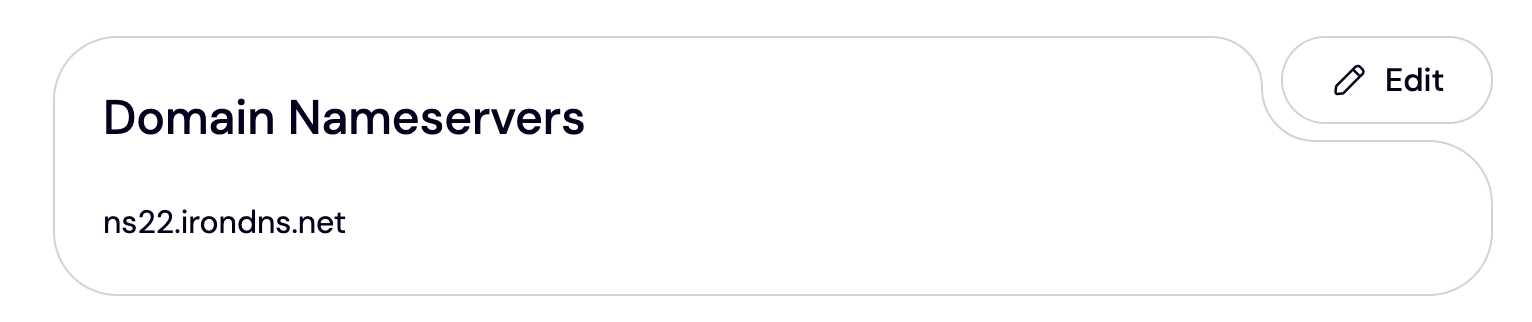
Head over to your customer portal and select 'Domains >>> Registered Domains >>> Select Domains'. The nameservers for your domain are listed under the Domain Nameservers section
How To Check Your DNS Record
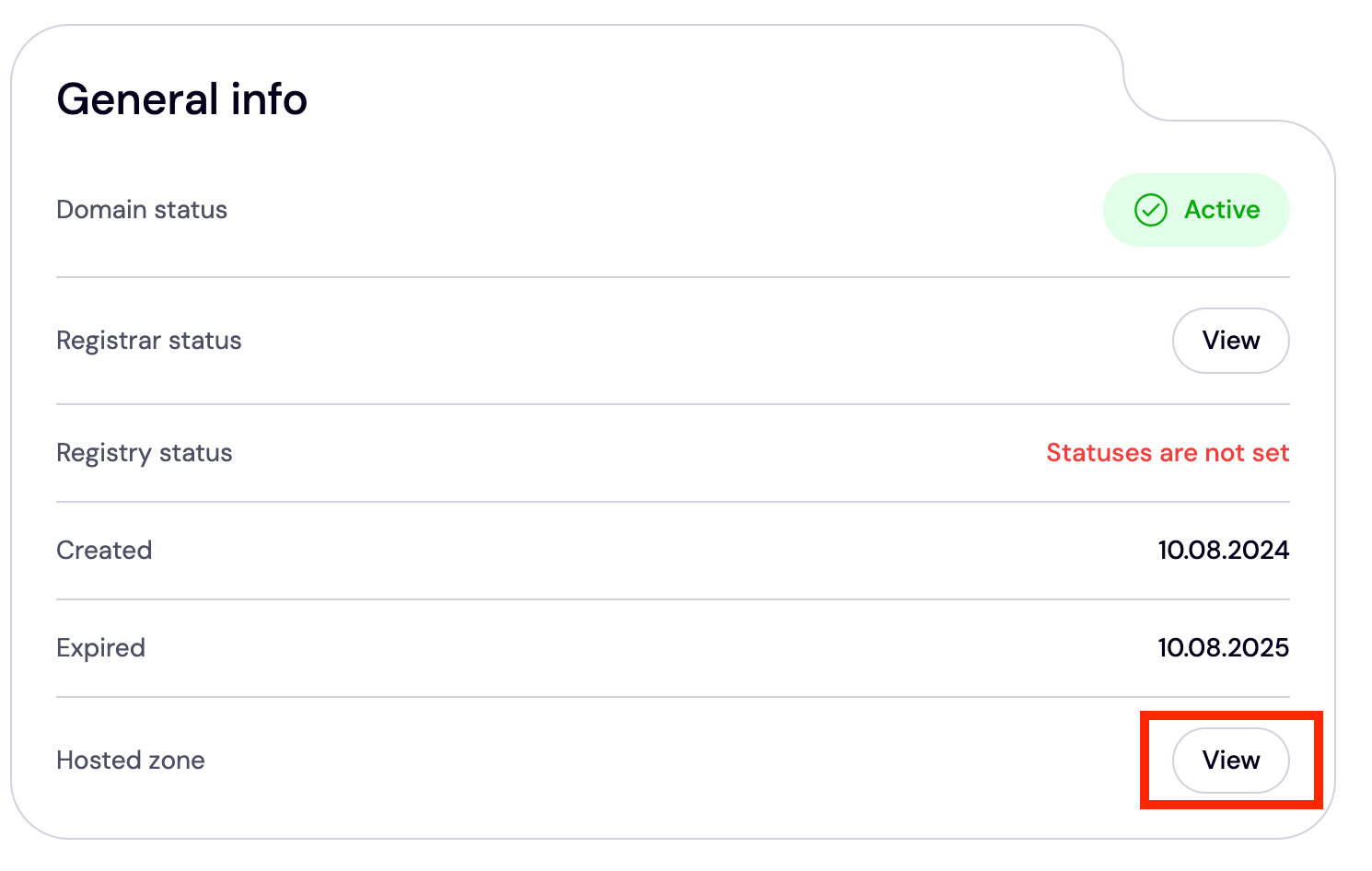
Right on the same page, navigate to 'General Info' (you'll find it at the top of the page). Check for 'Hosted Zone' and click 'View'.
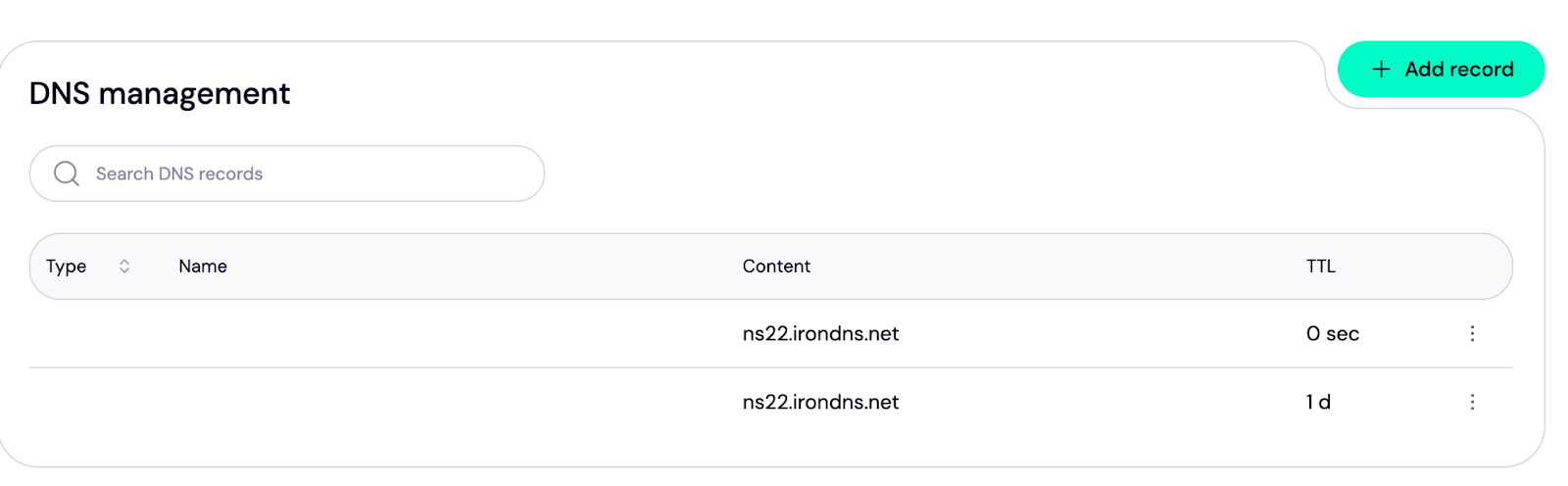
Then, you'll be redirected to the DNS management page. Here, you can add or remove existing DNS records, change your nameservers, and enable DNSSEC
- Set Up Two Factor Authentication (2FA)
Two-factor authentication helps to protect your account from hackers, even when your password has been compromised.
Before anyone can access your account (even with your login details), they'll need a code generated from an authentication app on your mobile device. You can set this up on your Trustname account in a few clicks.
How To Set Up 2FA On Your Trustname Account
On your customer portal, click 'My Profile' at the top right corner. From the drop-down menu, select 'Account Settings' to be redirected to the settings page. Scroll down to the 'Two-factor authentication (2FA)' section and click the toggle button.
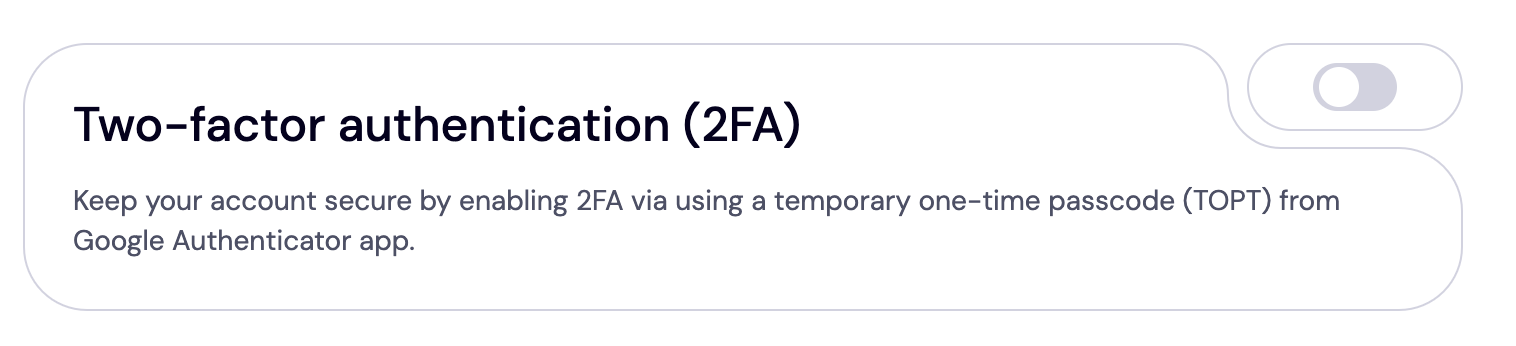
A QR code and secret key will be displayed on your screen.
Next, download an authenticator app from your device's Google Play Store or Apple App Store. We recommend Google Authenticator because it's easy to set up and use.
Once you've created your account on the app, locate the 'Scan QR' code to scan the QR code displayed on your screen. You can also input the setup key as an alternative, although it might take longer to do so manually.
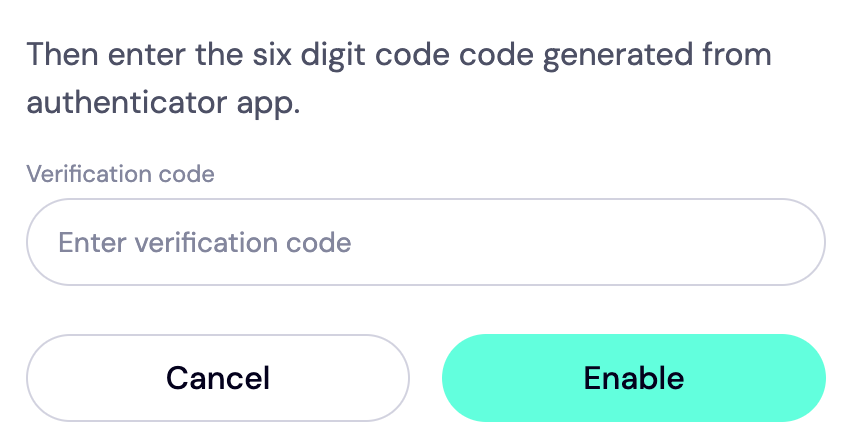
Almost immediately, a six digit code will pop up on the authenticator app. Copy and paste this code into the Trustname portal. Lastly, click 'Enable', and you're all set.
[+] [Callout] Info Insert title here [+] [Callout] Title/Title with Icon -> Your authenticator app will provide backup codes in case you lose or cannot access your device. Store this code in a notepad or text editor file.
Read More: How to set up two-factor authentication (2FA) on Trustname.
- Use Domain Lock
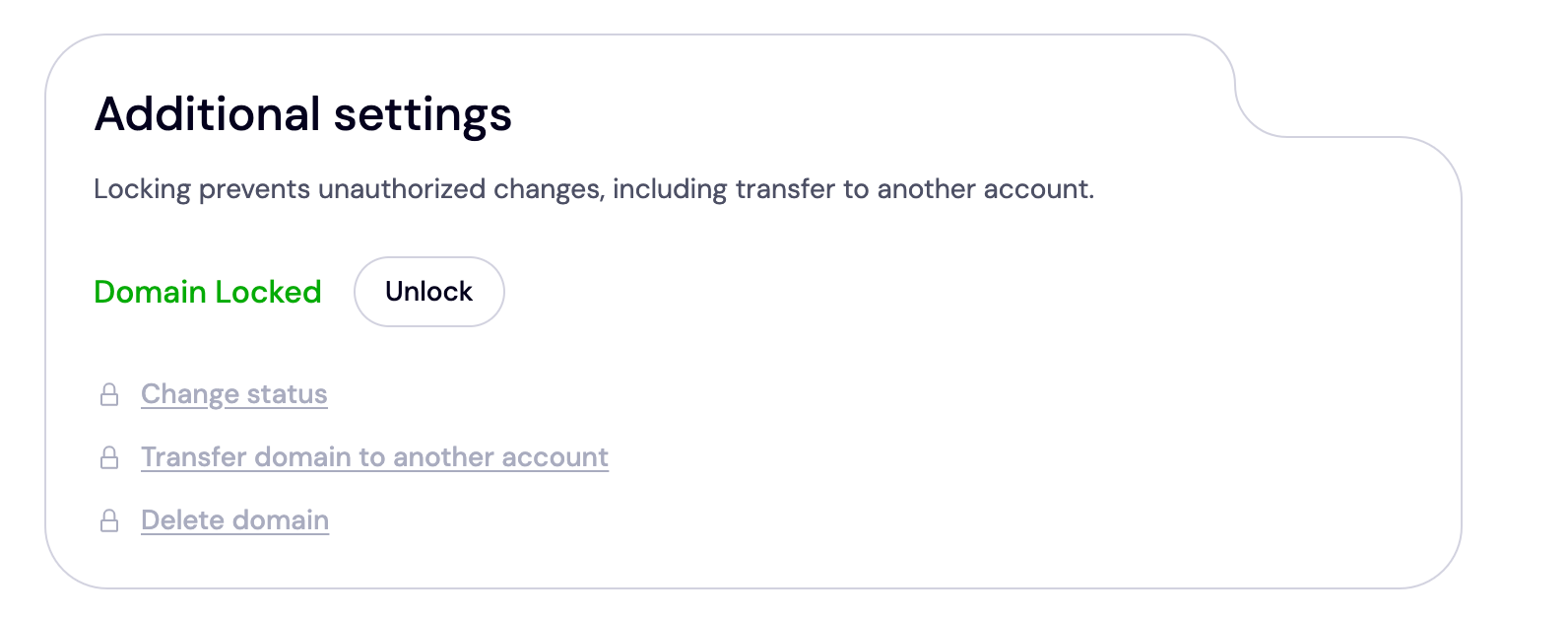
When you transfer your domain to us, we automatically lock your account to prevent unauthorized transfers or changes. You can always turn it off/on when needed.
To check if this is active on your domain, head over to 'Domain >>> Registered domains >>> Select a domain'. Then, navigate to the 'Additional settings' section at the near bottom of the page
- Enable Two-Tier Domain Privacy Protection
Once your domain is listed with us, we automatically enable the second tier of our domain privacy protection the standard Whois privacy common to most domain registrars.
This feature masks your contact details from the public Whois database by replacing them with an alias from one of our proxy companies. Unlike Web.com, this feature is entirely free, and you can enable/disable it from your account at any time.
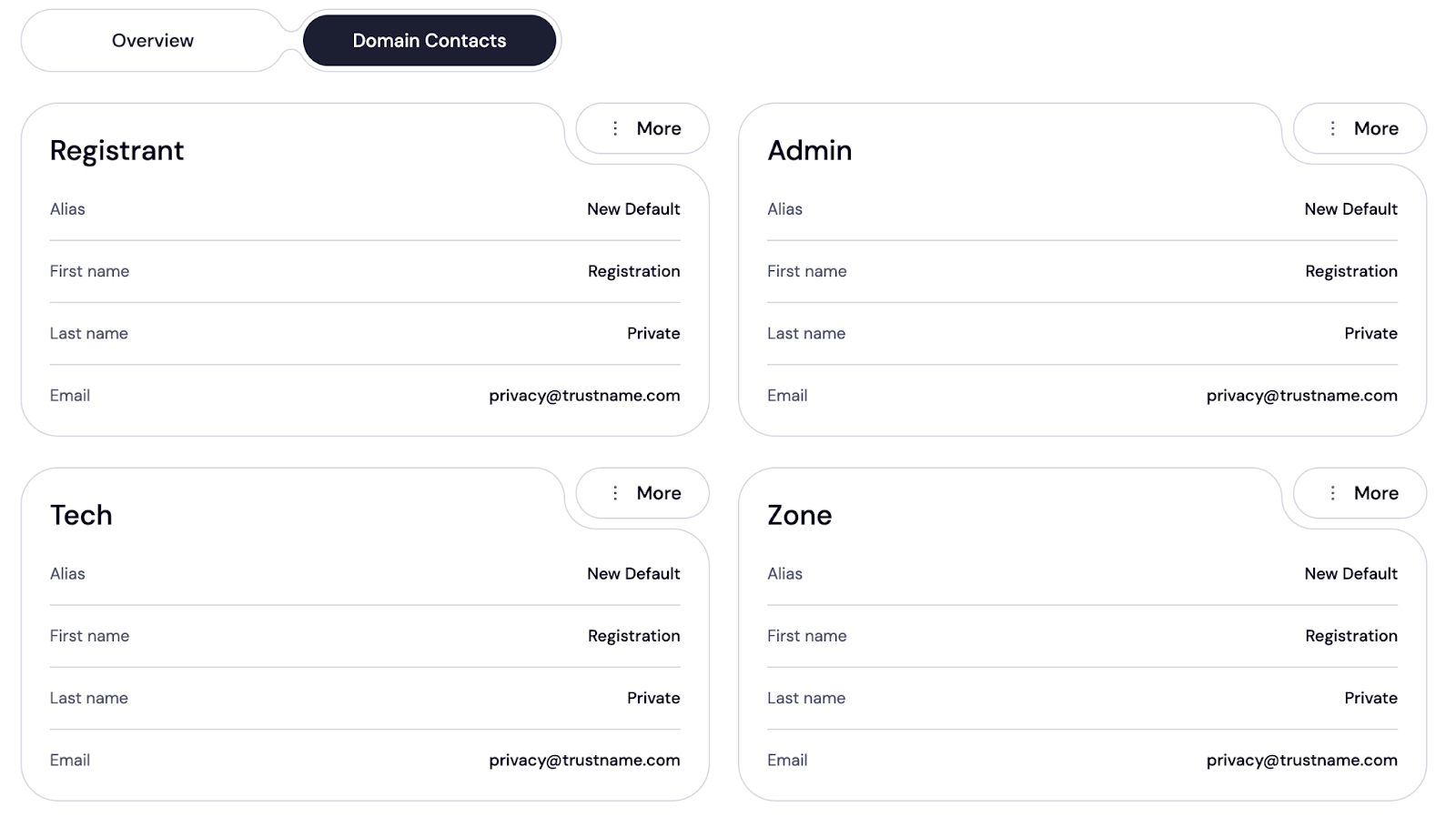
If you choose 'Use a pre-defined contact' as your contact details when registering for your account with us, congratulations! You're now using the Trustname two-tier domain privacy. This is the first tier of our proprietary domain privacy protection.
We created this system to provide optimum privacy for our customers, who can easily revert to their original details at any time.
To check if you're using the Two Tier domain privacy, navigate to 'Domains >>> Registered Domains >>> Domain Contacts'. Your contact details should appear like this
Read more: Trustname Two Tier Domain Privacy Protection and how it works.
Can You Get A Free Domain Transfer?
No, Trustname doesn't offer free domain transfers. But we have a better deal that'll save you money in the long run.
First off, our transfer fees are among the lowest in the industry Web.com charges $50! If you use our promo code, you'll only need to pay $7.77. This covers ICANN fees, taxes, and the costs of all the domain management tools.
Guess what? That's not all.
After payment, we will add an extra year to your domain expiration date. This means that if your domain's expiry date is 12 September 2024, after registering with us, it will change to 12 September 2025.
Troubleshooting Failed Domain Transfers
Even though we've put all the measures in place to enable you to transfer your domain to us, we can't deny that errors still occur. If your domain transfer failed, we're sorry. Here are some common issues that cause domain transfer errors and how to solve them
- Wrong Authorization Code
The auth code is a combination of numbers and letters, and it's possible to make mistakes when entering it manually. If your transfer failed, it's likely due to an incorrect authentication code.
What To Do:
Copy the code directly from the email from your previous registrar and paste it on the Trustname transfer portal.
- Domain Is Not Eligible For Transfer
If your domain is under a lock (either the domain or ICANN), you have to remove the lock before initiating a transfer. While it's easy to turn off the domain lock, the ICANN lock is placed on your account and will not be removed until after 60 days.
This happens if you've recently bought a domain, transferred your domain to another registrar, or made changes to the registrant's contact details.
What To Do:
Verify your domain isn't under this lock before transferring.
- Failure To Approve The Transfer On Trustname
Once your domain has been transferred to Trustname, you still need to approve it in your customer portal before it appears in your account.
What To Do:
Go to 'Domains >>> Transfers >>> My Transfers'. Locate your domain on the 'Transfer In' page. It'll be tagged 'Pending', so click on the three dotted menu to 'Accept' the transfer.
- Missing Approval Requests
If you use your contact details when registering your domain, you must verify them before the transfer is completed.
What To Do:
Constantly refresh your email inbox for our instructions on how to do this.
- The domain Lock Is Still Active.
Another reason your domain may fail is a domain lock, also called clienttransferProhibited. Your registrar places the lock, which you can easily turn off on your profile.
What To Do:
Head over to your Web.com account to see if there's a domain lock on it.
If you have just recently
[+] [List] Green Ordered - Updated your registrant and admin name and email address.
- Merge user IDs.
- Changed registrant contact details.
Web.com imposes a 60 day registrar lock on your account, and you won't be able to transfer your domain.
Rounding Up
If you are looking for an alternative to Web.com, Trustname is undoubtedly the best option. It offers affordable pricing with zero hidden fees, an uncluttered user interface, and all the essential features to protect/manage your domain for free, out of the box.
To transfer your domain from Web.com to Trustname, you'd need to obtain the authentication code, unlock your domain, turn off domain privacy protection, and update your domain contact details.
Then you head to Trustname's transfer portal, enter your domain name, submit the authentication code, specify your domain contact (or use our predefined contact), and make a payment.
For our transfers, we charge a standard fee of $7.77 and extend your domain's current expiry date by 1 year to ensure you never lose it. See you onboard!